Starting Remote UI
94LS-097
T
o use Remote UI, enter the IP address of the machine into a Web browser on a computer, and log in with System
Manager Mode or General User Mode. The functions available with Remote UI vary depending on the mode you
logged in to.
Required Preparations
● Check the oper
ating environment of Remote UI.
Supported Environment(P. 36)
● Connect the computer you ar
e using to operate Remote UI to the machine over a network.
Setting Up the
Network(P
. 50)
● Check the IP address of the machine.
Checking the Network Status and Settings(P. 89)
1
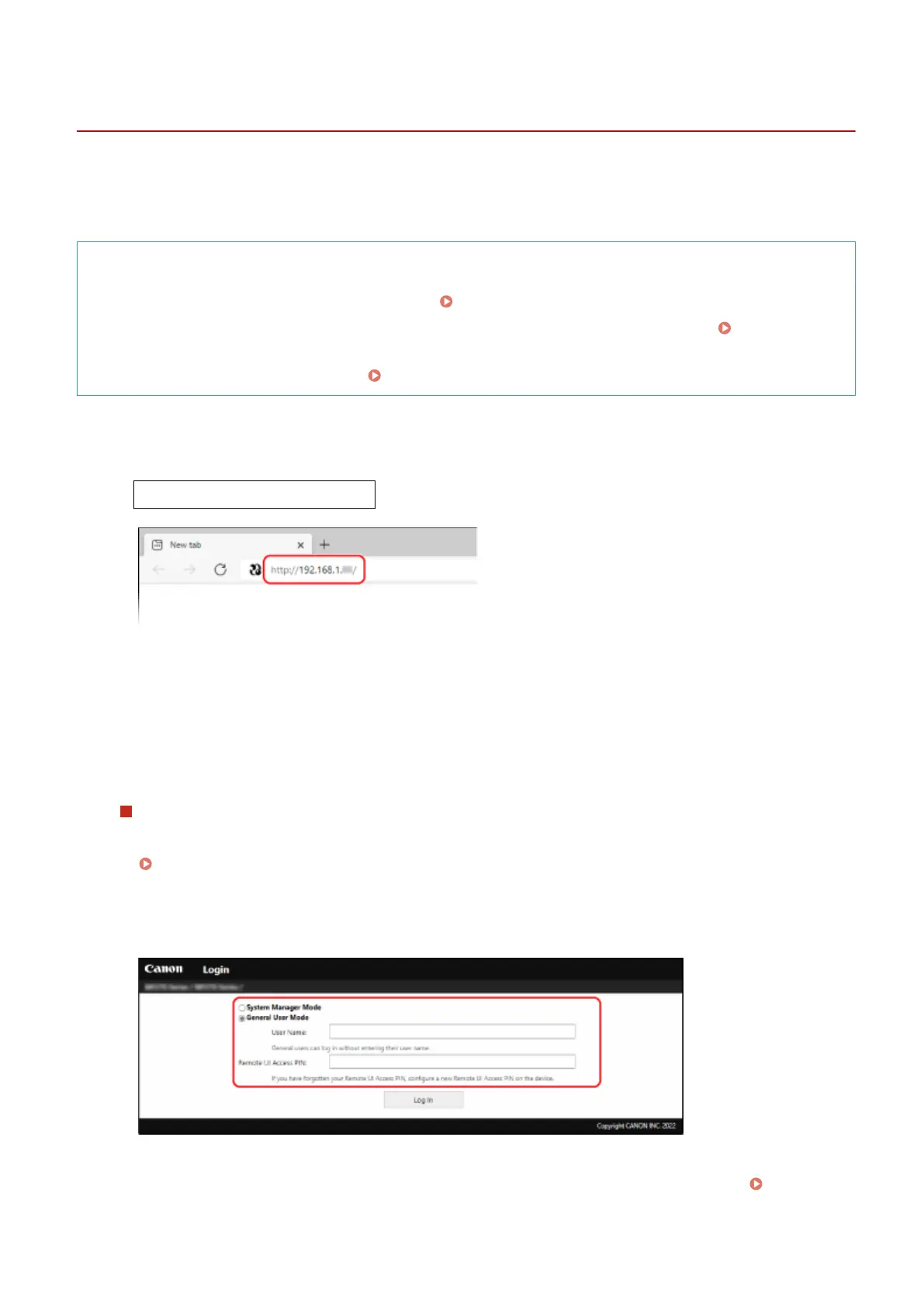
From a Web browser on a computer, access the following URL.
http://<IP address of the machine>/
➠ The Remote UI login screen appears.
When Remote UI communication is encrypted, a warning message about the security certicate may
appear. If there are no problems with the certicate or TLS settings, you can continue operations.
When entering an IPv6 address, enclose the IP address in brackets [ ].
Example:
http://[fe80:2e9e:fcff:fe4e:dbce]/
If the Remote UI Login Screen Is Not Displayed
When a message such as [Cannot access Remote UI.] is displayed and the login scr
een is not displayed, see
the following:
Cannot Access Remote UI(P. 556)
2
Select [System Manager Mode] or [General User Mode], and enter the items required
for login.
[System Manager Mode]
When the System Manager ID is set, enter the System Manager ID and System Manager PIN. System
Manager ID and PIN(P
. 5)
Managing the Machine
350











 To Next Page