Adjusting the Print Density
94LS-0E0
If print r
esults are too dark or too faint, adjust the print density.
Use the operation panel to perform adjustment. You cannot perform adjustment using Remote UI from a computer.
Touch Panel Model(P. 480)
5 Lines LCD Model(P. 480)
Touch Panel Model
1
On the operation panel, press [Menu] in the [Home] screen.
[Home] Screen(P. 113)
2
Press [Adjustment/Maintenance] [Adjust Image Quality] [Printer Density].
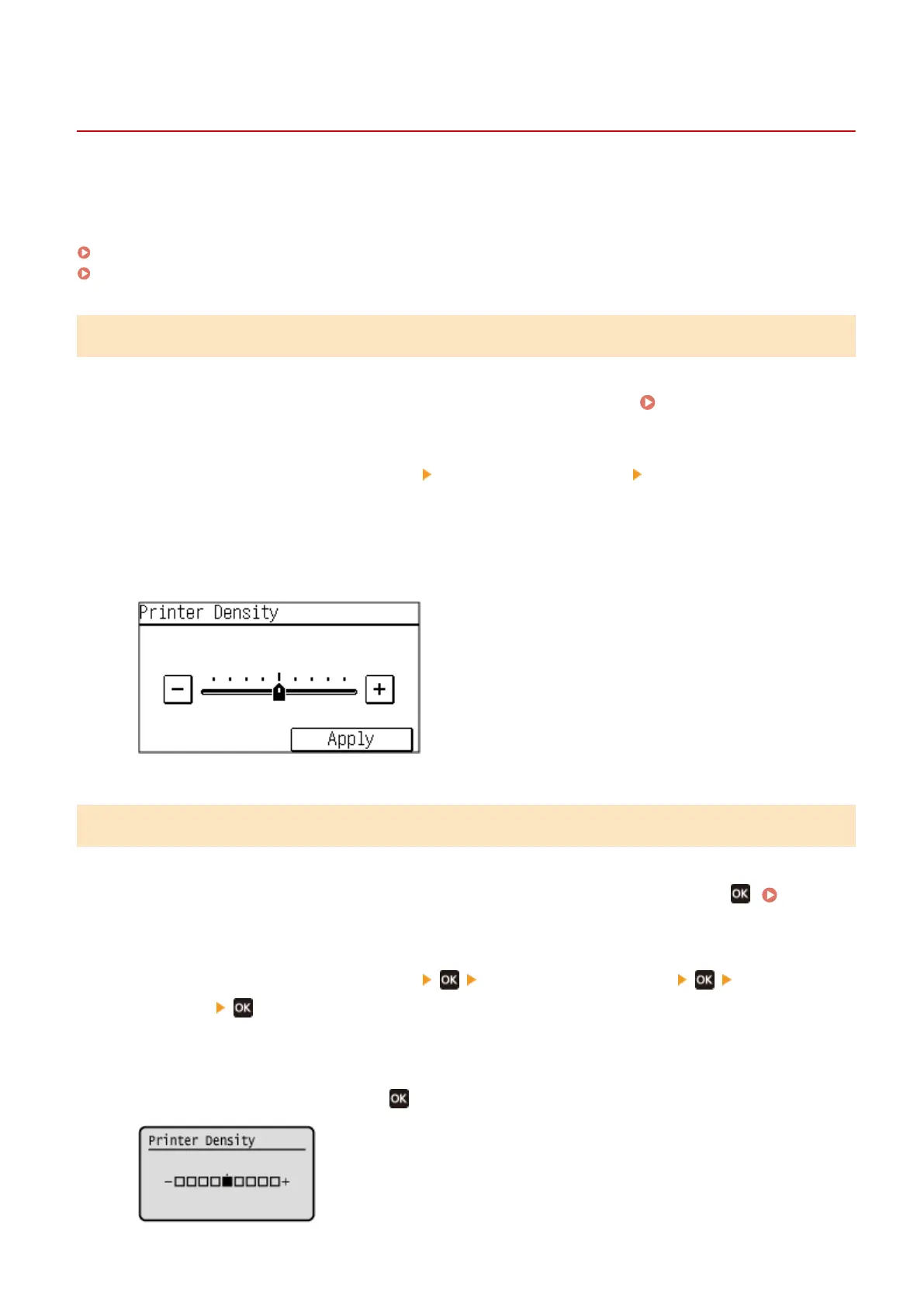
➠ The [Printer Density] scr
een is displayed.
3
Adjust the density, and press [Apply].
Specify [+] to increase the density and [-] to reduce it.
5 Lines LCD Model
1
On the operation panel, select [Menu] in the [Home] screen, and press
. [Home]
Scr
een(P. 113)
2
Press [Adjustment/Maintenance]
[Adjust Image Quality] [Printer
Density] .
➠ The [Printer Density] scr
een is displayed.
3
Adjust the density, and press
.
Maintenance
480











 To Next Page