Cannot Access Remote UI
94LS-0H7
If the message [Cannot access Remote UI.] or [Cannot continue the settings because the function to perform settings
for the de
vice is restricted.] appears and you cannot access Remote UI, troubleshoot by checking the items below.
Set the Remote UI Access PIN.
To access the Remote UI, you must set the Remote UI Access PIN.
Administr
ator privileges are required to congure the setting.
Touch Panel Model
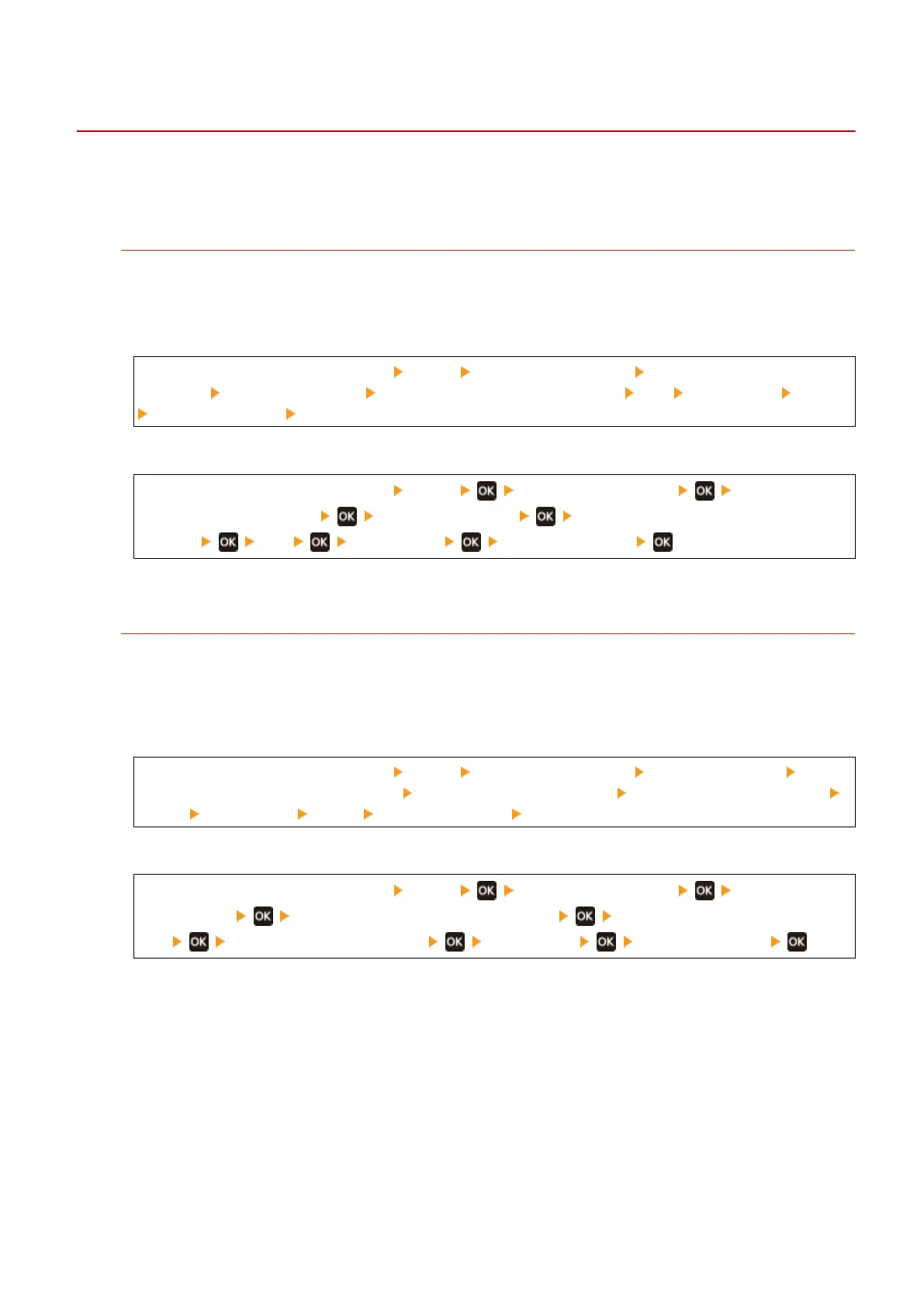
[Home] screen on the operation panel [Menu] [Management Settings] [Remote UI Settings/Update
Firmwar
e]
[Remote UI Settings] [Remote UI Access Security Settings] [On] enter the PIN [Apply]
enter the PIN again [Apply]
5 Lines LCD Model
[Home] screen on the operation panel [Menu] [Management Settings] [Remote UI
Settings/Update Firmwar
e]
[Remote UI Settings] [Remote UI Access Security
Settings] [On] enter the PIN enter the PIN again
* You cannot set a PIN consisting of all zeros, such as "00" or "0000000."
Change the System Manager PIN.
When logging in with System Manager Mode, you must change the System Manager PIN from the default
settings.
Administr
ator privileges are required to change the settings.
Touch Panel Model
[Home] screen on the operation panel [Menu] [Management Settings] [User Management]
[System Manager Information Settings] [System Manager ID and PIN] enter the System Manager ID
[Apply] enter the PIN [Apply] enter the PIN again [Apply]
5 Lines LCD Model
[Home] screen on the operation panel [Menu] [Management Settings] [User
Management] [System Manager Information Settings] [System Manager ID and
PIN] enter the System Manager ID enter the PIN enter the PIN again
* You cannot set a System Manager ID or PIN consisting of all zeros, such as "00" or "0000000."
* Only allo
w certain administrators to have access to the System Manager ID and PIN after the settings are
changed.
Troubleshooting
556











 To Next Page