Updating the Firmware (Touch Panel Model)
94LS-09K
When functions ar
e added or the software version is upgraded, the rmware of the machine is updated.
Check the version of the rmware, and update the rmware via the Internet or a computer according to the usage
environment of the machine.
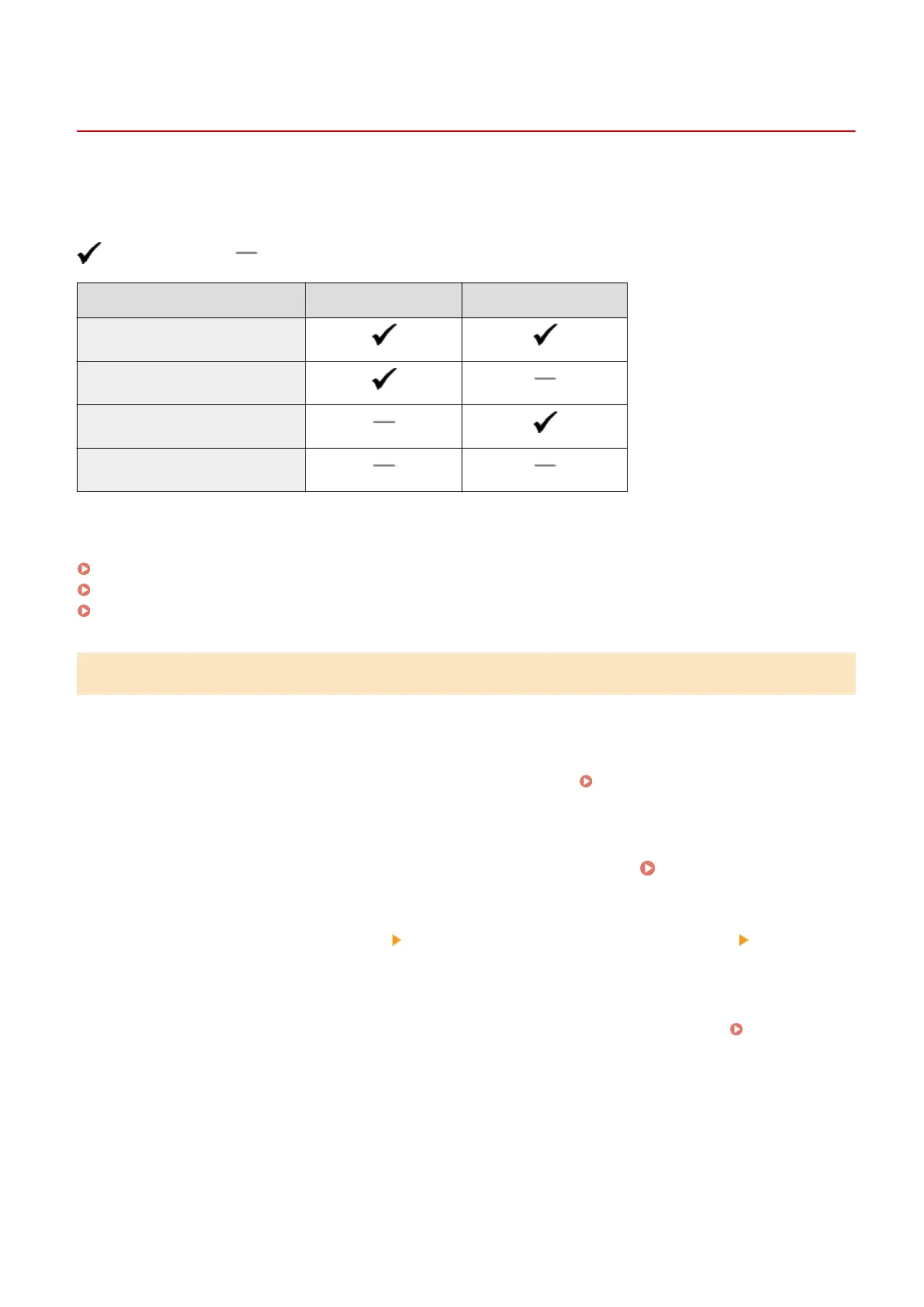
: Can be updated : Cannot be updated
Usage environment of the machine Connection via Internet Connection via computer
Wired LAN connection
Wireless LAN connection
USB connection
Use IPv6
* You cannot update the rmwar
e in an IPv6 Environment. Connect the machine to a computer via USB, and update
from the computer.
Checking the Firmware Version(P. 366)
Updating the Firmware via the Internet(P. 367)
Updating the Firmware via a Computer(P. 367)
Checking the Firmware Version
Check the current version of the rmware before updating it, and then check the version after updating to see if the
update was performed correctly.
This section describes how to check the rmware version using the operation panel.
You can also use Remote UI from a computer to check the rmware version. Managing the Machine from a
Computer (Remote UI)(P
. 349)
Administrator privileges are required.
1
On the operation panel, press [Menu] in the [Home] screen.
[Home] Screen(P. 113)
2
Press [Management Settings] [Remote UI Settings/Update Firmware] [Update
Firmware].
➠ The [Update Firmware] screen is displayed.
If the login screen appears, enter the System Manager ID and PIN, and then click [Log In]. System
Manager ID and PIN(P
. 5)
3
Select [Version Information].
➠ Displays the curr
ent version of the rmware.
Managing the Machine
366











 To Next Page