Text or Images Are Blurry
94LS-0EJ
T
roubleshoot by checking the following steps:
Step 1: Checking the Paper(P. 506)
Step 2: Checking the Usage Environment of the Machine(P. 506)
Step 3: Checking the Special Processing Settings(P. 507)
Step 1: Checking the Paper
Are You Using Appropriate Paper?
Check whether the paper in the machine is usable, and replace it with appropriate paper, as needed.
Usable Paper(P. 20)
Loading Paper(P. 133)
Step 2: Checking the Usage Environment of the Machine
Are You Using the Machine in an Environment with Low Humidity?
Setting [Low Humidity Mode] to [Mode 1] may solve the problem. If that does not work, try selecting [Mode 2]
and then [Mode 3] in sequence.
T
ouch Panel Model
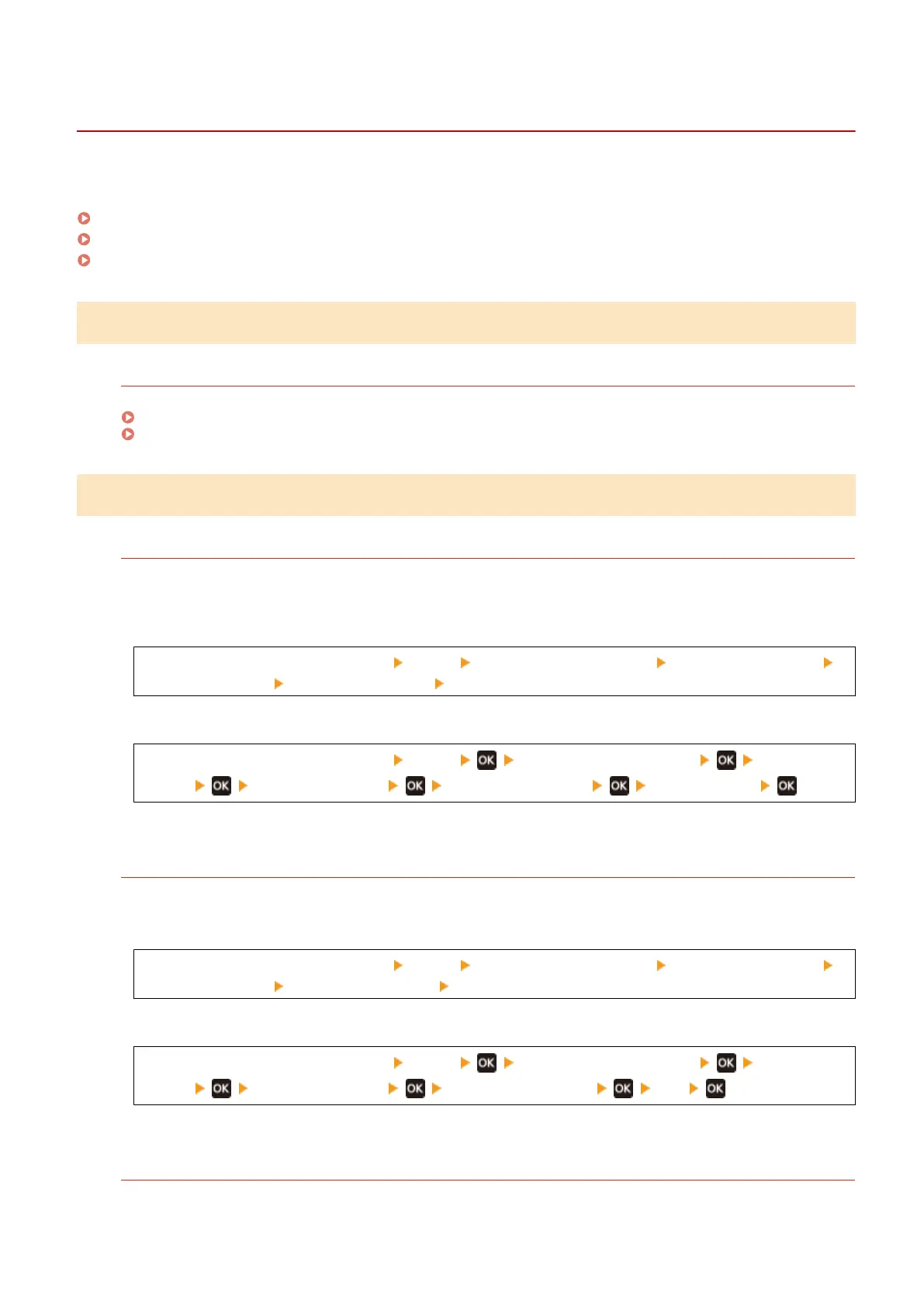
[Home] screen on the operation panel [Menu] [Adjustment/Maintenance] [Adjust Image Quality]
[Special Processing] [Low Humidity Mode] select the mode
5 Lines LCD Model
[Home] screen on the operation panel [Menu] [Adjustment/Maintenance] [Adjust Image
Quality] [Special Processing] [Low Humidity Mode] select the mode
* Enabling this setting may reduce the density or create fading in a humid environment.
Ar
e You Using the Machine in a Humid Environment?
Setting [High Humidity Mode] to [On] may solve the problem.
T
ouch Panel Model
[Home] screen on the operation panel [Menu] [Adjustment/Maintenance] [Adjust Image Quality]
[Special Processing] [High Humidity Mode] [On]
5 Lines LCD Model
[Home] screen on the operation panel [Menu] [Adjustment/Maintenance] [Adjust Image
Quality] [Special Processing] [High Humidity Mode] [On]
* Setting this to [On] may blur images and text in an environment with low humidity.
Ar
e You Using the Machine in an Environment with Sudden Temperature Changes?
Sudden temperature changes can create condensation, which can result in faded or blurry images and text.
Continuing to use the machine under these conditions may r
esult in paper jams, printing defects, faults, or
Troubleshooting
506











 To Next Page