Scanning Using the Shortcut Key
94LS-0JA
This r
egisters the scan settings and the computer where scanned data will be saved to a shortcut key so that you can
quickly perform a scan from [Home] screen on the operation panel.
Registering the Scan Settings and a Computer as the Save Location in the Shortcut Key(P. 207)
Using the Shortcut Key(P. 209)
Required Preparations
● Mak
e preparations such as installing the scanner driver (ScanGear MF) and application (MF Scan Utility) to
the computer used as the save location.
Preparing to Save Scanned Data to a Computer(P. 202)
● If the ScanGear MF scr
een appears on the computer used as the save location, close the screen.
Registering the Scan Settings and a Computer as the Save Location in the
Shortcut Ke
y
Use the operation panel to congure the settings. You cannot congure the settings using Remote UI from a
computer.
Touch Panel Model(P. 207)
5 Lines LCD Model(P. 208)
◼ T
ouch Panel Model
1
On the operation panel, press [Menu] in the [Home] screen.
[Home] Screen(P. 113)
2
Press [Function Settings] [Send] [Scan and Send Settings].
3
Press [Shortcut Key Settings] [Register]
4
Select the shortcut key to which you want to register settings.
5
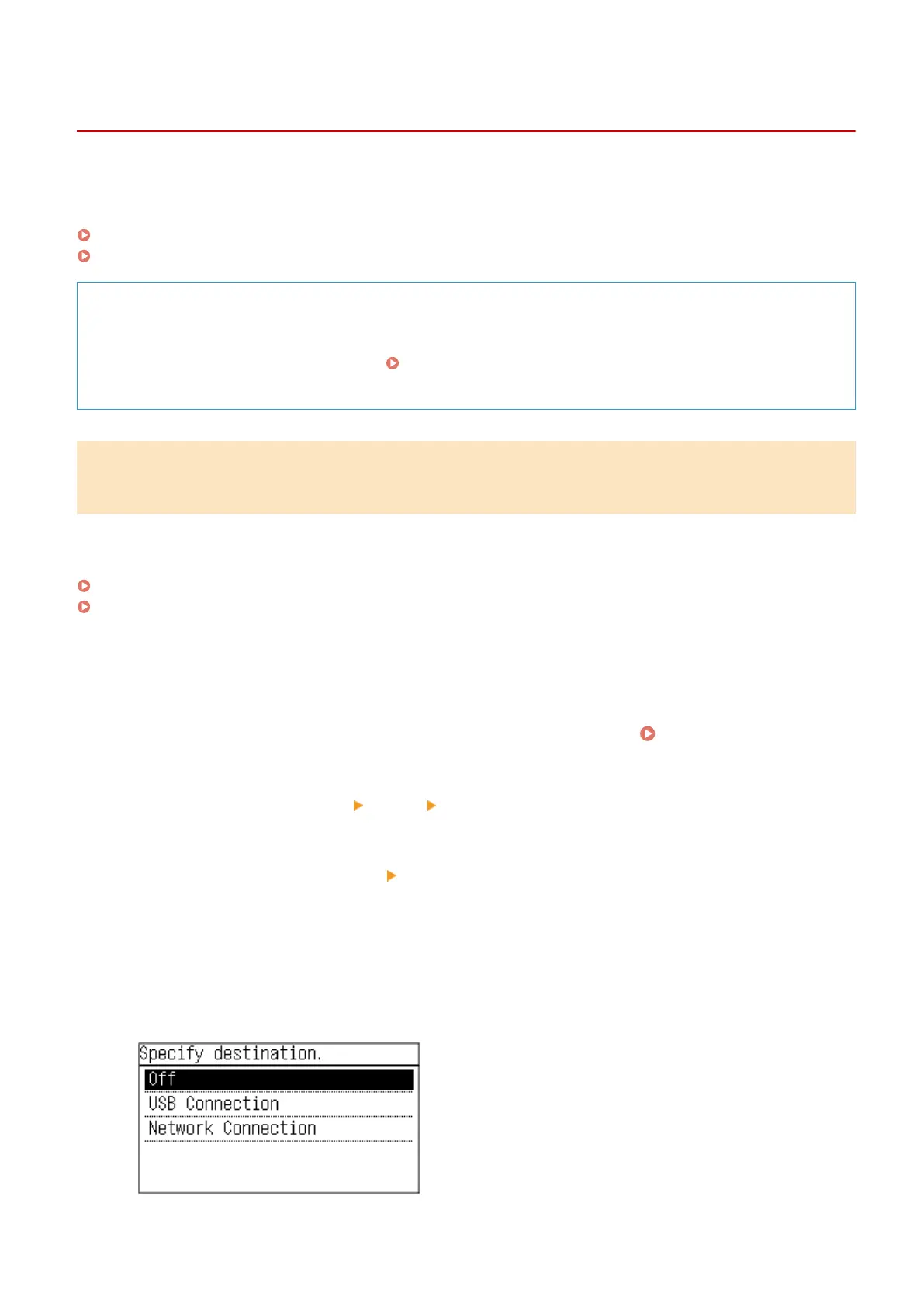
Select the method for connecting to the computer to be used as the save location.
Scanning
207











 To Next Page