Checking Usage and Logs with Remote UI
94LS-099
Fr
om Status Monitor/Cancel in Remote UI, you can check the status and logs of a function, operation status of the
machine, and error information.
1
Log in to Remote UI.
Starting Remote UI(P. 350)
2
On the Portal page of Remote UI, click [Status Monitor/Cancel]. Portal Page of
Remote UI(P
. 352)
3
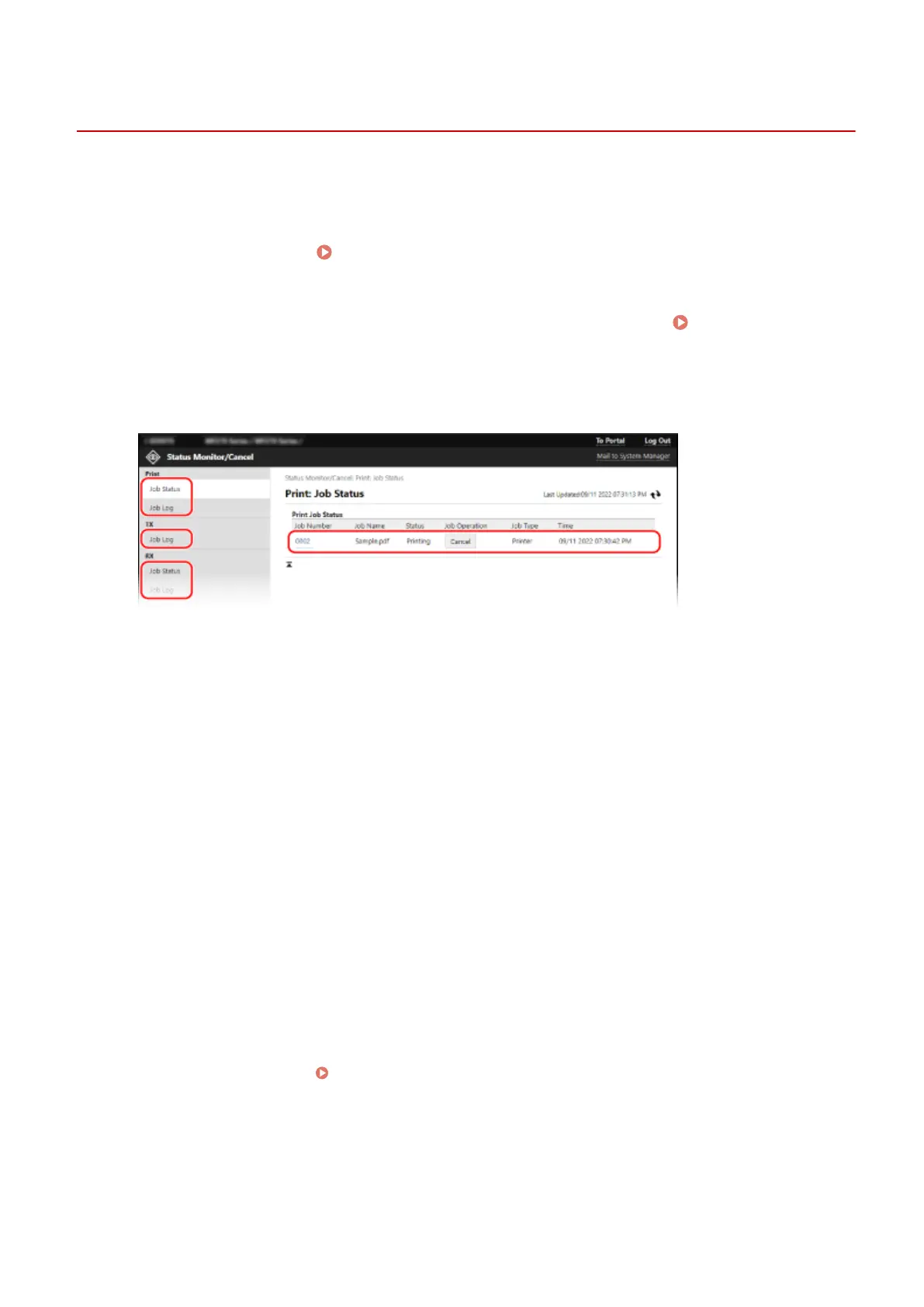
Select an item to view the status or log.
[Print]
[Job Status]
Displays the status (Printing or Waiting) of printed data.
If you logged in with Administrator Mode, this displays the print status for all jobs.
If you entered your user name in [User Name] when you logged in with General User Mode, only the print
job status for that user is visible.
● Click [Job Number] for paused prints to display print details and view the user name and number of
printed sheets.
● Click [Cancel] in [Job Operation] to delete the print data for jobs that are printing or waiting.
[Job Log]
Displays the print job log.
[TX]
[Job Log]
Displays the TX job log for scan and fax jobs.
[RX]
[Job Status]
Displays the RX job status for fax.
With preview in Memory Lock enabled, you can view the fax details and print the fax when logged in with
System Manager Mode. Saving Received Documents in the Machine (Memory Lock) (Touch Panel
Model)(P
. 332)
[Job Log]
Displays the RX job log for fax.
[Forward]
[Forwarding Errors]
Managing the Machine
354











 To Next Page