Scanning from a Computer
94LS-05L
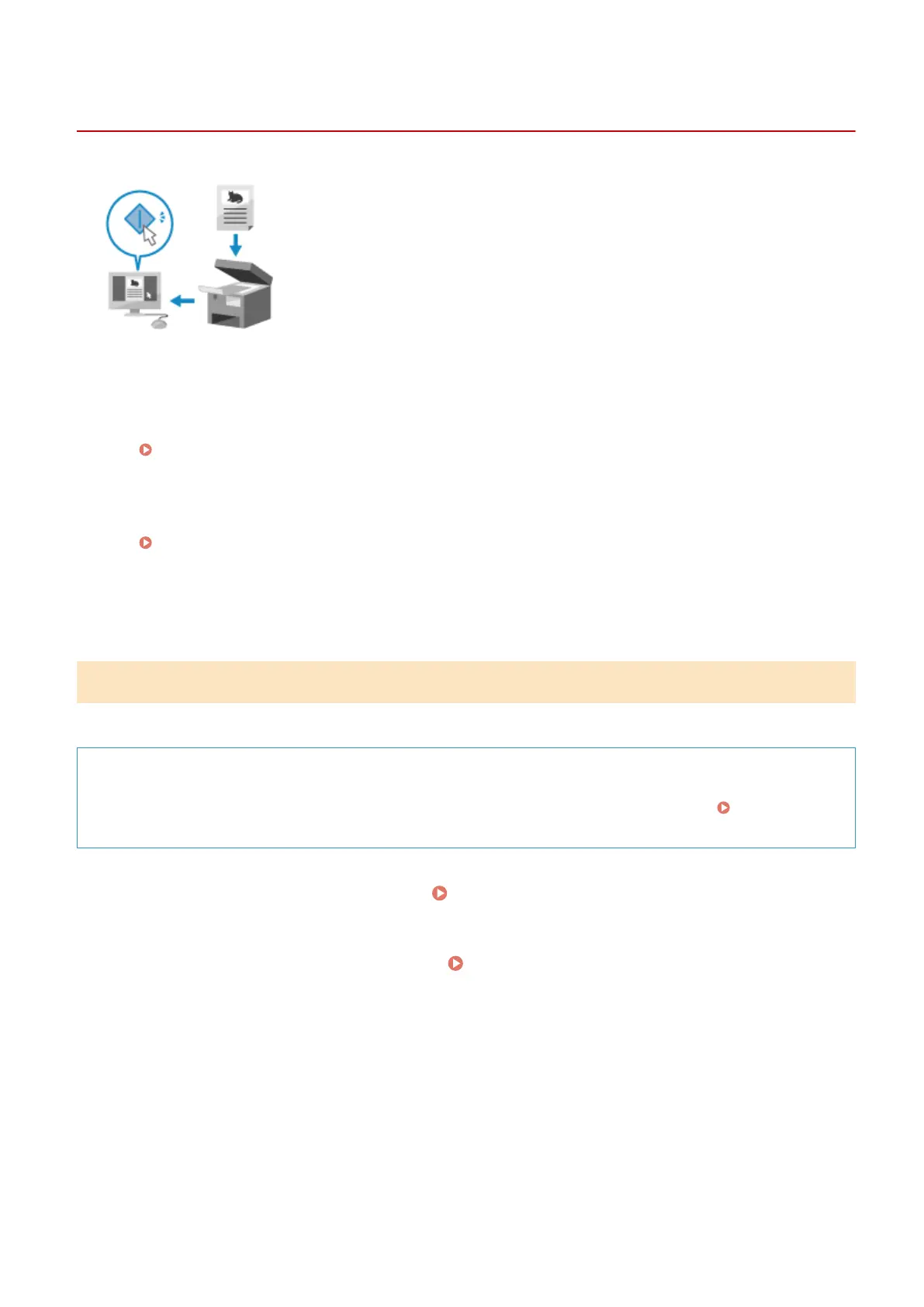
You can scan an original and save the scanned data to a computer connected to the
machine. Y
ou can set the format and save location when scanning from a computer.
This method lets you see the scanned data immediately on the computer screen so
you can check the image quality and make adjustments.
Use either of the following applications to perform scanning.
Dedicated application (MF Scan Utility)
Scan easily using the setting to suit your purpose. Send scanned data to a specied application to display it
and send it b
y e-mail. You can also use the ScanGear MF screen to congure advanced settings.
Using a Dedicated Application to Perform Scanning - MF Scan Utility(P. 211)
Other TW
AIN- and WIA-supported Applications
You can also use image processing software, document software, and other applications that support
TWAIN
*1
or WIA
*2
. Scanned data is imported directly to the application for immediate editing and processing.
Check the manual of the application you are using to see if it supports TWAIN or WIA.
Scanning Using Other TWAIN- and WIA-supported Applications(P. 212)
*1
TW
AIN is a standard for connecting a scanner or other image input device to a computer.
*2
WIA is a function that comes standard in Windows.
Using a Dedicated Application to Perform Scanning - MF Scan Utility
After placing an original on the machine, scan using MF Scan Utility on a computer.
Required Preparations
● Install the scanner driver (ScanGear MF) and application (MF Scan Utility) on the computer.
Installing
Softwar
e and Drivers to the Computer(P. 99)
1
Place the original on the machine. Placing Originals(P. 130)
2
Start MF Scan Utility on a computer. Starting MF Scan Utility(P. 214)
3
For [Scanner], select the machine.
4
Click the button corresponding to the original type and purpose to start scanning.
Scanning
211











 To Next Page