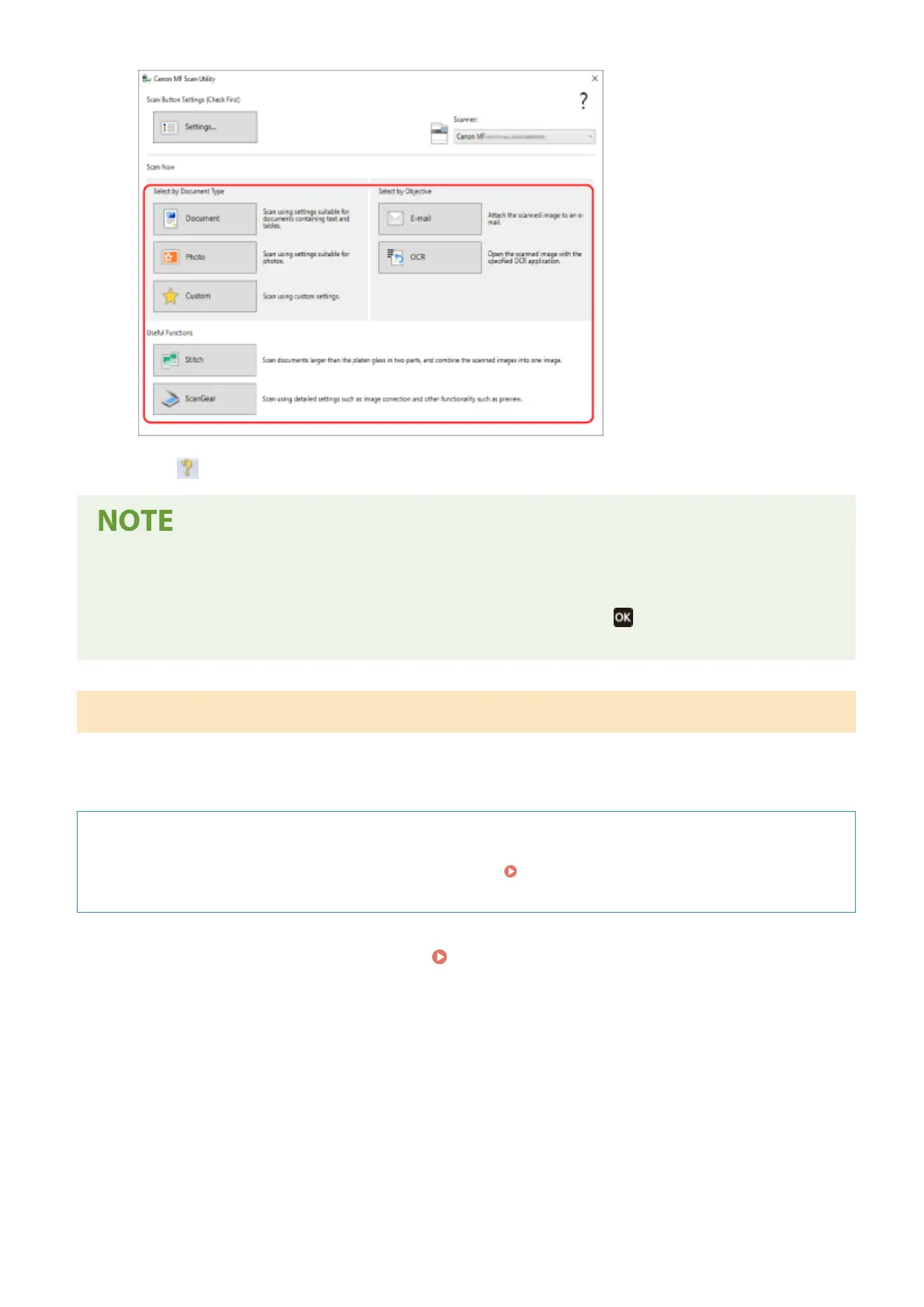
Click [ScanGear] to display ScanGear MF and congur
e the advanced scan settings. For more information,
click [
] on ScanGear MF to display help.
When Scanning Cannot Be Performed
● The machine may not be online (scan standb
y mode). On the operation panel, select [Scan] in the [Home]
screen, and press [Remote Scanner] or select [Remote Scanner], and press
to turn the machine online,
and then r
epeat the operation.
Scanning Using Other TWAIN- and WIA-supported Applications
After placing an original on the machine, scan using other TW
AIN- and WIA-supported application on your computer.
This section describes the general procedure for this operation. Check the manual of the application you are using for
detailed operations on how to use it.
Required Preparations
● Install the scanner driver (ScanGear MF) on the computer.
Installing Software and Drivers to the
Computer(P
. 99)
1
Place the original on the machine.
Placing Originals(P. 130)
2
On the computer, start the application used to import the scanned data.
3
In the application, select the command to start the scanning operation.
4
Select the scanner driver (ScanGear MF or WIA) of the machine, and congur
e the
scan settings.
Scanning
212











 To Next Page