Customizing the [Home] Screen
94LS-02K
Y
ou can rearrange the items on the [Home] screen so that you can operate frequently used items more quickly.
Changing the Display Order of the Items (Touch Panel Model)(P. 126)
Inserting a Blank (Touch Panel Model)(P. 126)
Changing the Display Order of the Items (5 Lines LCD Model)(P. 127)
Changing the Display Order of the Items (Touch Panel Model)
1
Press [Home Set.] in the [Home] screen.
[Home] Screen(P. 113)
If the login screen appears, enter the System Manager ID and PIN, and then click [Log In]. System
Manager ID and PIN(P
. 5)
2
Press [Set Display Order].
3
Select the button to move.
4
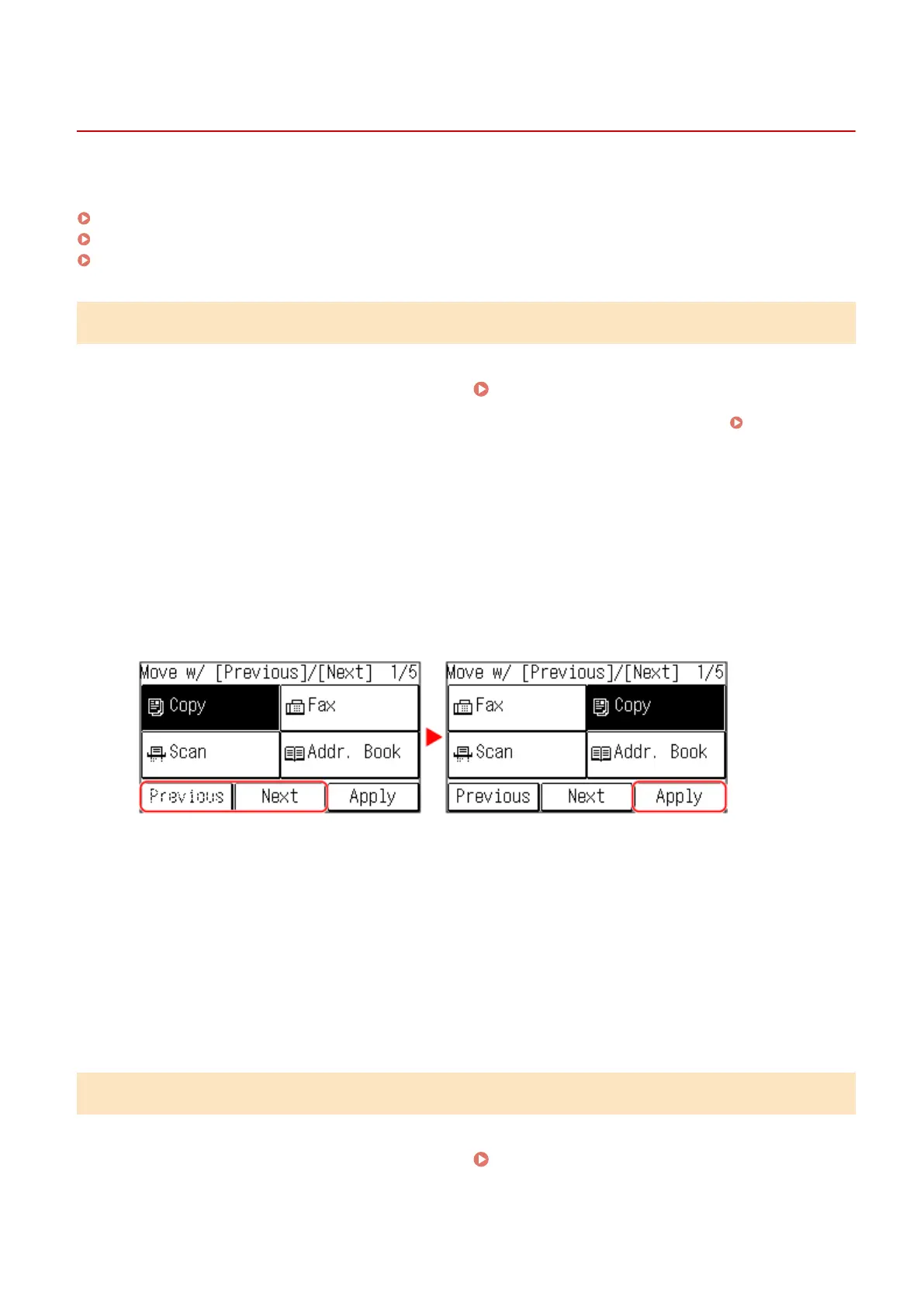
Select [Previous] or [Next] to move the button, and press [Apply].
● The button mo
ves as many times as you tapped.
● A long touch on [Previous] or [Next] moves the selected button continuously.
5
Repeat steps 3 and 4 to move all buttons you want to move.
6
Press [Apply].
➠ The display or
der of the items on the [Home] screen is changed.
Inserting a Blank (Touch Panel Model)
1
Press [Home Set.] in the [Home] screen.
[Home] Screen(P. 113)
When the System Manager ID is set, the login screen may be displayed when certain items are selected. Only
users who kno
w the System Manager ID and PIN can log in and change the settings.
Basic Operations
126











 To Next Page