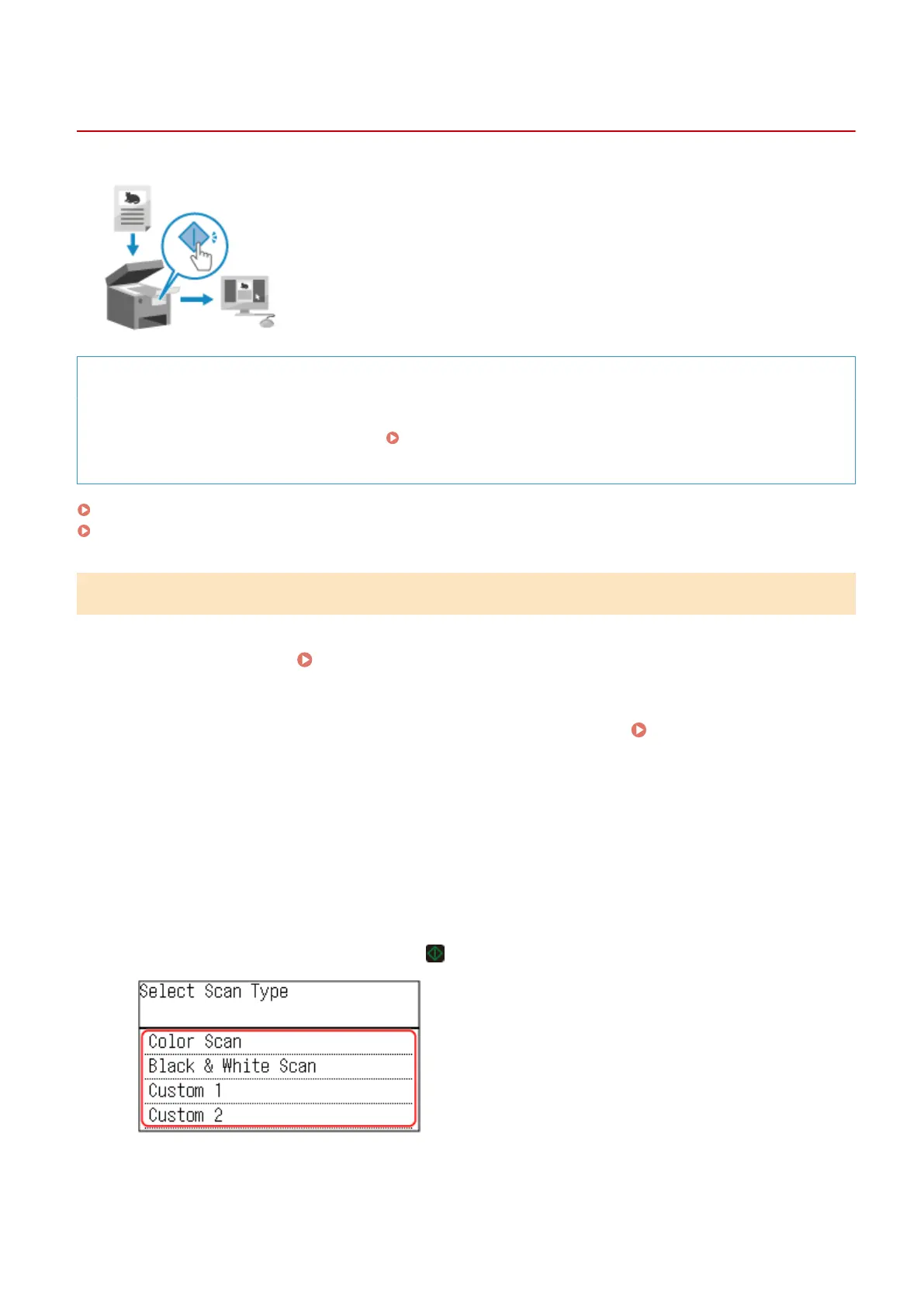
Scanning (Saving to a Computer)
94LS-05F
You can scan an original and save the scanned data to a computer connected to the
machine. By just oper
ating the machine, you can save scanned data to a computer.
The original is scanned and the data is saved according to the settings of MF Scan
Utility installed on the computer.
Required Preparations
● Mak
e preparations such as installing the scanner driver (ScanGear MF) and application (MF Scan Utility) to
the computer used as the save location.
Preparing to Save Scanned Data to a Computer(P. 202)
● If the ScanGear MF scr
een appears on the computer used as the save location, close the screen.
Touch Panel Model(P. 204)
5 Lines LCD Model(P. 205)
Touch Panel Model
1
Place the original.
Placing Originals(P. 130)
2
On the operation panel, press [Scan] in the [Home] screen. [Home] Screen(P. 113)
➠ The scan type selection scr
een is displayed.
3
Press [Computer].
➠ The scr
een to select the computer to be used as the save location is displayed.
When you are using the machine only with a USB-connected computer, the scan screen is displayed.
4
Select the scan setting, and press
.
➠ Scanning of the original starts.
● The scanned data format, save location on the computer, and other settings ar
e set for each scan setting.
The original is scanned according to the selected scan setting.
Scanning
204











 To Next Page