Registering Destinations to the Address Book
(Oper
ation Panel) (Touch Panel Model)
94LS-03A
Y
ou can register destinations to the Address Book by directly entering their information using the operation panel.
1
On the operation panel, press [Addr. Book] in the [Home] screen.
[Home]
Scr
een(P. 113)
2
Press [Regist Dest.].
➠ The [Register As] scr
een is displayed.
If the [Address Book PIN] screen is displayed, enter the PIN, and press [Apply].
3
Press [Coded Dial] or [One-Touch], and press [Fax].
● If
[Coded Dial] is selected, unregistered coded dialing numbers are automatically set and the [Fax] screen
is displayed.
● When [One-Touch] is selected, select the number to register.
You can change this number to another number later.
● When registering group destinations, see the following.
Registering Groups to the Address Book (Operation Panel) (Touch Panel Model)(P. 154)
4
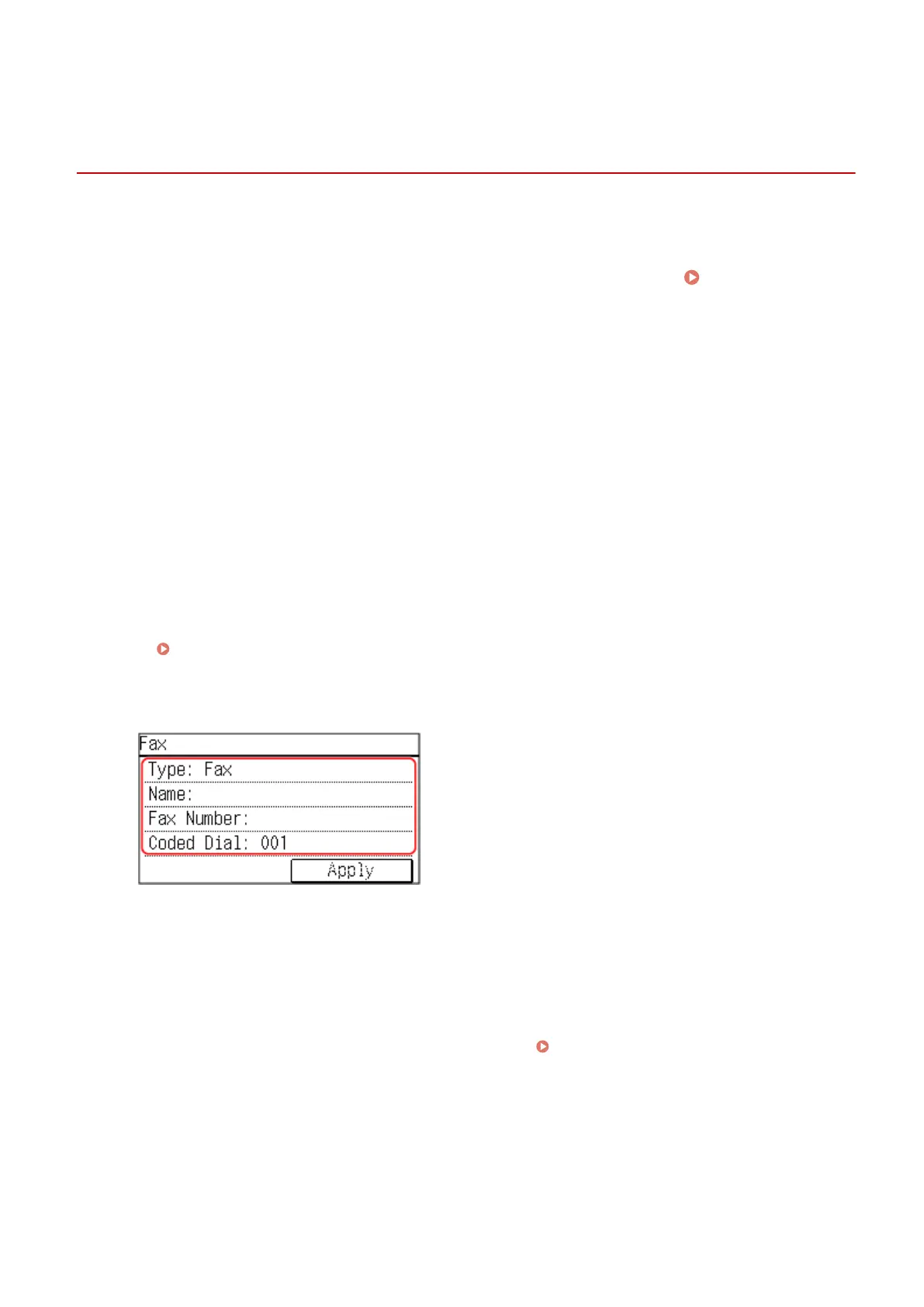
Enter the destination information.
● Y
ou can register a destination without entering its name, but by entering the name, you can search for it
by its initials when specifying the destination.
● Press [Name] and enter the name, and then press [Apply].
● For destination information, press [Fax Number], enter that information, and then press [Apply].
● When entering an international destination in [Fax Number], enter the international access number,
country code, and fax number in that order. If you are unable to connect, press [Pause] in between the
numbers to add a pause. You can change the pause time.
[Set Pause Time](P. 437)
● T
o change a [Coded Dial] number, press [Coded Dial] and enter a three-digit coded dialing number using
the numeric keys.
5
Set the fax sending details, as needed.
Set the details when a send error occurs or it takes time to send a fax to that number.
Basic Operations
152











 To Next Page