Checking Registered Save Locations and Scan Settings
● T
ouch Panel Model
Press [Shortcut Key Settings]
[Conrm Destination] Shortcut key in step 3.
5 Lines L
CD Model
Press [Shortcut Key Settings]
[Conrm Destination] Shortcut key in step 3.
Deleting Register
ed Save Locations and Scan Settings
● Touch Panel Model
Press [Off] in step 5.
5 Lines LCD Model
Press [Off]
in step 5.
Using the Shortcut Key
Touch Panel Model(P. 209)
5 Lines LCD Model(P. 210)
◼ T
ouch Panel Model
1
Place the original.
Placing Originals(P. 130)
2
On the operation panel, press [Scan PC1] or [Scan PC2] in the [Home] screen.
[Home] Screen(P. 113)
➠ Scanning of the original starts.
● T
o cancel scanning, press [Cancel]
[Yes] . Canceling Scanning(P. 215)
● When scanning is completed, the destination folder is displayed on the scr
een of the selected computer.
* By default, a subfolder with the scanning date is created in the [Documents] folder (Windows) or the
[Pictures] folder (macOS), and the scanned data is saved to that folder.
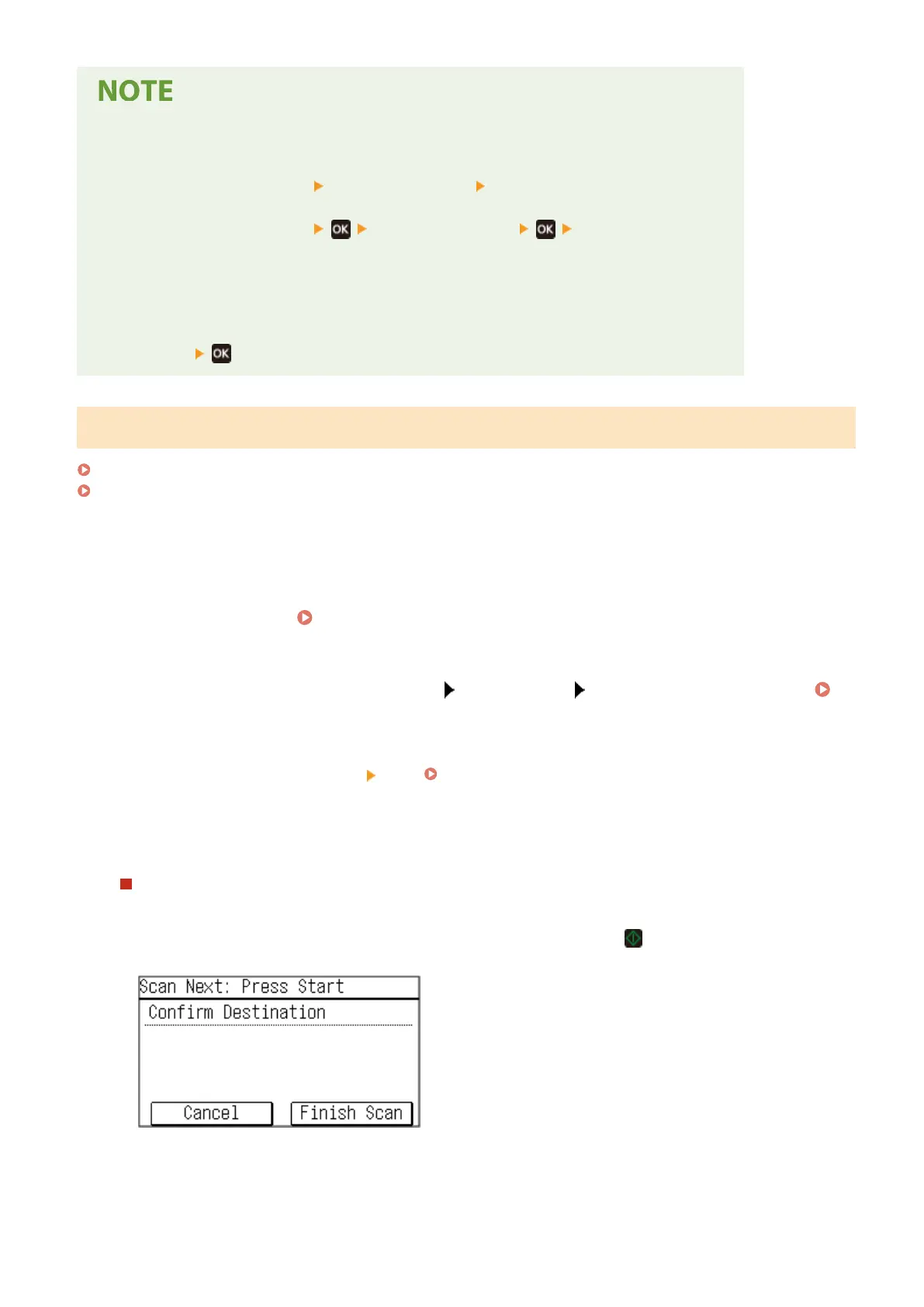
When [Scan Next: Press Start] appears
When an original is placed on the platen glass and is scanned, the scr
een for scanning additional originals is
displayed.
To continue scanning originals, place them on the platen glass, and press
.
Pr
ess [Finish Scan] to save the scanned data.
* If the size of the original is different, part of the image may be missing, or the image may be scanned
smaller.
Scanning
209











 To Next Page