6
Select the computer to be used as the save location.
If you select [USB Connection] in step 5, proceed to step 7.
7
Select the scan type.
● The
scanned data format, the save location on the computer, and other settings are specied for each set
of scan settings. The original is scanned according to the selected scan settings.
● You can check and change the scan settings by using the MF Scan Utility on the computer used as the save
location.
Starting MF Scan Utility(P. 214)
● For macOS, see the r
elevant driver and software manuals at the online manual site.
◼ 5 Lines LCD Model
1
On the operation panel, select [Menu] in the [Home] screen, and press
. [Home]
Scr
een(P. 113)
2
Press [Function Settings]
[Send] [Scan and Send Settings] .
3
Press [Shortcut Key Settings]
[Register] .
4
Press the shortcut key .
5
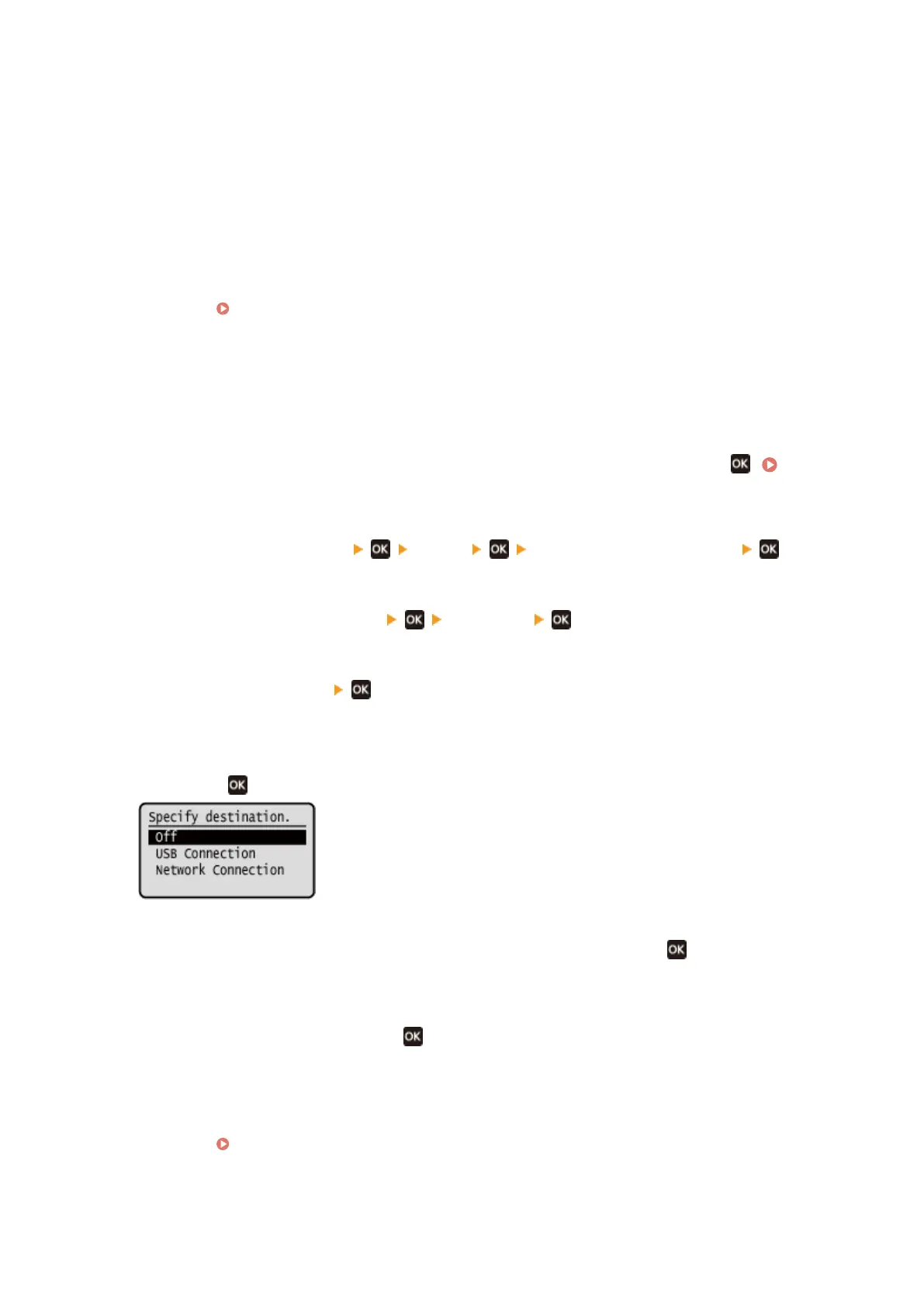
Select the method for connecting to the computer to be used as the save location,
and press .
6
Select the computer to be used as the save location, and press .
If you select [USB Connection] in step 5, proceed to step 7.
7
Select the scan type, and press .
● The
scanned data format, the save location on the computer, and other settings are specied for each set
of scan settings. The original is scanned according to the selected scan settings.
● You can check and change the scan settings by using the MF Scan Utility on the computer used as the save
location.
Starting MF Scan Utility(P. 214)
● For macOS, see the r
elevant driver and software manuals at the online manual site.
Scanning
208











 To Next Page