When Adding an MFNP Port
1
Select [Canon MFNP Port], and click [New Port].
2
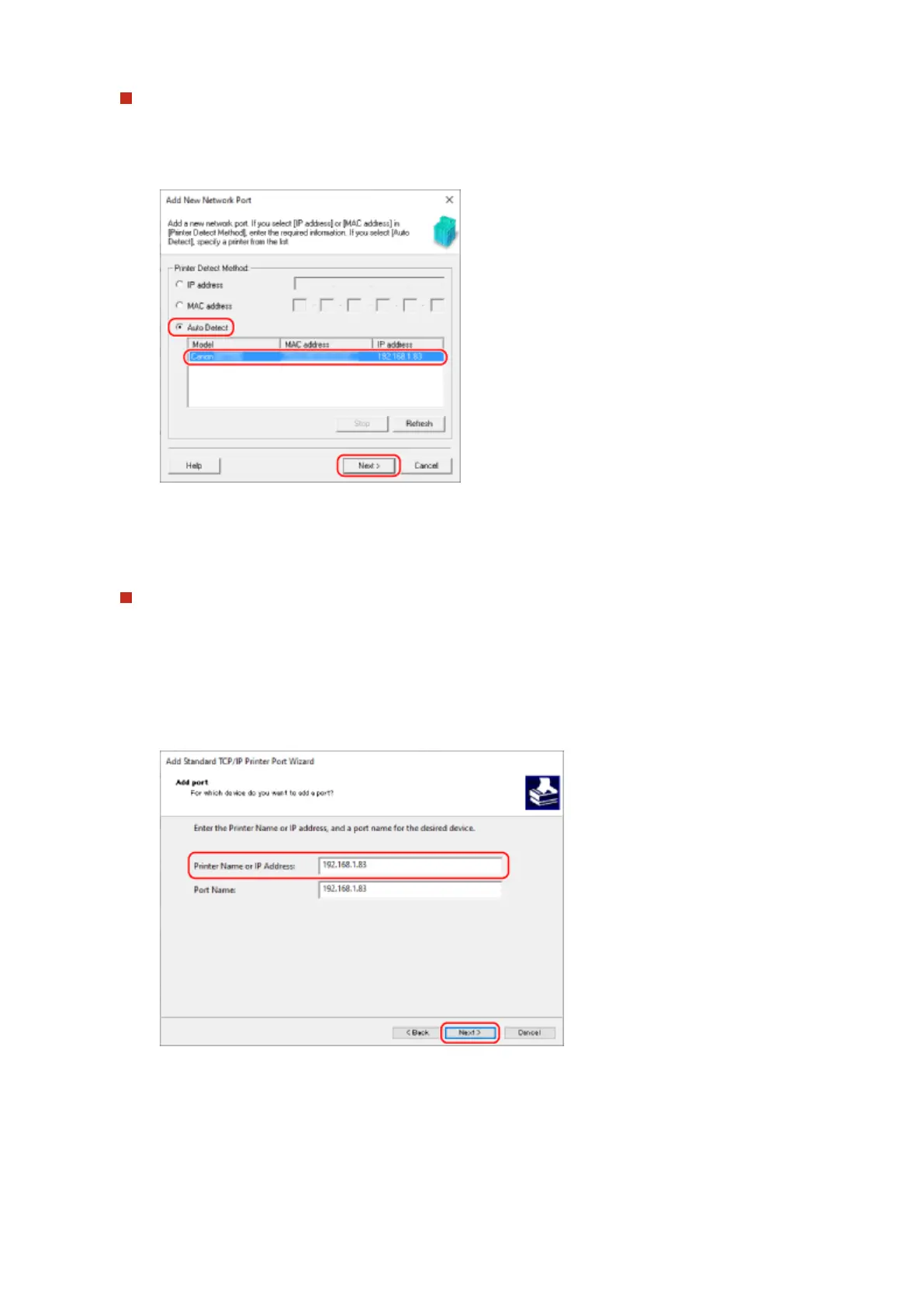
Select [Auto Detect] and the machine, and click [Next].
If the machine is not displayed, click [Refresh]. If the machine is still not displayed, select [IP address] or
[MA
C address], enter the IP address or MAC address of the machine, and then click [Next].
3
Click [Add].
When Adding a Standard TCP/IP Port
1
Select [Standard TCP/IP Port], and click [New Port].
➠ The [Add Standar
d TCP/IP Printer Port Wizard] screen is displayed.
2
Click [Next].
3
Enter the IP address or DNS name (host name), and then click [Next].
The port name is entered automatically, so change it, as needed.
When [Additional port information r
equired] Appears
Take action following the instructions on the screen. To set [Device Type], select [Canon Network Printing
Device with P9100] in [Standard].
6
Click [Finish].
Printing
179











 To Next Page