* When you use Paper Save to make copies, the copy ratio is set automatically according to the paper size
used for cop
ying and the number of pages being combined. You can also press [Copy Ratio] to manually
change the copy ratio.
6
Congure the other cop
y settings, as needed.
Additional Copying Features (Touch
Panel Model)(P
. 251)
● Y
ou can adjust the density and image quality.
● You can change the number of pages to be combined and the 2-sided copy settings selected in 3.
7
Press
.
➠ Cop
ying starts.
● To cancel copying, press [Cancel]
[Yes]. Canceling Copy Operations(P. 275)
● Use [Status Monitor] to vie
w the copy job status.
Viewing the Print Job Status and Log(P. 198)
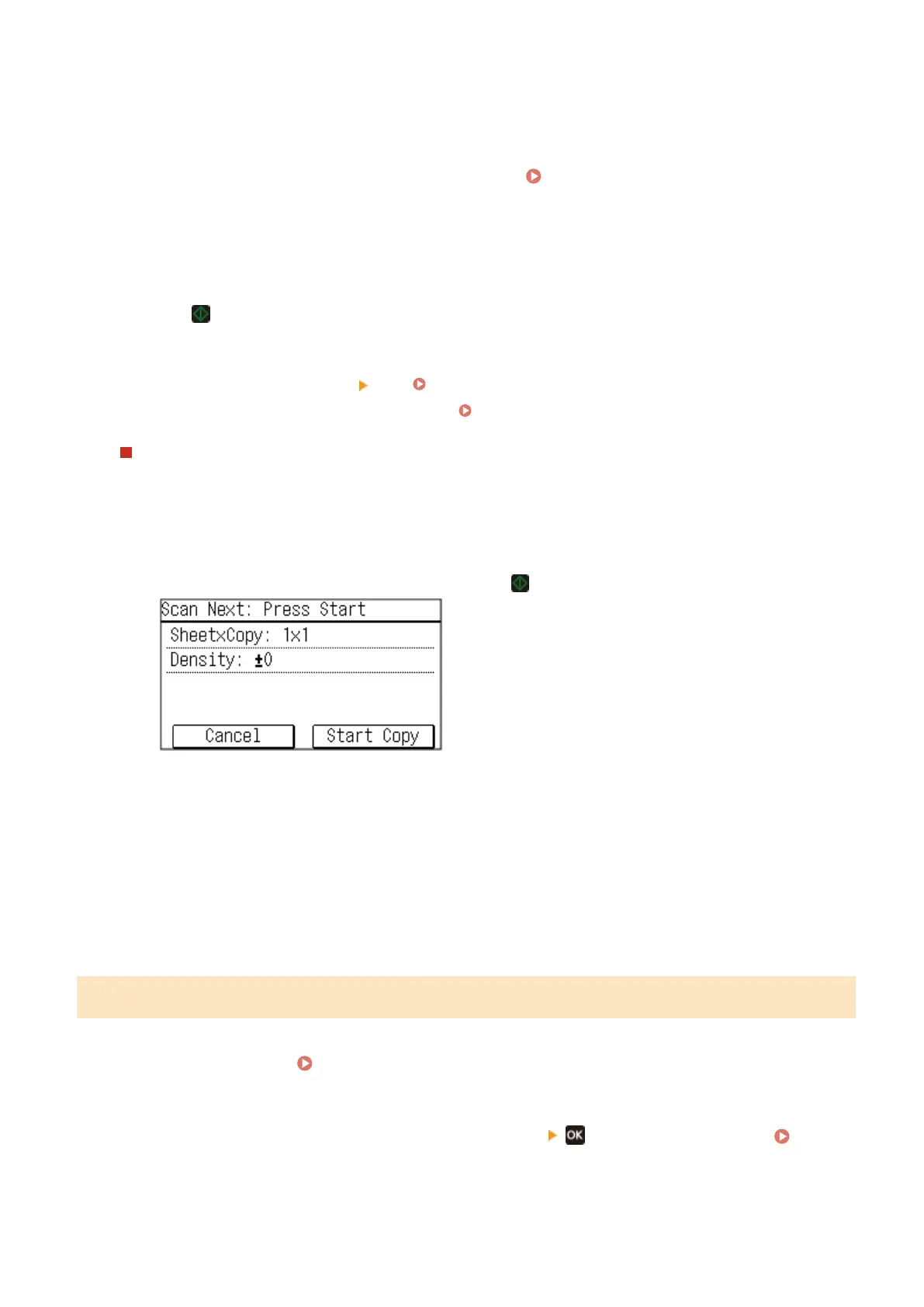
When [Scan Next] appears
When an original is placed on the platen glass and copied using 2-sided cop
ying , N on1 or collate, the screen
is displayed for scanning the next original.
1
Select the paper size.
Only displayed when 2-sided cop
ying is specied.
2
Place the next original on the platen glass, and press
.
➠ The ne
xt original is scanned, and the same screen is displayed.
Repeat this process until scanning of all originals is completed.
● You can also press [Density]to change the settings for each original.
● If the size of the original is different, part of the image may be missing, or the image may be printed
smaller on the paper.
3
Press [Start Copy].
➠ The scanned originals are printed.
5 Lines LCD Model
1
Place the original.
Placing Originals(P. 130)
2
On the operation panel, press [Paper Save Copy] in the [Home] screen. [Home]
Scr
een(P. 113)
➠ The [Paper Save Cop
y] screen is displayed.
Copying
264











 To Next Page