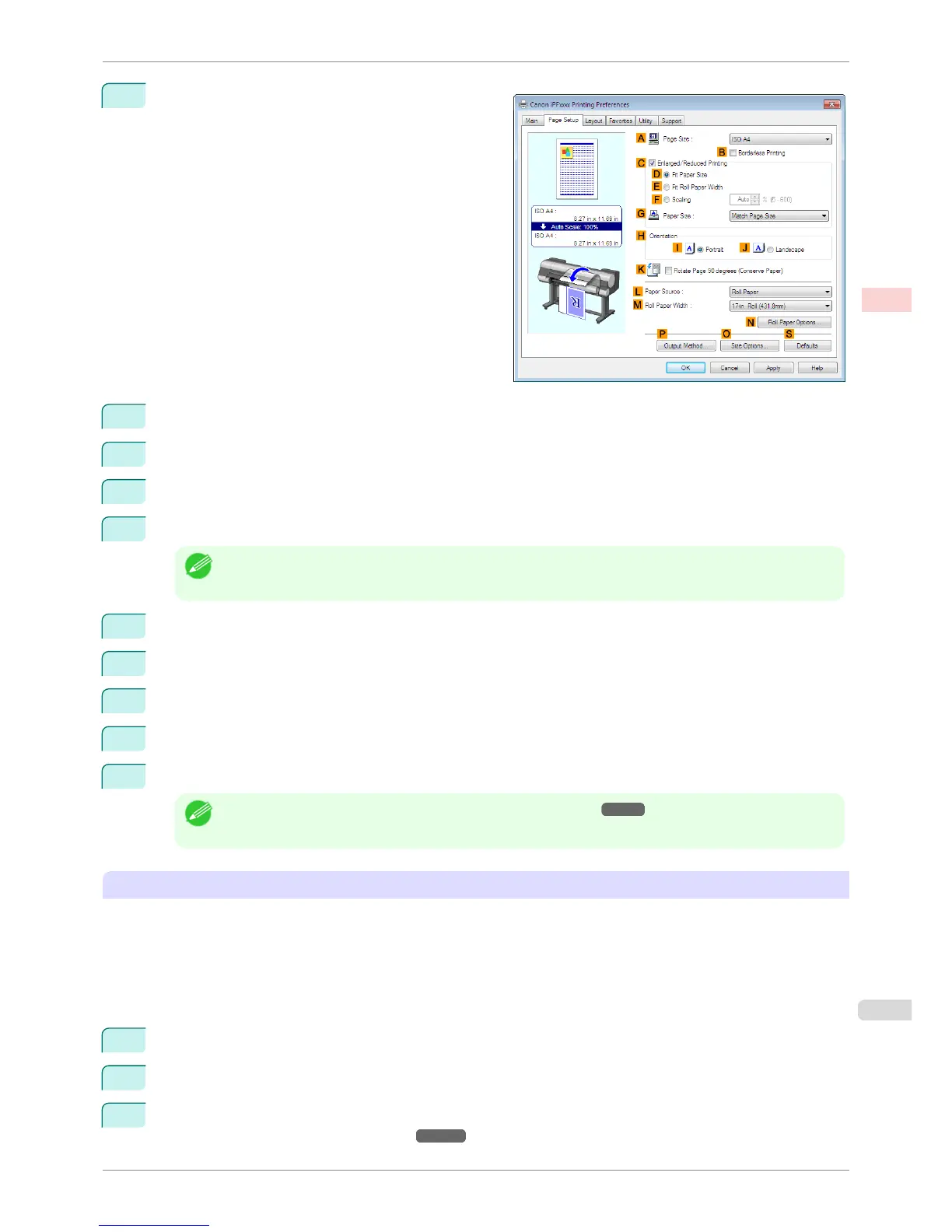
7
Click the Page Setup tab to display the Page Setup
sheet.
8
Click O Size Options to display the Paper Size Options dialog box.
9
Enter a desired paper name in Custom Paper Size Name. 430 mm Square is used in this example.
10
Select mm in Units.
11
Enter 430 (16.9 in) in both Width and Height.
Note
• If you select the Fix the Ratio of the Width to Height check box, after you enter a value in either Width or
Height, the other value will be automatically applied based on the original aspect ratio.
12
Click Add to register 430 mm Square.
13
Click OK to close the Paper Size Options dialog box.
14
Click Cut Sheet in the L Paper Source list.
15
In the A Page Size list, click the size you added,430 mm Square.
16
Confirm the print settings and print as desired.
Note
• For tips on confirming print settings, see "Confirming Print Settings ." ➔ P.153
Printing by using Custom Size
This section describes how to print using Custom Size based on the following example.
•
Document: Any Type
•
Page size: Square of non-standard dimensions (430×430 mm [16.9×16.9 in])
•
Paper: Sheets
•
Paper type: Any type
•
Paper Size: A square sheet (430 × 430 mm [16.9 × 16.9 in])
1
Load the square paper (430 × 430 mm [16.9 × 16.9 in]) in the printer.
2
Choose Print in the application menu.
3
Select the printer in the dialog box, and then display the printer driver dialog box. (See "Accessing the Print-
er Driver Dialog Box from Applications .") ➔ P.156
iPF8400S
Printing on Non-Standard Paper Sizes (Windows)
User's Guide
Enhanced Printing Options Printing banners or at other non-standard sizes
101














 To Next Page