Cause Corrective Action
The type of paper specified in the printer
driver does not match the type loaded in
the printer.
Make sure the same type of paper is specified in the printer driver as you have loaded in the
printer.
1.
Press the Stop button and stop printing.
2.
Change the type of paper in the printer driver and try printing again.
Scan Wait Time > Area in the Control
Panel menu is set to Leading edge.
When Scan Wait Time > Area is set to Leading edge, colors may be uneven 110–160 mm
from the leading edge. (The position varies depending on the Print Quality setting.)
In this case, select Scan Wait Time > Area > Entire area.
However, note that printing will now take longer.
(See "Menu Settings.") ➔ P.591
Image edges are blurred or white banding occurs
Image edges are blurred or white banding occurs
Cause Corrective Action
The Platen suction is too strong. In the Control Panel menu, reduce the level of VacuumStrngth.
(See "Adjusting the Vacuum Strength.") ➔ P.724
Close the blue Switch on the platen so that it matches the paper size.
(See "Setting the Blue Switch on the Platen.") ➔ P.868
Incorrect Printhead alignment value. When printing fine lines or text at high precision on glossy or semi-glossy photo or proofing paper,
set the optimal Printhead height before aligning the printhead.
(See "Enhancing Printing Quality.") ➔ P.710
In the Control Panel menu, set Head Height to a lower height.
(See "Troubleshooting Paper Abrasion and Blurry Images.") ➔ P.716
The type of paper specified in the
printer driver does not match the
type loaded in the printer.
Load paper of the same type as you have specified in the printer driver.
(See "Loading Rolls in the Printer.") ➔ P.471
(See "Loading Sheets in the Printer.") ➔ P.492
Make sure the same type of paper is specified in the printer driver as you have loaded in the print-
er.
1.
Press the Stop button and stop printing.
2.
Change the type of paper in the printer driver and try printing again.
Setting the Blue Switch on the Platen
Setting the Blue Switch on the Platen
If printed documents exhibit the following symptoms, adjust the setting of the blue Switch on the Platen.
•
Image edges are blurred
•
Image edges are affected by white banding
Important
• Always set all of the blue Switches on the Platen to the ● side for borderless printing. If the Switch are not set correctly,
the print quality may deteriorate.
1
Remove any loaded paper that will not be used.
•
Rolls (See "Removing the Roll from the Printer.") ➔ P.477
•
Sheet (See "Removing Sheets.") ➔ P.497
2
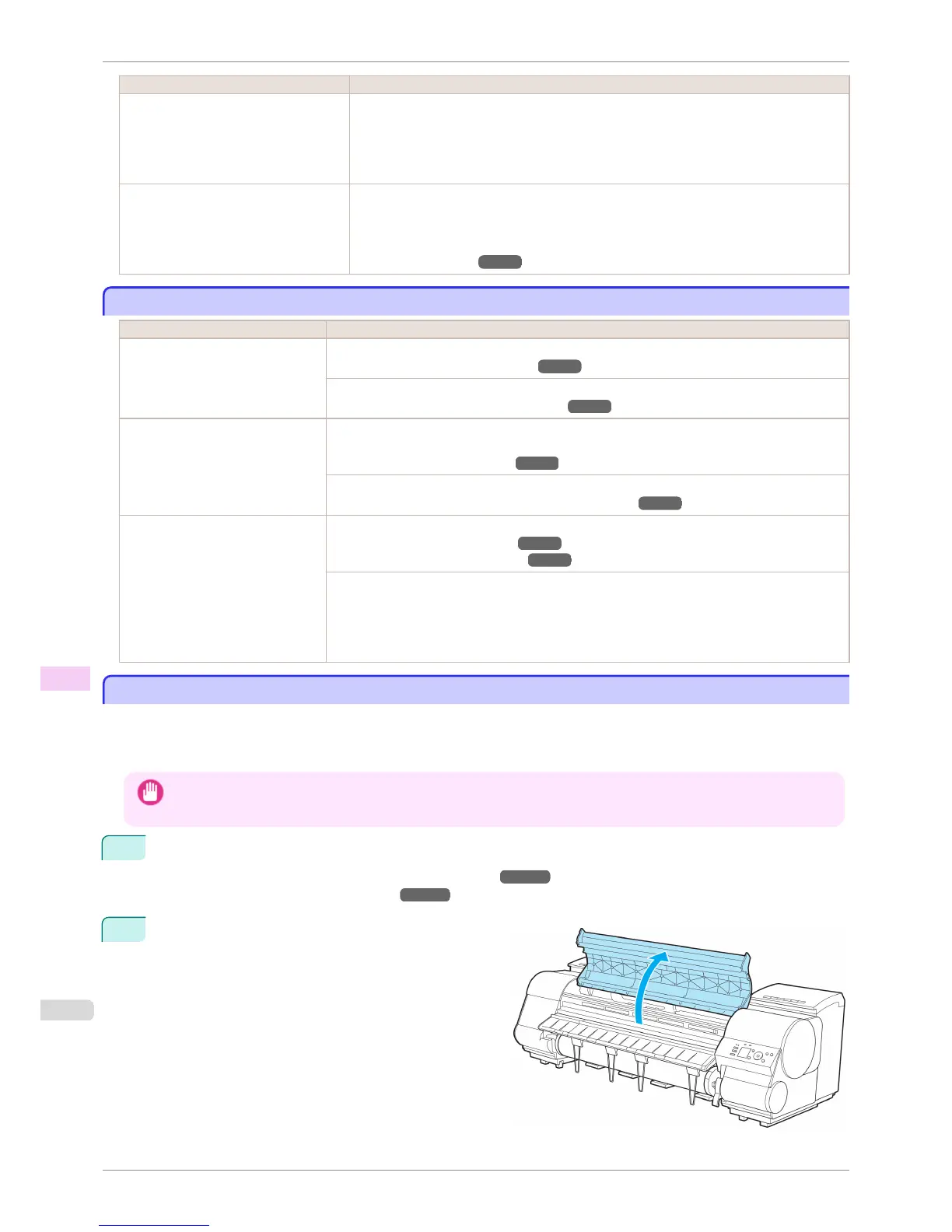
Open the Top Cover.
Image edges are blurred or white banding occurs
iPF8400S
User's Guide
Troubleshooting Problems with the printing quality
868














 To Next Page