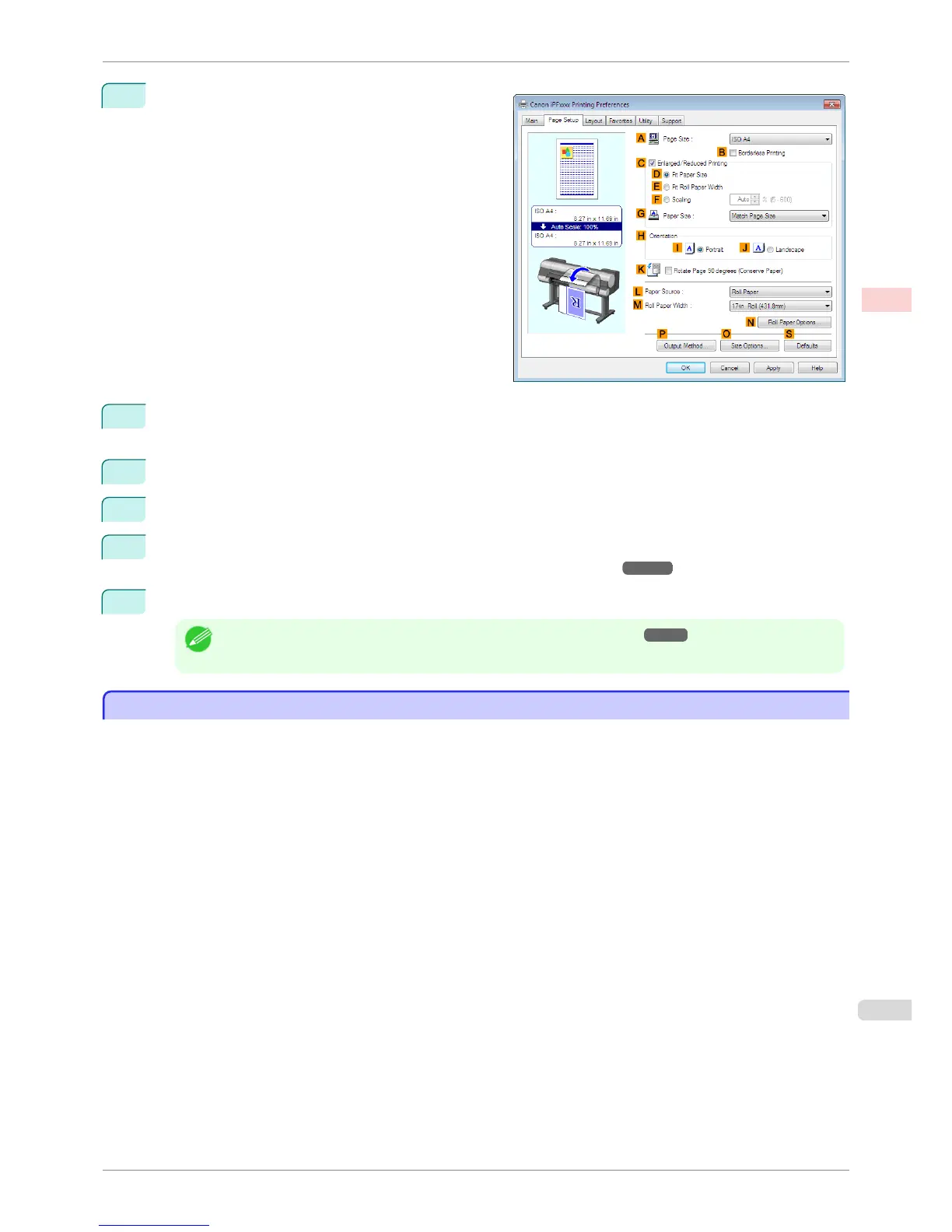
6
Click the Page Setup tab to display the Page Setup
sheet.
7
In the APage Size list, click the size of the original as specified in the application. In this case, click
10"x12".
8
Select and click a roll paper in the LPaper Source list.
9
Select the width of the loaded roll in the M Roll Paper Width list—in this case, 10-in. Roll (254.0mm).
10
Specify additional printing conditions.
For details on available printing conditions, see "Printer Driver Settings ." ➔ P.150
11
Confirm the print settings and print as desired.
Note
• For instructions on confirming print settings, see "Confirming Print Settings ." ➔ P.153
Printing Photos and Images (Mac OS)
Printing Photos and Images (Mac OS)
This topic describes how to print photos based on the following example.
•
Document: Photo image from a digital camera
•
Page size: 10×12 inches (254.0×304.8 mm)
•
Paper: Roll paper
•
Paper type: Canon Premium Glossy Paper 2 280
•
Roll paper width: 10 inches (254.0 mm)
iPF8400S
Printing Photos and Images (Mac OS)
User's Guide
Enhanced Printing Options Printing Photos and Office Documents
37














 To Next Page