15
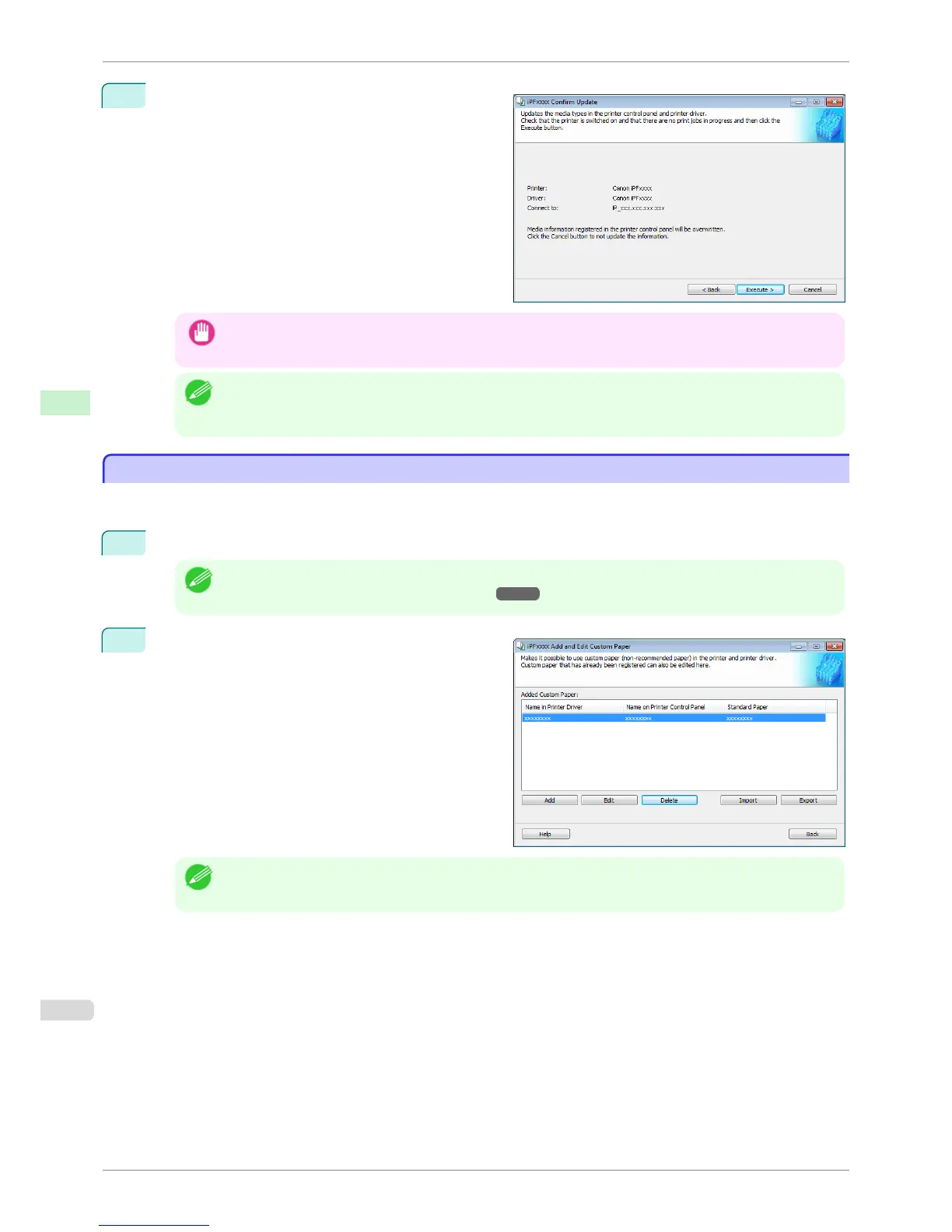
The Confirm Update dialog box is displayed.
Confirm the updates and then click the Execute but-
ton.
The custom paper is added to the control panel of the
printer and to the printer driver of the PC you are us-
ing.
Important
• If you have added custom paper with the POP Board / Cardboard category as the Standard Paper, remove
the loaded custom paper from the printer.
Note
• When the custom paper is correctly added to the printer driver, the name of the added custom paper is dis-
played in the Edit Media Types dialog box that is opened by Add Genuine Paper in the Media Configuration
Tool window.
Delete Custom Paper
Delete Custom Paper
You can delete custom paper that you have already added from printer control panel and from the printer driver of
the PC you are using.
1
Open the Add and Edit Custom Paper dialog box.
Note
• For details on the procedure for opening the Add and Edit Custom Paper dialog box, see "Using Paper Other
than Genuine Paper and Feed Confirmed Paper." ➔ P.530
2
Select the paper you want to delete from the Added
Custom Paper list and then click the Delete button.
Note
• You can select multiple paper.
Delete Custom Paper
iPF8400S
User's Guide
Handling and Use of Paper Media Configuration Tool (Windows)
538














 To Next Page