Note
• If the Ink Lamp is not lit in red, reload the tank.
6
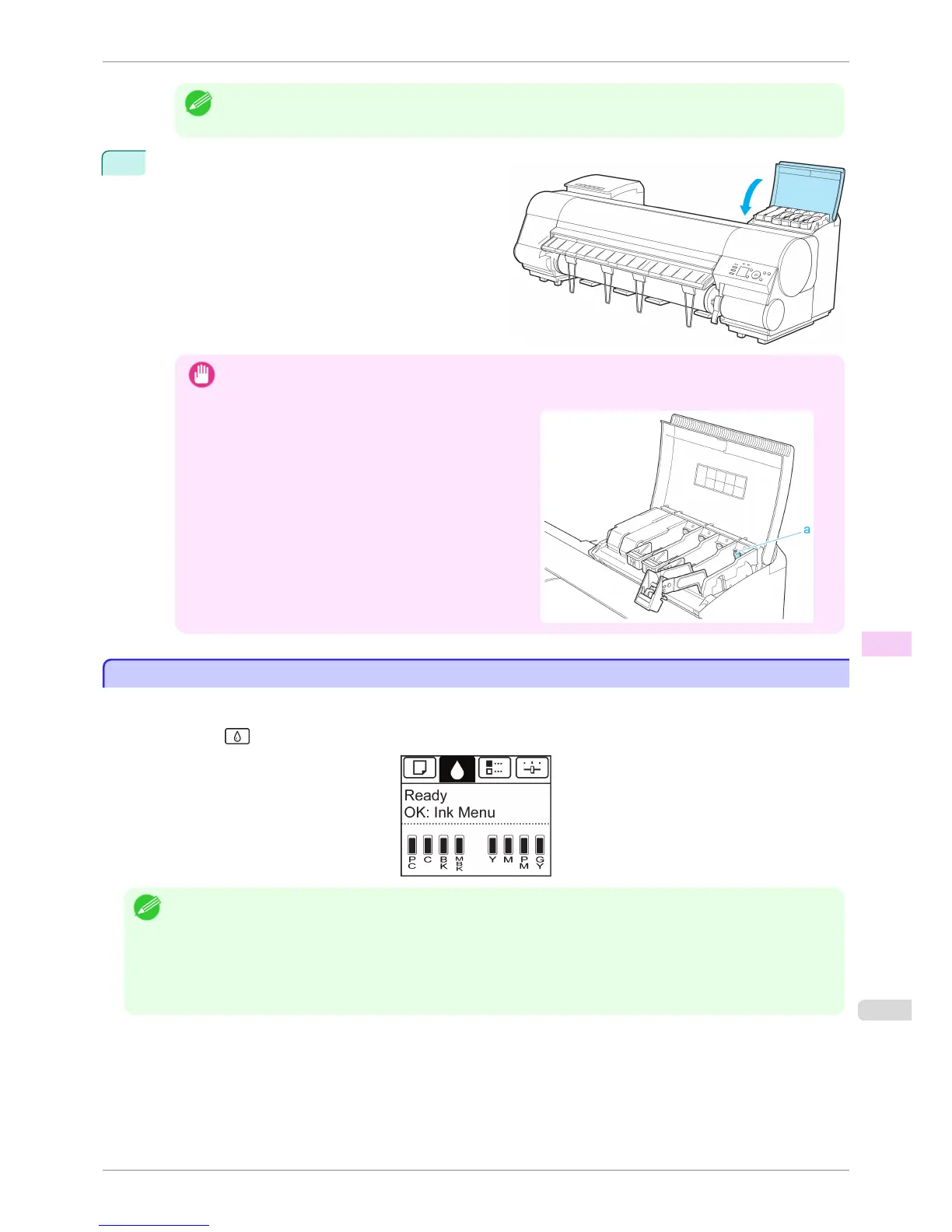
Close the Ink Tank Cover.
Important
• After Ink Tank replacement, always close the Ink Tank Cover. If the Ink Tank Cover cannot close, some Ink
Tank Lock Lever may not be closed completely. Make sure all ink tank lock levers are fully closed.
•
To close the Ink Tank Cover when no Ink Tank is in-
stalled (as when moving the printer), push the release
lever (a) as shown while returning the Ink Tank Lock
Lever to the original position.
Checking Ink Tank Levels
Checking Ink Tank Levels
On the Display Screen, you can check how much ink is left in the ink tanks.
To check remaining Ink Tank levels, access the Tab Selection screen on the Control Panel and press ◀ or ▶ to
select the Ink tab ( ).
Note
• If the Tab Selection screen is not displayed, press the Menu button.
• If an error has occurred and the Tab Selection screen cannot be displayed, display Ink Info as follows.
1. Press the OK button to display Printer Info.
2. Press the ▲ or ▼ button to select Ink Info.
3. Press the OK button.
The remaining ink levels shown on the Display Screen correspond to the inks identified by the Color Label on the
bottom of the Display Screen.
These symbols may be displayed above the ink level: ! if ink is low, × if no ink is left, and ? if you have deactivated
ink level detection.
iPF8400S
Checking Ink Tank Levels
User's Guide
Maintenance and Consumables Ink Tanks
815














 To Next Page