Important
• The Media Take-up Unit cannot be used with sheets.
• If you have attached the Output Stacker, always stow it before using the Media Take-up Unit. (See "Storing the Output
Stacker.") ➔ P.504
• Position the Basket Cloth and Basket Rod so they do not interfere with the Media Take-up Sensor. This may impair
operation. (See "Storing the Output Stacker.") ➔ P.504
• Rolls are not cut automatically when the Media Take-up Unit is used, regardless of the Cutting Mode setting in the
printer menu or the Automatic Cutting setting in the printer driver. However, you can cut paper by pressing the Cut
button.
• Color tones after printing may change during the ink drying period for some types of paper. Allow ample drying time
before the final check of colors, and do not remove printed documents from the Media Take-up Unit too soon.
• In humid environments, documents printed using plenty of ink on relatively insubstantial media such as lightweight Can-
on Coated Paper may not be retracted evenly by the unit. In this case, take steps to control humidity in the operating
environment, or adjust the Roll DryingTime setting so that printed documents are retracted after the ink has fully dried.
• In humid environments, documents printed on Fabric Banner or Adhesive Synthetic Paper may not be retracted even-
ly by the unit. In this case, take steps to control humidity in the operating environment, or adjust the Roll DryingTime
setting so that printed documents are retracted after the ink has fully dried.
Enabling Roll Take-Up
Enabling Roll Take-Up
1
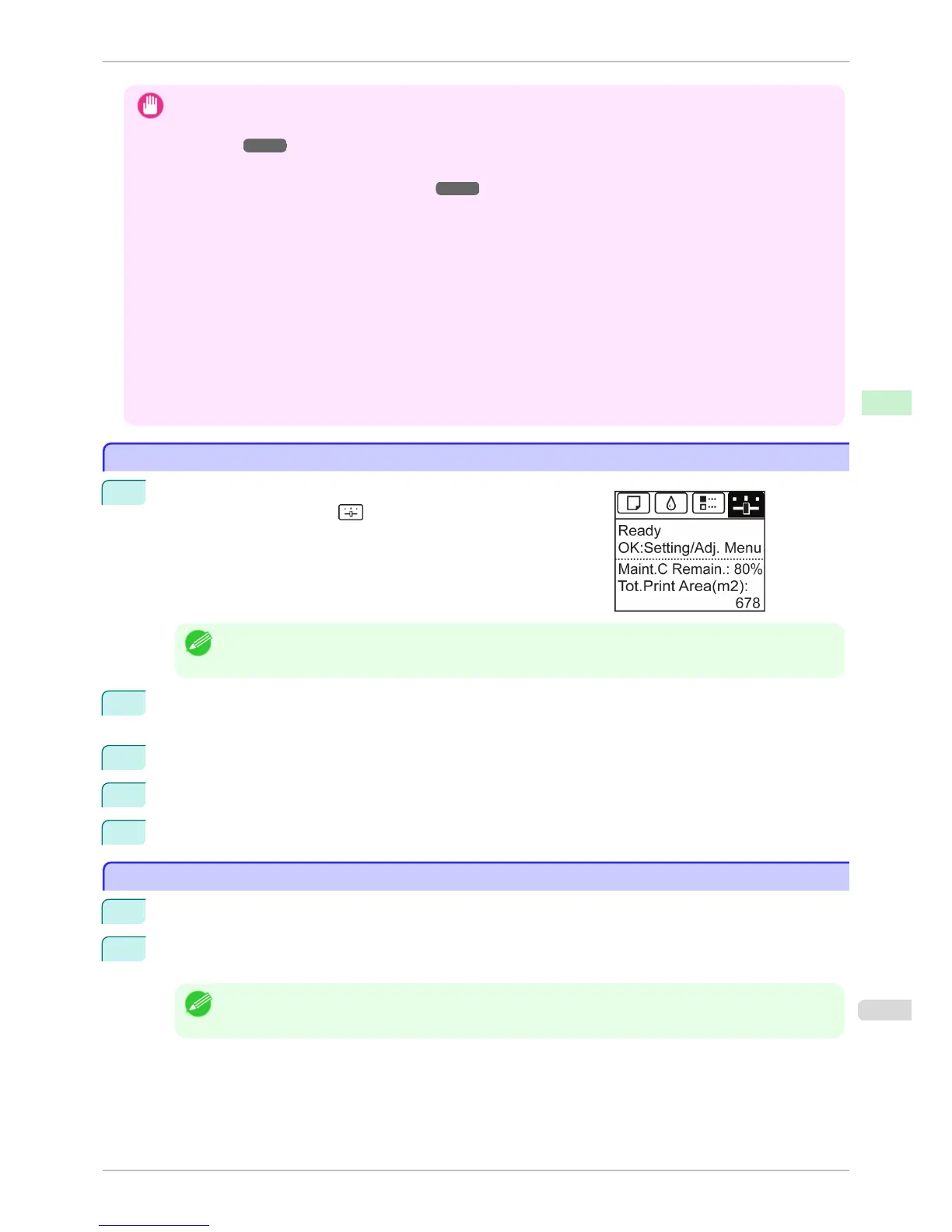
On the Tab Selection screen of the Control Panel, press ◀ or ▶ to
select the Settings/Adj. tab ( ).
Note
• If the Tab Selection screen is not displayed, press the Menu button.
2
Press the OK button.
The Set./Adj. Menu is displayed.
3
Press ▲ or ▼ to select Take-up Reel, and then press the OK button.
4
Press ▲ or ▼ to select Use Take-up Reel, and then press the OK button.
5
Press ▲ or ▼ to select Enable, and then press the OK button.
Disabling Roll Take-Up
Disabling Roll Take-Up
1
Press the Cut button.
2
Press ▲ or ▼ to select Yes, and then press the OK button.
The mode now switches from take-up mode to regular mode.
Note
• The printer will also switch from take-up mode to regular mode if you lift the Release Lever and cut the roll with
scissors instead of pressing the Cut button.
iPF8400S
Enabling Roll Take-Up
User's Guide
Handling and Use of Paper Media take-up unit
507














 To Next Page