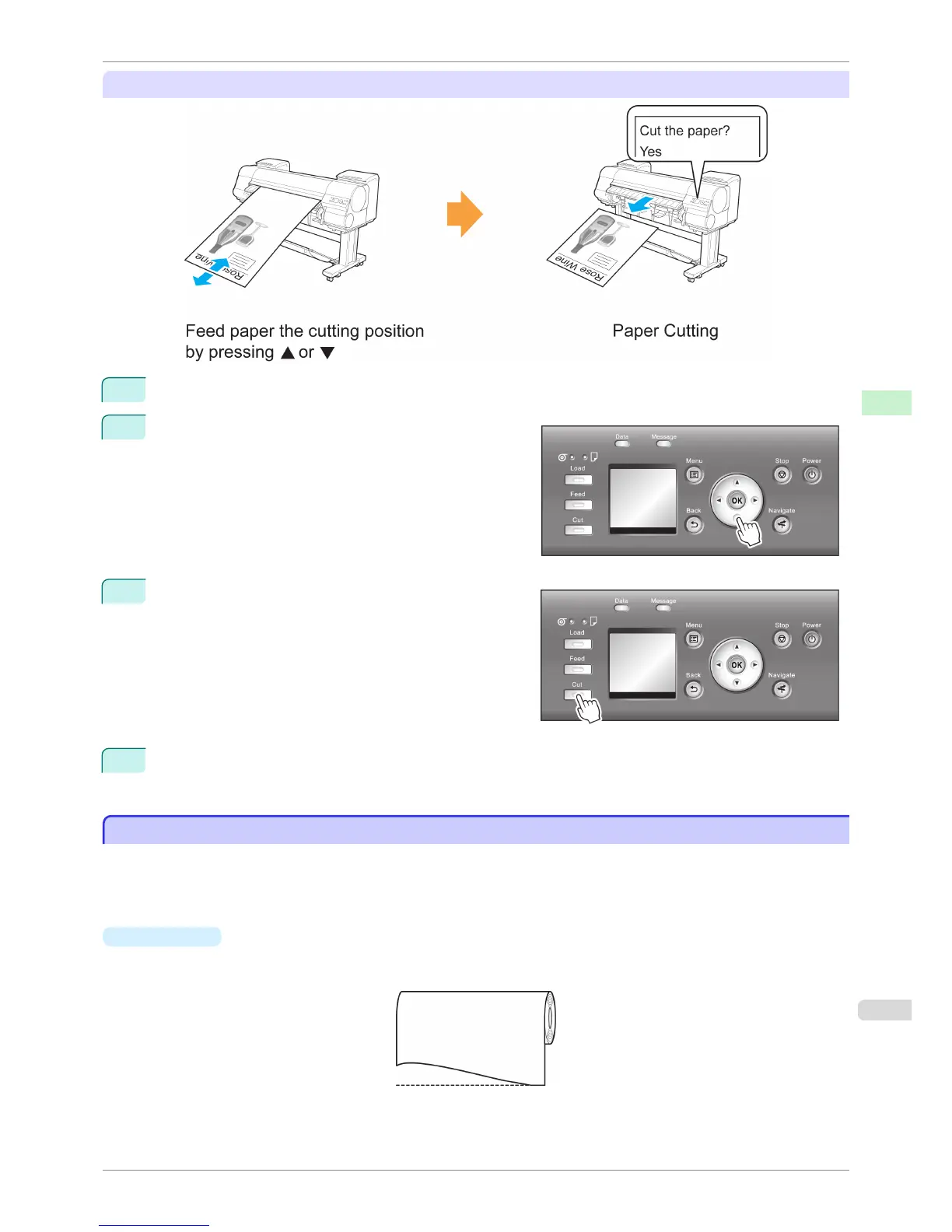
Paper cutting (to have the roll cut at your specified position)
1
Press the Feed button.
2
Press the ▼ button to advance the roll to the position for
cutting.
3
Press the Cut button.
4
Press ▲ or ▼ to select Yes, and then press the OK button.
After the roll paper is cut, it is rewound automatically.
Cutting the Leading Edge of Roll Paper Automatically
Cutting the Leading Edge of Roll Paper Automatically
If the leading edge of the paper is cut crooked or is not cut straight when roll paper is loaded, it will not print correct-
ly. If this happens, you can cut the leading edge of the paper straight when loading a paper roll by using Trim Edge
First in the Control Panel menu.
Trim Edge First offers the following options.
•
Automatic
If the leading edge of the paper is cut crooked and is not cut straight when loading roll paper, cut the leading
edge straight and eject the fragment of paper to prevent printing on the platen and soiling the printer.
iPF8400S
Cutting the Leading Edge of Roll Paper Automatically
User's Guide
Handling and Use of Paper Handling rolls
489














 To Next Page