Printing an Adjustment Pattern and Selecting Adjustment Values
Printing an Adjustment Pattern and Selecting Adjustment Values
Since you can print an adjustment pattern and select your preferred adjustment values while comparing the im-
ages, this allows you to conserve ink and paper, and save the time it takes to repeatedly check adjustment results.
The procedure for displaying and printing an adjustment pattern is as follows.
1
Display the Color Settings sheet (color or monochrome) and set the adjustment values to use as the base-
line values.
2
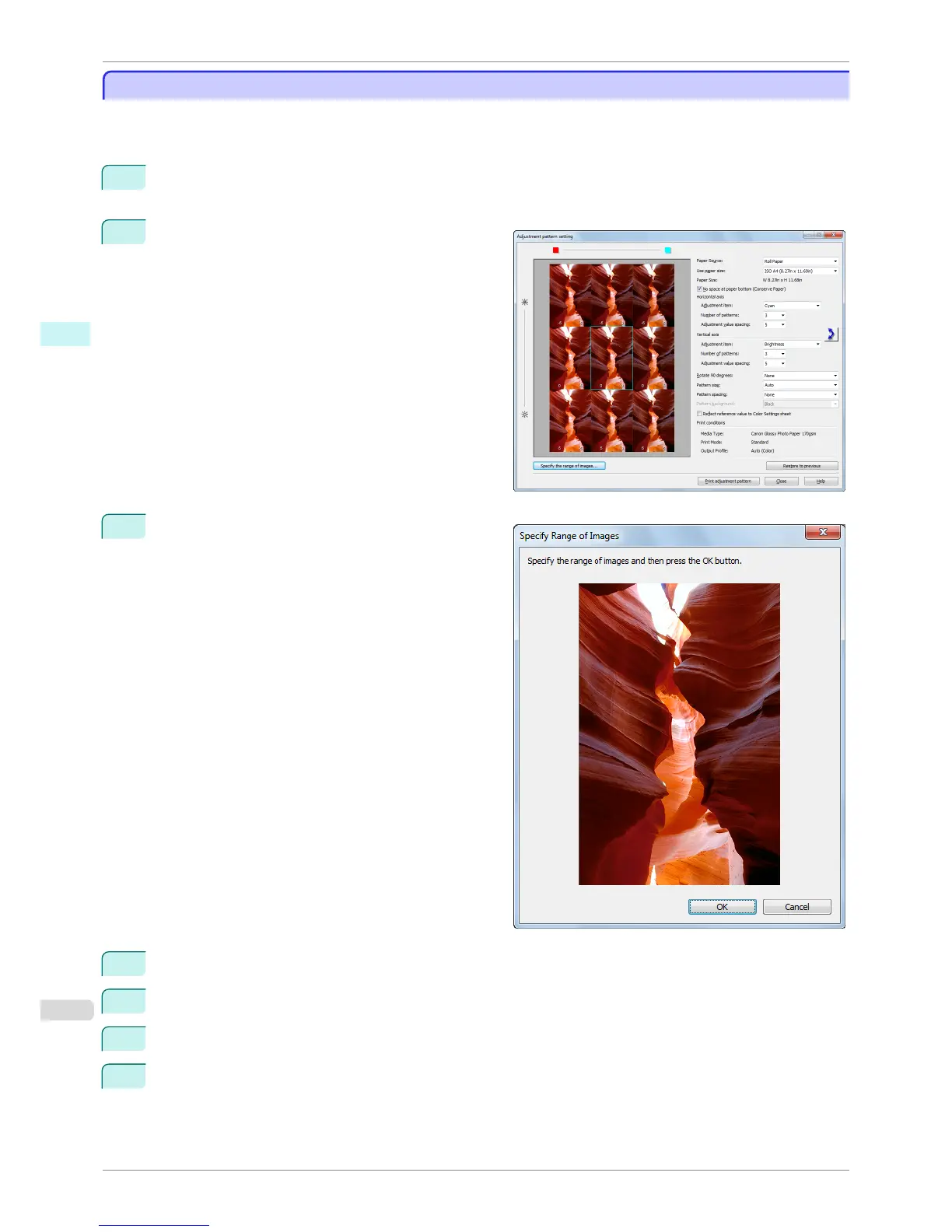
Click the Adjustment pattern setting button to dis-
play the Adjustment pattern setting dialog box.
3
Set the Adjustment Item, Number of Patterns, and
Adjustment Value Spacing for the Horizontal Axis
and Vertical Axis.
If you want to check part of an image as the adjust-
ment pattern, click the Specify the Range of Images
button, select the range you want to check in the
Specify the Range of Images dialog box, and then
click the OK button.
4
Set Rotate 90 degrees, Pattern Size, Pattern Spacing, and Pattern Background as needed.
5
For the Paper Source setting, select how the paper to print on is to be supplied.
6
For the Use Paper Size setting, select the paper size to print on.
7
Click the Print Adjustment Pattern button.
The adjustment pattern starts printing.
Printing an Adjustment Pattern and Selecting Adjustment Values
iPF8400S
User's Guide
Windows Software Print Plug-In for Photoshop / Digital Photo Professional
260














 To Next Page