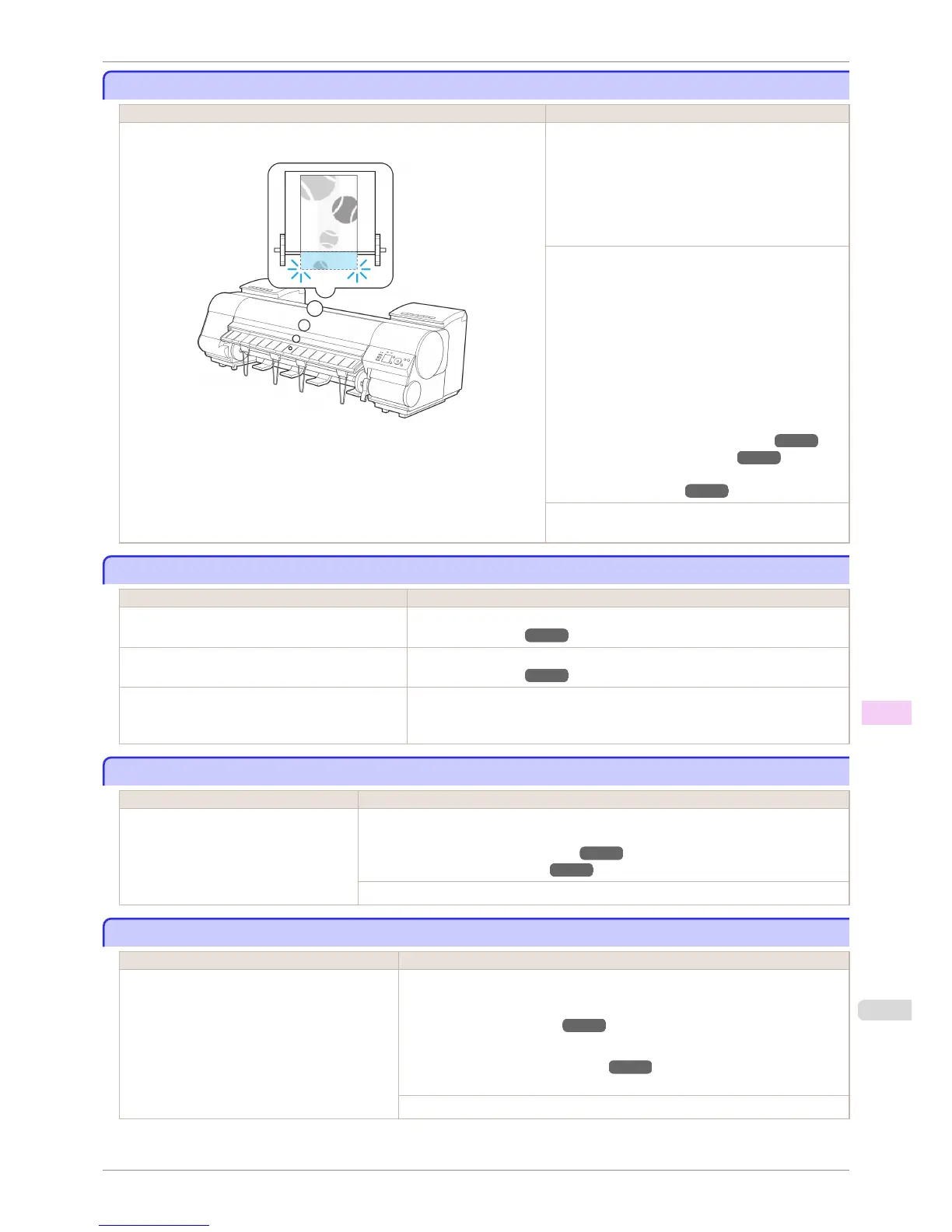
Insufficient paper for job
Insufficient paper for job
Cause Corrective Action
The printer has received a print job longer than the amount of roll paper left
when ManageRemainRoll in the Control Panel menu is On.
Press ▲ or ▼ to select Print, and then press the OK
button to resume printing.
When using the Media Take-up Unit, press ▲ or ▼ to
select Print, and then press the OK button to resume
printing.
However, the roll paper may run out during the print job
and you may not be able to print all of the document.
Press ▲ or ▼ to select Change Paper, and then press
the OK button.
Change the Paper Source of the printer driver, or re-
place the roll with a roll that has enough paper for the
print job, and then printt.
When using the Media Take-up Unit, press ▲ or ▼ to
select Stop Printing, and then press the OK button to
stop printing.
Remove the printed document from the Media Take-up
Unit, replace the roll with a roll that has enough paper
for the print job, and then try printing again.
(See "Removing the Roll from the Printer.") ➔ P.477
(See "Loading Rolls in the Printer.") ➔ P.471
(See "Removing Printed Documents from the Media
Take-up Unit (Optional).") ➔ P.514
Press ▲ or ▼ to select Stop Printing or press the Stop
button to stop printing.
This paper cannot be used as size is not supported.
This paper cannot be used as size is not supported.
Cause Corrective Action
Paper that is too large for the printer has been loa-
ded.
Lift the Release Lever and load paper of the correct size.
(See "Paper Sizes.") ➔ P.458
Paper that is too small for the printer has been loa-
ded.
Lift the Release Lever and load paper of the correct size.
(See "Paper Sizes.") ➔ P.458
Paper has been loaded that is too small to print the
test pattern for printhead adjustment or nozzle
checking.
Lift the Release Lever and load unused paper A4/Letter (vertical) or larger. More
than one sheet may be required depending on the adjustment.
Roll printing is selected.
Roll printing is selected.
Cause Corrective Action
You have attempted to print on a roll, but
no roll is loaded.
Press ▲ or ▼ to select "Load Roll Paper", and then press the OK button. Load the roll, and
then print.
(See "Attaching the Roll Holder to Rolls.") ➔ P.469
(See "Loading Rolls in the Printer.") ➔ P.471
Press ▲ or ▼ and select Stop Printing or press the Stop button to stop printing.
Roll printing is selected, but sheets are loaded.
Roll printing is selected, but sheets are loaded.
Cause Corrective Action
A print job for rolls was received when a sheet is
loaded.
Follow these steps to load and print on a roll.
1.
Press ▲ or ▼ to select Eject Paper, press the OK button, and remove the sheet.
(See "Removing Sheets.") ➔ P.497
2.
Load a new roll.
(See "Loading Rolls in the Printer.") ➔ P.471
The printer now starts printing the print job.
Press ▲ or ▼ to select Stop Printing, and then press the OK button.
iPF8400S
Insufficient paper for job
User's Guide
Error Message Messages regarding paper
887














 To Next Page