•
Print Image with Actual Size
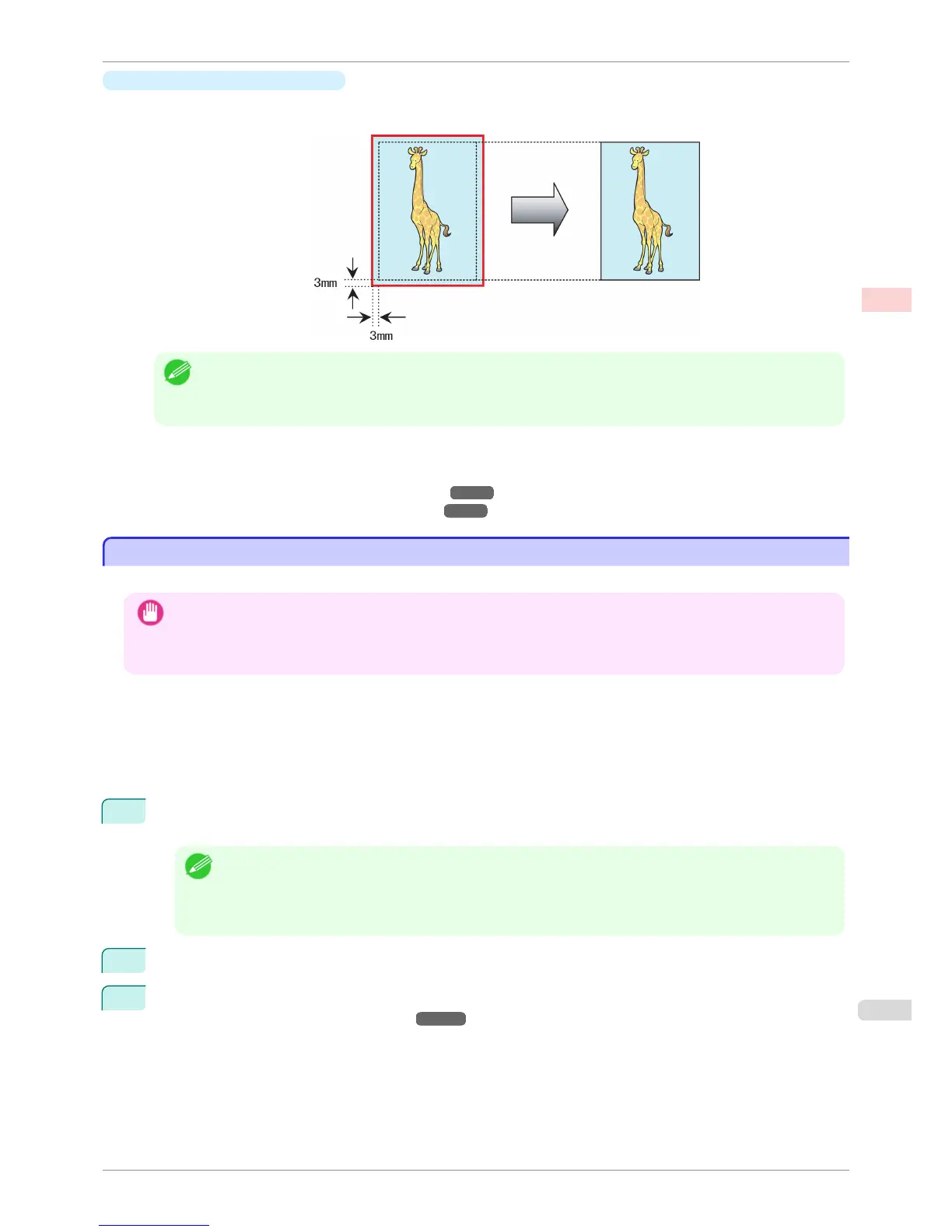
Prints originals at actual size, without enlarging or reducing them. We recommend when focusing on image
quality. You should create the original at a size larger by 3 mm on each side than the paper size.
Note
• Not all page sizes are available.
• When performing borderless printing without using Print Image with Actual Size, the image deteriorates slightly
because the image is automatically enlarged.
For instructions on borderless printing of photos and images at actual size, refer to the following topics, as ap-
propriate for your computer and operating system.
•
Borderless Printing at Actual Size (Windows) ➔ P.79
•
Borderless Printing at Actual Size (Mac OS) ➔ P.81
Borderless Printing at Actual Size (Windows)
Borderless Printing at Actual Size (Windows)
This topic describes how to print borderlessly at actual size based on the following example.
Important
• When borderless printing is used, the edge of the paper is cut during printing. Thus, ink density may be uneven at the
edges. If you require higher image quality, select No from the Automatic Cutting list in the Roll Paper Options dialog
box. In this case, the paper can be printed without borders on the left and right sides only. Once printed and cut, please
cut the upper and lower bands with scissors.
•
Document: Any type
•
Page size: 10×12 inches (254.0×304.8 mm)
•
Paper: Roll
•
Paper type: Canon Heavyweight Coated Paper
•
Roll paper width: 10 inches (254.0 mm)
1
Create the original in the source application 3 mm (0.12 in) larger on each side than 254.0×304.8 mm (10 ×
12 in) —that is, 260.0×310.8 mm (10.2 × 12.2 in)
Note
• If you can specify the margin, as in Microsoft Word, set the margin at 0 mm. For instructions on specifying the
margin, refer to the software documentation.
• The extra 3 mm (0.12 in) on each side will not be printed. Create the original so that it fits inside the paper area
to be printed on.
2
Choose Print in the application menu.
3
Select the printer in the dialog box, and then display the printer driver dialog box. (See "Accessing the Print-
er Driver Dialog Box from Applications .") ➔ P.156
iPF8400S
Borderless Printing at Actual Size (Windows)
User's Guide
Enhanced Printing Options Printing at full size
79














 To Next Page