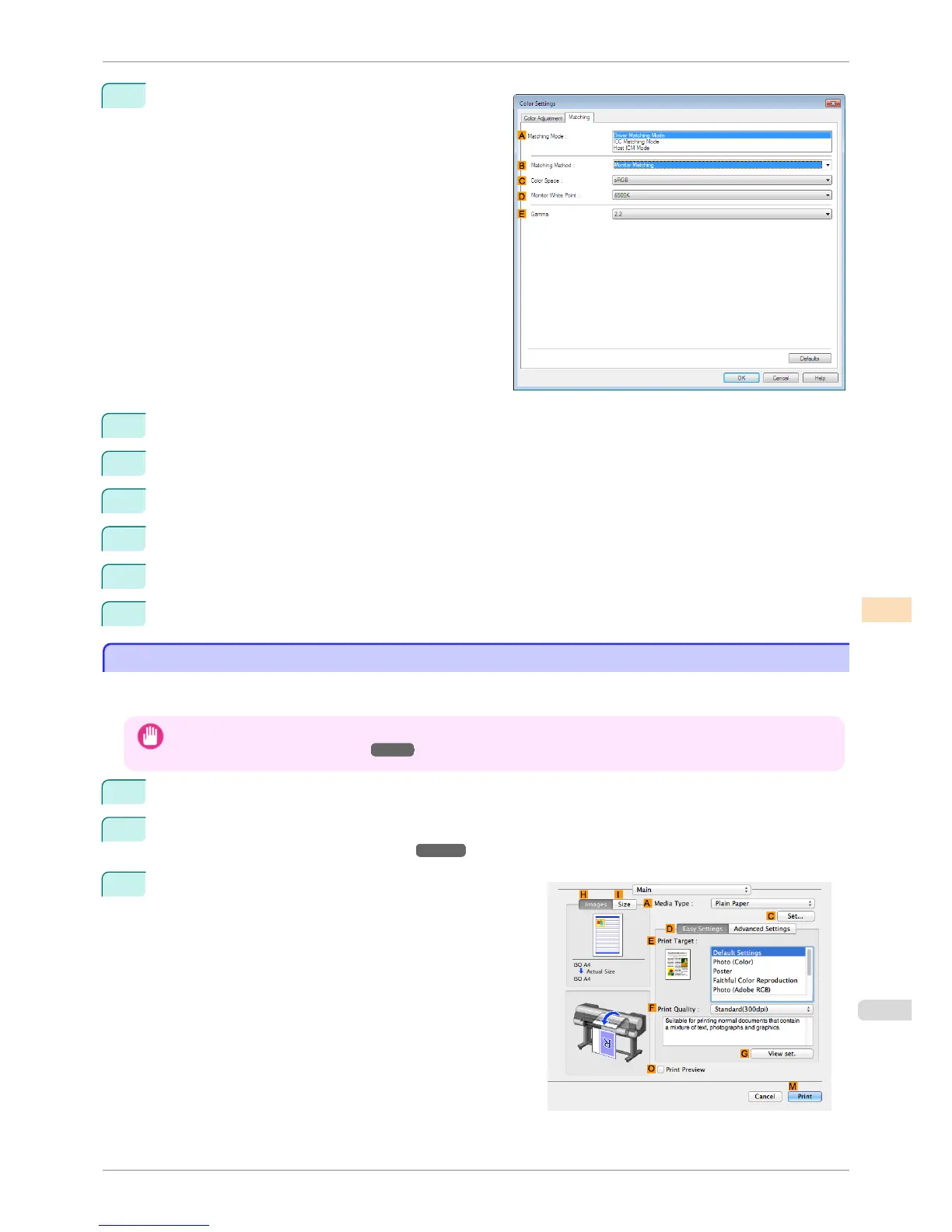
9
Click the Matching tab to display the Matching
sheet.
10
Make sure Driver Matching Mode is selected in A Matching Mode.
11
In B Matching Method, select Monitor Matching.
12
In C Color Space, select the color space used when displaying the file in the source application.
13
In D Monitor White Point, select the white point set on the monitor.
14
Click OK.
15
Confirm the print settings and print as desired.
Printing Images to Match Monitor Colors (Mac OS)
Printing Images to Match Monitor Colors (Mac OS)
By calibrating your monitor and configuring settings in the source application in advance, you can complete settings
to print in colors that are as close as possible to the colors displayed on the monitor.
Important
• Before using this feature, you must calibrate the monitor and configure settings in the source application. (See "Printing
Images to Match Monitor Colors.") ➔ P.726
1
Choose Print in the application menu.
2
Select the printer in the dialog box, and then display the printer driver dialog box. (See "Accessing the Print-
er Driver Dialog Box from Applications .") ➔ P.322
3
Make sure the Main panel is displayed.
iPF8400S
Printing Images to Match Monitor Colors (Mac OS)
User's Guide
Color Management Monitor Matching
729














 To Next Page