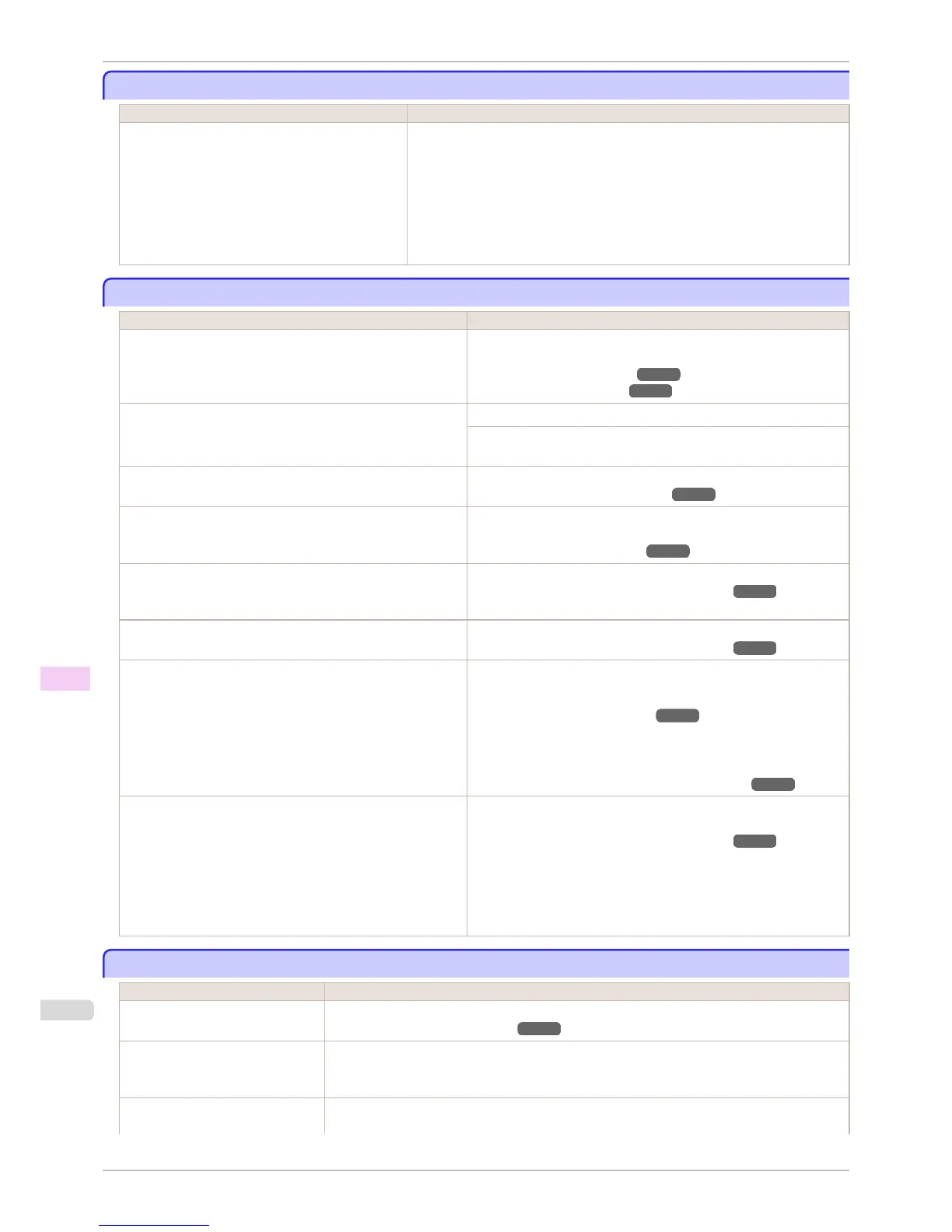
Immediately after borderless printing, the trailing edge margin is soiled during regular printing
Immediately after borderless printing, the trailing edge margin is soiled during regular printing
Cause Corrective Action
Depending on your printing environment, after bor-
derless printing in which the leading and trailing edge
of the roll is cut automatically, any ink adhering to the
cutter unit may rub off on the next printed document.
Follow these steps to change the Between Pages setting of Drying Time to a val-
ue between about 30 seconds and 3 minutes before trying borderless printing
again.
1.
On the Main sheet of the printer driver, click Advanced Settings by Media
Type.
2.
Select an ink drying time in the list for the Between Pages setting of Drying
Time.
Printed colors are inaccurate
Printed colors are inaccurate
Cause Corrective Action
Color adjustment has not been activated in the Advanced Set-
tings of the printer driver.
In the Advanced Settings of the printer driver, access Color Settings
in Color Mode to adjust colors.
(See "Main Sheet (Windows).") ➔ P.159
(See "Main Pane (Mac OS).") ➔ P.323
Colors have not been adjusted on the computer or monitor. Refer to the computer and monitor documentation to adjust the colors.
Adjust the settings of the color management software, referring to the
software documentation as needed.
The Printhead nozzles are clogged. Print a test pattern to check the nozzles and see if they are clogged.
(See "Checking for Nozzle Clogging.") ➔ P.817
In the Windows printer driver, Application Color Matching Pri-
ority is not selected.
Click Special Settings on the Layout sheet of the printer driver and
select Application Color Matching Priority in the dialog box.
(See "Layout Sheet (Windows).") ➔ P.175
There may be a slight difference in how colors are printed after
Printhead replacement because of individual variation among
printheads.
Execute color calibration.
(See "Color Calibration Using the Printer Sensor.") ➔ P.735
Printhead characteristics gradually change through repeated
use, and colors may change.
Execute color calibration.
(See "Color Calibration Using the Printer Sensor.") ➔ P.735
Color may change slightly even on the same model of printer if
you use a different version of the firmware or printer driver, or
when you print under different settings or in a different printing
environment.
Follow these steps to prepare the printing environment.
1.
Use the same version of firmware or printer driver.
(See "Updating the Firmware.") ➔ P.850
2.
Specify the same value for all settings items.
3.
Execute color calibration.
(See "Color Calibration Using the Printer Sensor.") ➔ P.735
When reinstalling the printer driver, you changed the region se-
lection of the Media Configuration Tool.
Changing the region selection of the Media Configuration Tool
deletes the region-specific paper information originally registered
on the printer before installation. Using paper with deleted infor-
mation when executing color calibration will prevent the resulting
calibration adjustment value from being applied to all other types
of the paper.
Prepare paper compatible with calibration in the newly selected region
and perform calibration again.
(See "Color Calibration Using the Printer Sensor.") ➔ P.735
Banding in different colors occurs
Banding in different colors occurs
Cause Corrective Action
The paper feed amount is out of ad-
justment.
Adjust the feed amount.
(See "Adjusting the Feed Amount.") ➔ P.718
Printing does not proceed smoothly
because print jobs are interrupted
during transmission.
Exit other applications and cancel other print jobs.
In the Control Panel menu, Adj. Pri-
ority is set to Print Length.
Setting Adj. Priority to Print Quality in the Control Panel menu and adjusting the feed amount
may improve results.
Immediately after borderless printing, the trailing edge margin is soiled during regular printing
iPF8400S
User's Guide
Troubleshooting Problems with the printing quality
866














 To Next Page