2
Select the profile in Output Profile.
Note
• When you place a checkmark in Perform Proof in Preview, you can check the color matching in the preview.
This may not be displayed depending on how you set Media Type.
• The details of Output Profile you have set is saved even when you close the Print Plug-In, but when the speci-
fied profile cannot be located it is set to Auto (Color).
• If an ICC profile is selected as the Output Profile, Adobe CMM can be selected as the color conversion engine.
Refer to "Using Adobe CMM" ➔ P.434 for details.
3
Select the profile matching method in Matching Method.
4
Click the Print button.
Printing begins with the output profile and matching method that you have set.
Print High-Quality Adobe RGB 16bit Images
Print High-Quality Adobe RGB 16bit Images
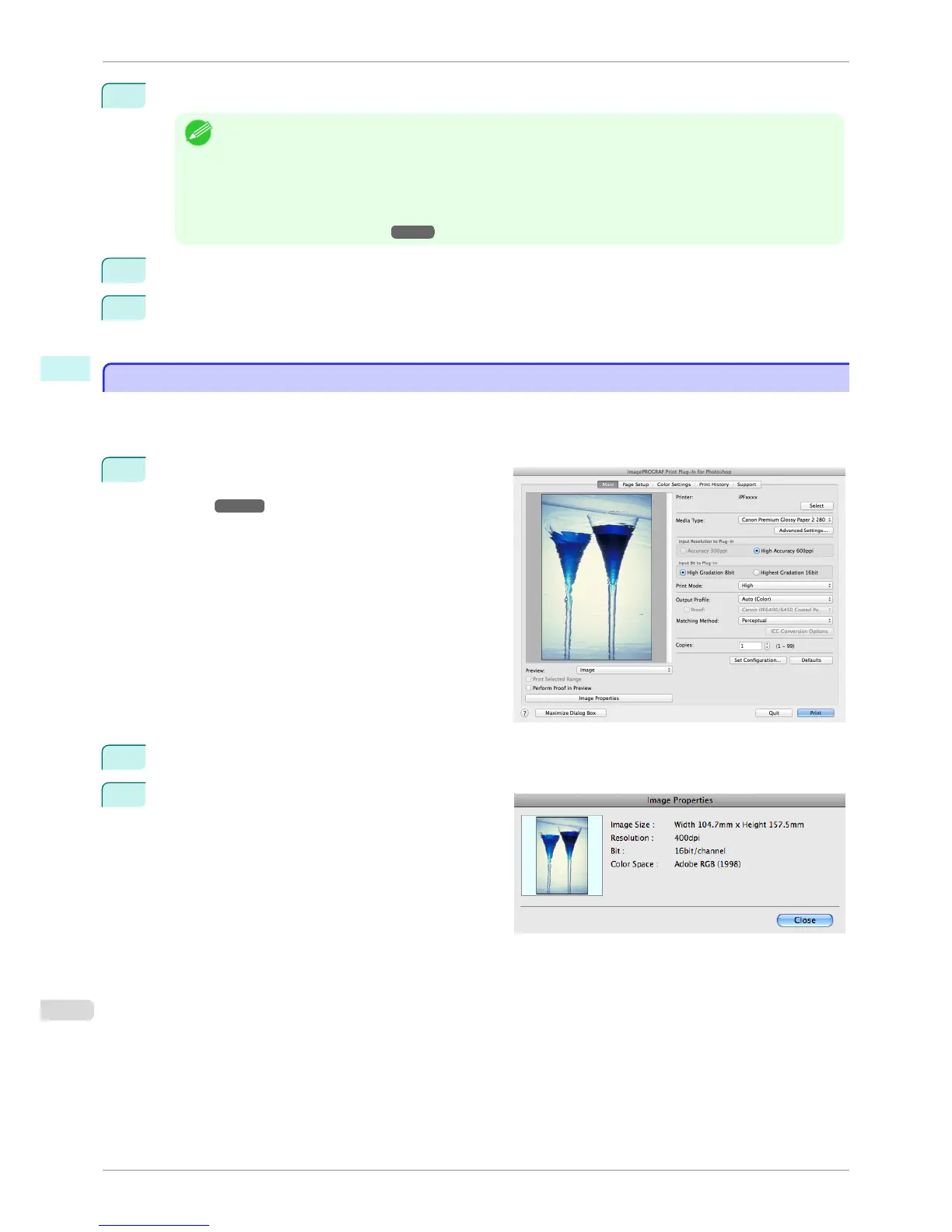
This prints a high-quality Adobe RGB 16bit image taken with a high-end digital camera. Print Plug-In allows you to
print high color gamut and high tone images, when the Adobe RGB 16bit image data has been retouched in Photo-
shop, without compromising the level of tone in the image.
1
Select the Adobe RGB 16bit image data in Photo-
shop and start Print Plug-In. (See "Starting from Pho-
toshop.")
➔P.403
2
Click Image Properties button.
3
Check that Adobe RGB is displayed in Color Space,
and 16bit/channel is displayed in Bit in the Image
Properties dialog box, and click the Close button.
Print High-Quality Adobe RGB 16bit Images
iPF8400S
User's Guide
Mac OS Software Print Plug-In for Photoshop / Digital Photo Professional
432














 To Next Page