5
Adjust Length from the list-box or slide-bar.
6
Click the Create Page button.
7
ClickOK if the message is displayed.
8
Edit and create the document.
Note
• Printing is done in Print Matching Roll Width of the Printing Wizard. For details on Print Matching Roll
Width, see "Print Matching Roll Width(Word)." ➔ P.289
Important
• The layout may collapse if you create a form using existing data. If that is the case, modify the data again.
To start from Microsoft PowerPoint
To start from Microsoft PowerPoint
Below are the steps to start Print Plug-In for Office from Microsoft PowerPoint.
1
Start Microsoft PowerPoint.
2
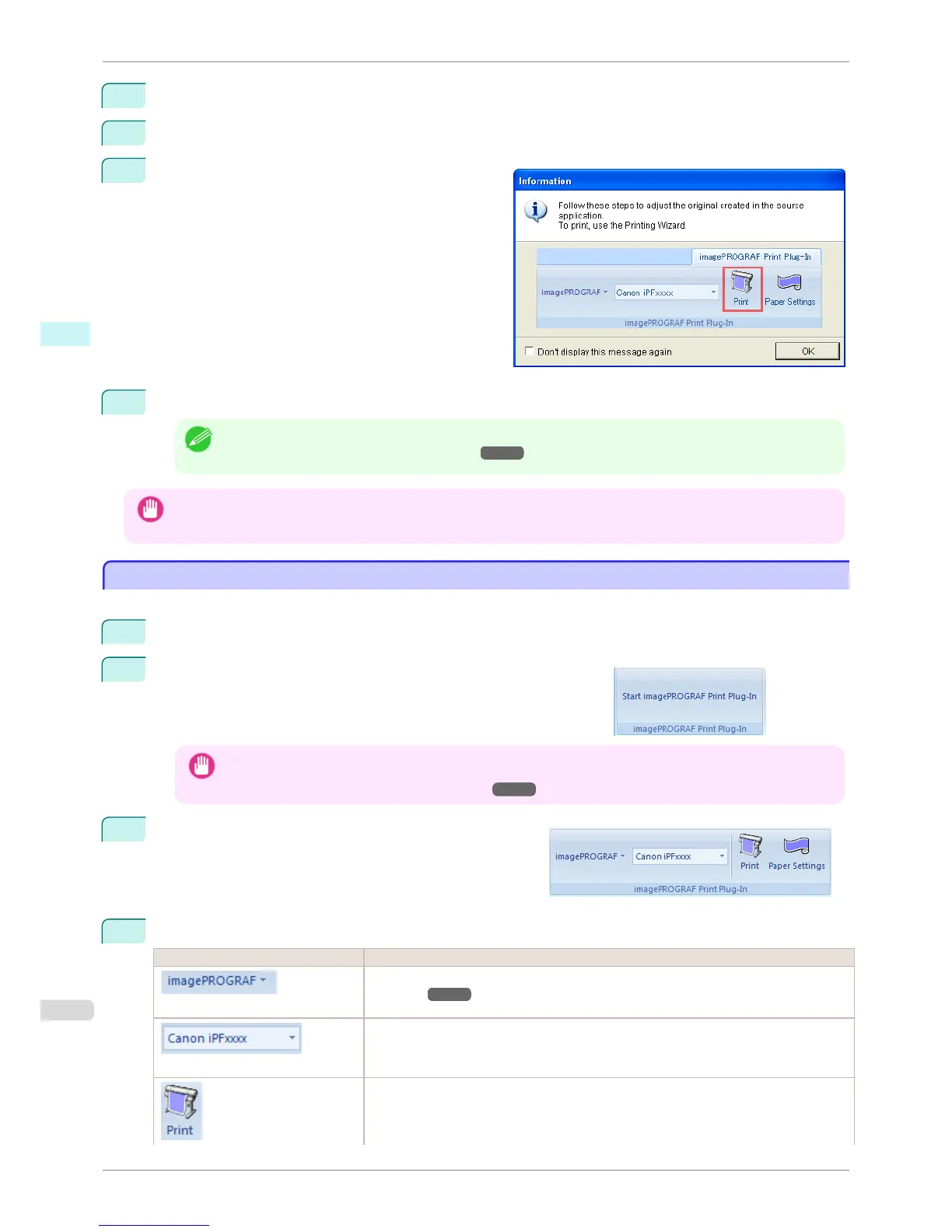
If Start imagePROGRAF Print Plug-In is displayed on the toolbar/
ribbon, click it.
Important
• If the imagePROGRAF Print Plug-In toolbar/ribbon is not displayed, refer to the following.
• When Print Plug-In for Office is not displayed ➔ P.284
3
Check that the imagePROGRAF Print Plug-In toolbar/
ribbon is displayed.
4
Click the buttons on the toolbar/ribbon according to the items you want to set.
Icon Contents
Menu
Displays the About, Help, and Special Settings dialog boxes. (See "Configuring Special
Settings.") ➔ P.316
Printer list
Select Printer.
If you select Show All Printers, the imagePROGRAF printers will be displayed again. Se-
lect this when you want to display all printer drivers or update the display.
The print Wizard is displayed.
The settings Print Matching Roll Width, Borderless Printing, Multi-Page Printing, and
Print Using Registered Settings can be set.
To start from Microsoft PowerPoint
iPF8400S
User's Guide
Windows Software Print Plug-In for Office
298














 To Next Page