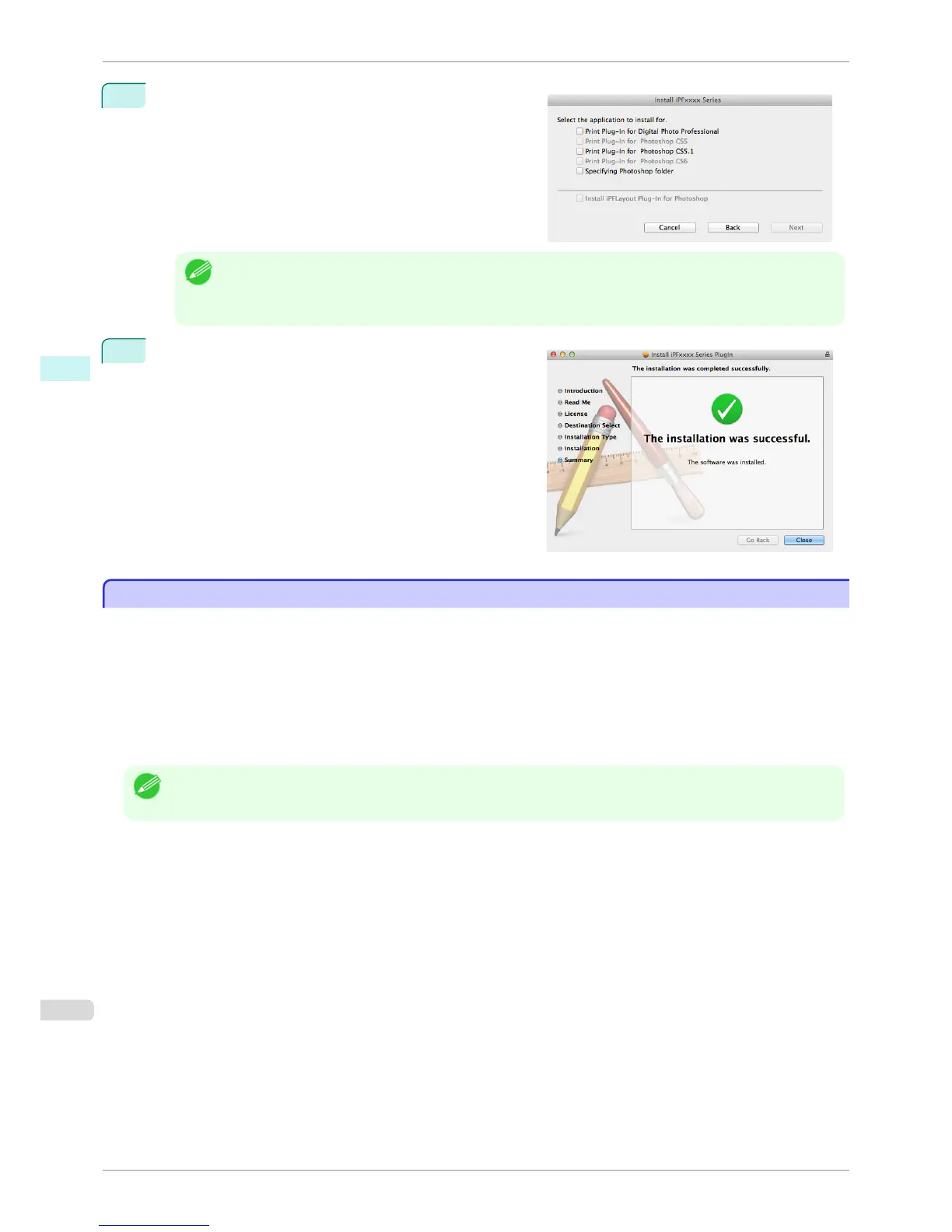
9
Select the applications that will use the Print Plug-In and
click the Next button.
Note
• You can select multiple applications to use.
• If Photoshop is selected, the Layout Plug-In is also installed. If you do not want to install the Layout Plug-In,
clear the Install iPFLayout Plug-In for Photoshop check box.
10
Click the Close button.
The Print Plug-In for Photoshop/Digital Photo Professional
installation is complete.
Uninstall Procedures
Uninstall Procedures
The procedures for uninstalling the Print Plug-In for Photoshop/Digital Photo Professional are as follows.
•
Uninstall Print Plug-In for Photoshop
1.
Close Photoshop.
2.
Display the Applications>Adobe Photoshop CSxx>Plug-ins>Import-Export>Print Plugin for iPFxxxx
folder in Finder. (The Import-Export folder does not exist in Photoshop CS6 and later.)
3.
Delete the Print Plugin for iPFxxxx folder.
Note
• iPFxxxx is the name of your printer.
•
Uninstall Print Plug-In for Digital Photo Professional
1.
Place the User Software CD-ROM in the CD-ROM drive.
2.
Open the Plug-in folder in the User Software CD-ROM.
3.
Open the Contens folder.
4.
Double-click the Print Plugin Uninstaller icon.
Uninstall Procedures
iPF8400S
User's Guide
Mac OS Software Print Plug-In for Photoshop / Digital Photo Professional
402














 To Next Page