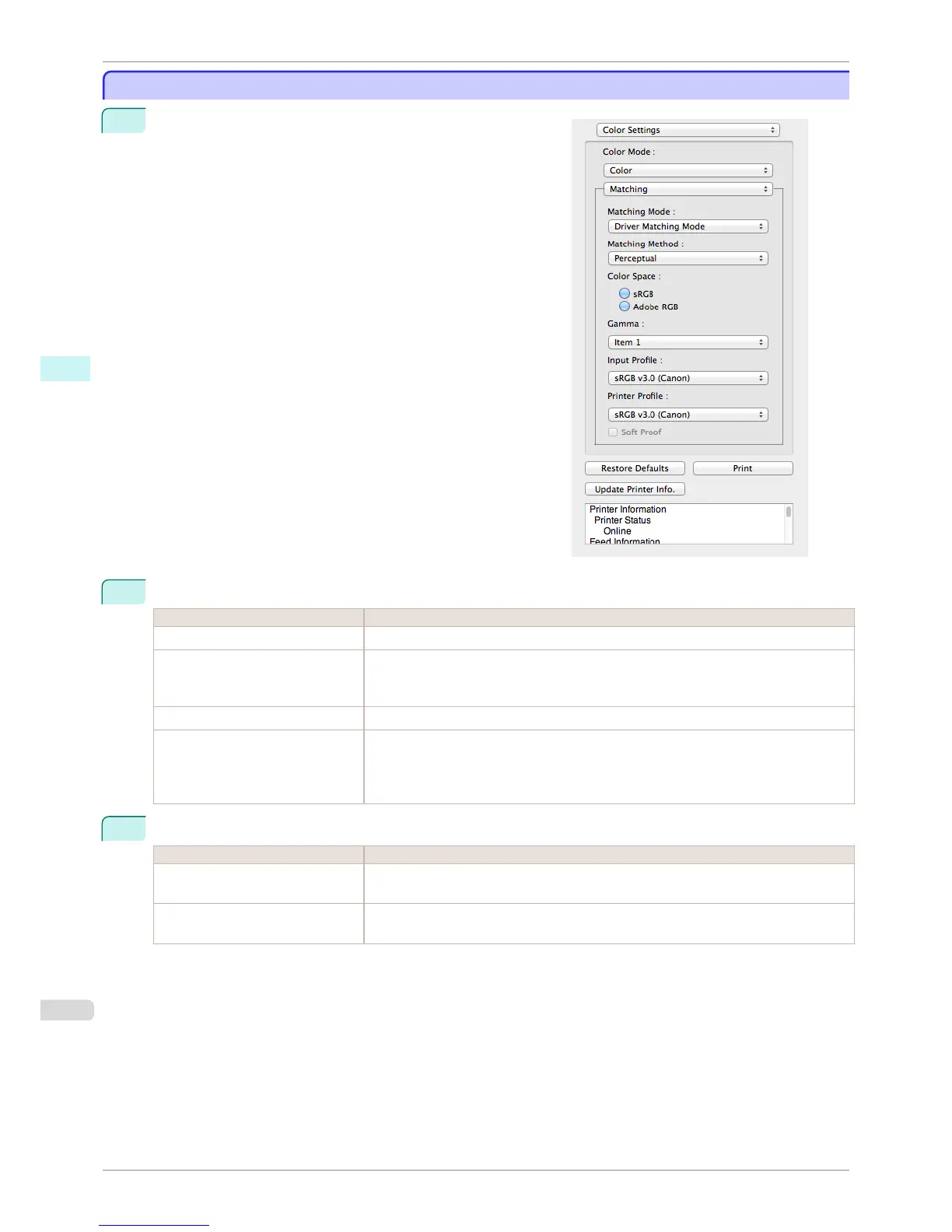
Driver Matching Mode
Driver Matching Mode
1
Under Matching Mode, select Driver Matching Mode.
2
Click the Matching Method list, and then select a setting.
Setting Details
Auto Automatically selects the best color matching method for each Image, Graphics, Text.
Perceptual Color-matching optimized for printing typical photos attractively. Smooth gradation is a fea-
ture. This is also an easy-to-use mode when performing color adjustment using application
software.
Saturation Color-matching optimized for printing posters, etc., vividly.
Colorimetric Color-matching optimized for printing image data with accurate colors in input color space.
This is the easiest-to-use mode when you want to adjust the color and print. However, gra-
dation may be lost for colors of wider range than the color reproduction range of the printer.
Generally, this is also called relative colorimetric.
3
Select Color Space for the print output.
Setting Details
sRGB Uses color space for a standard monitor. This selection is ideal for most software applica-
tions.
Adobe RGB Uses wide color space. Use this setting to print images created with Adobe RGB color
space.
Driver Matching Mode
iPF8400S
User's Guide
Mac OS Software Preview
352














 To Next Page