3
Select either Portrait or Landscape as the media orientation for the image in Orientation.
Note
• When you select Portrait, the image on the media prints as it appears on the screen.
• When you select Landscape, the image on the media prints rotated 90 degrees.
4
Click the Enlarged/Reduced Printing check box on.
Note
• This is not displayed when a checkmark is placed in Borderless Printing.
5
Select Fit Paper Size.
6
Click the Print button.
The image prints filling the entire output media surface.
Enlarge/Reduce and Print Matching Width of Roll Paper
Enlarge/Reduce and Print Matching Width of Roll Paper
You can enlarge/reduce and print an image matching the width of the roll paper set in the printer. This is useful
when you wish to print an image that covers the entire width of the roll paper.
Note
• Printing will not occur properly when a print roll is not set to the printer.
1
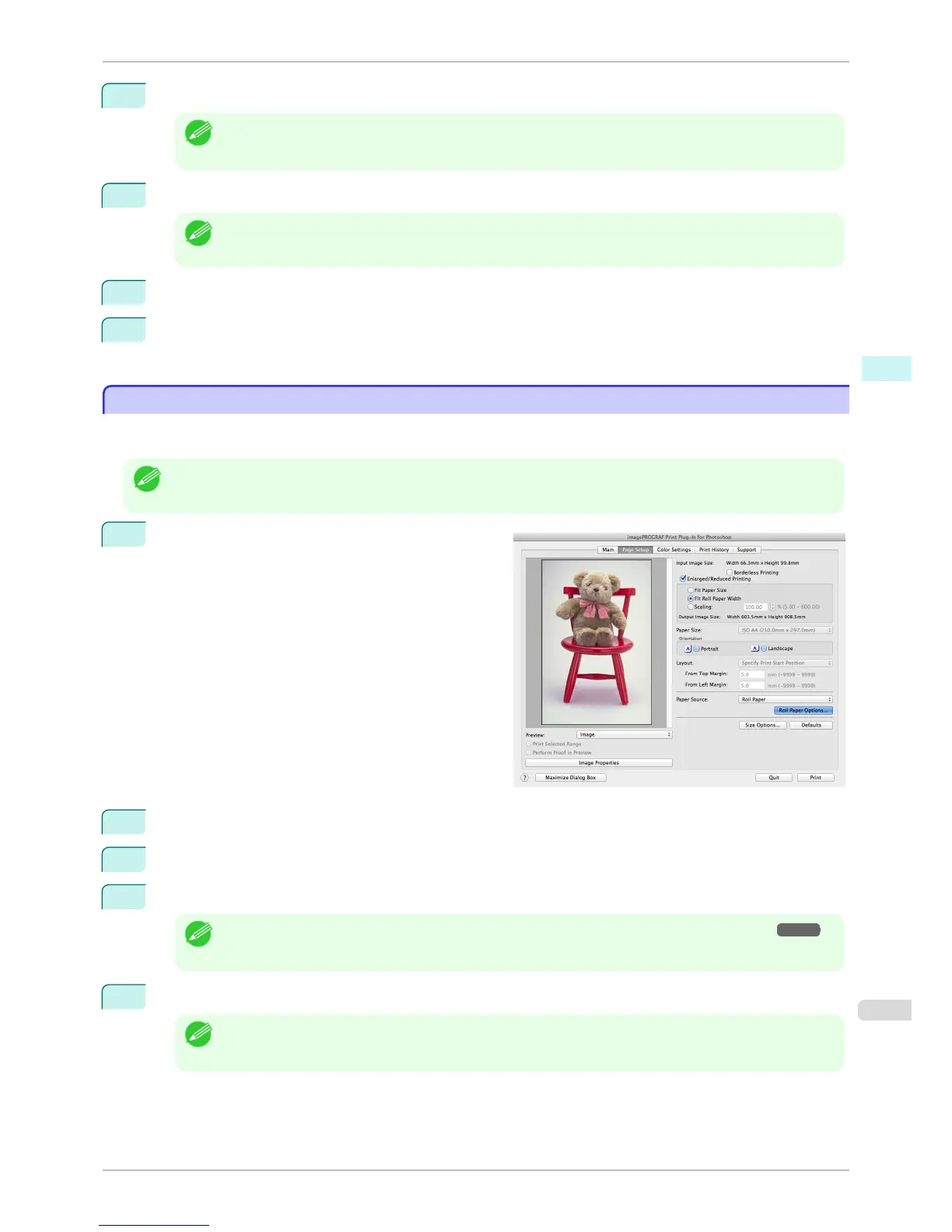
Display the Page Setup sheet.
2
Select Roll Paper in Paper Source.
3
Click the Roll Paper Options button.
4
Set the roll paper options and click the OK button.
Note
• For more information about the Roll Paper Options dialog box, see "Roll Paper Options Dialog Box." ➔ P.422
• Click the Defaults button to return all of the roll paper option settings to their defaults.
5
Select either Portrait or Landscape as the media orientation for the image in Orientation.
Note
• When you select Portrait, the image on the media prints as it appears on the screen.
• When you select Landscape, the image on the media prints rotated 90 degrees.
iPF8400S
Enlarge/Reduce and Print Matching Width of Roll Paper
User's Guide
Mac OS Software Print Plug-In for Photoshop / Digital Photo Professional
439














 To Next Page