9
Turn the printer on. (See "Turning the Printer On and Off.") ➔ P.21
The roll is advanced and the printer is ready to print.
Note
• For a neater edge, press the Cut button, select Yes, and cut the edge.
(See "Specifying the Cutting Method for Rolls.") ➔ P.483
Clearing a Jammed Sheet
Clearing a Jammed Sheet
If a sheet jams, follow the steps below to remove it.
1
Turn the printer off. (See "Turning the Printer On and Off.") ➔ P.21
2
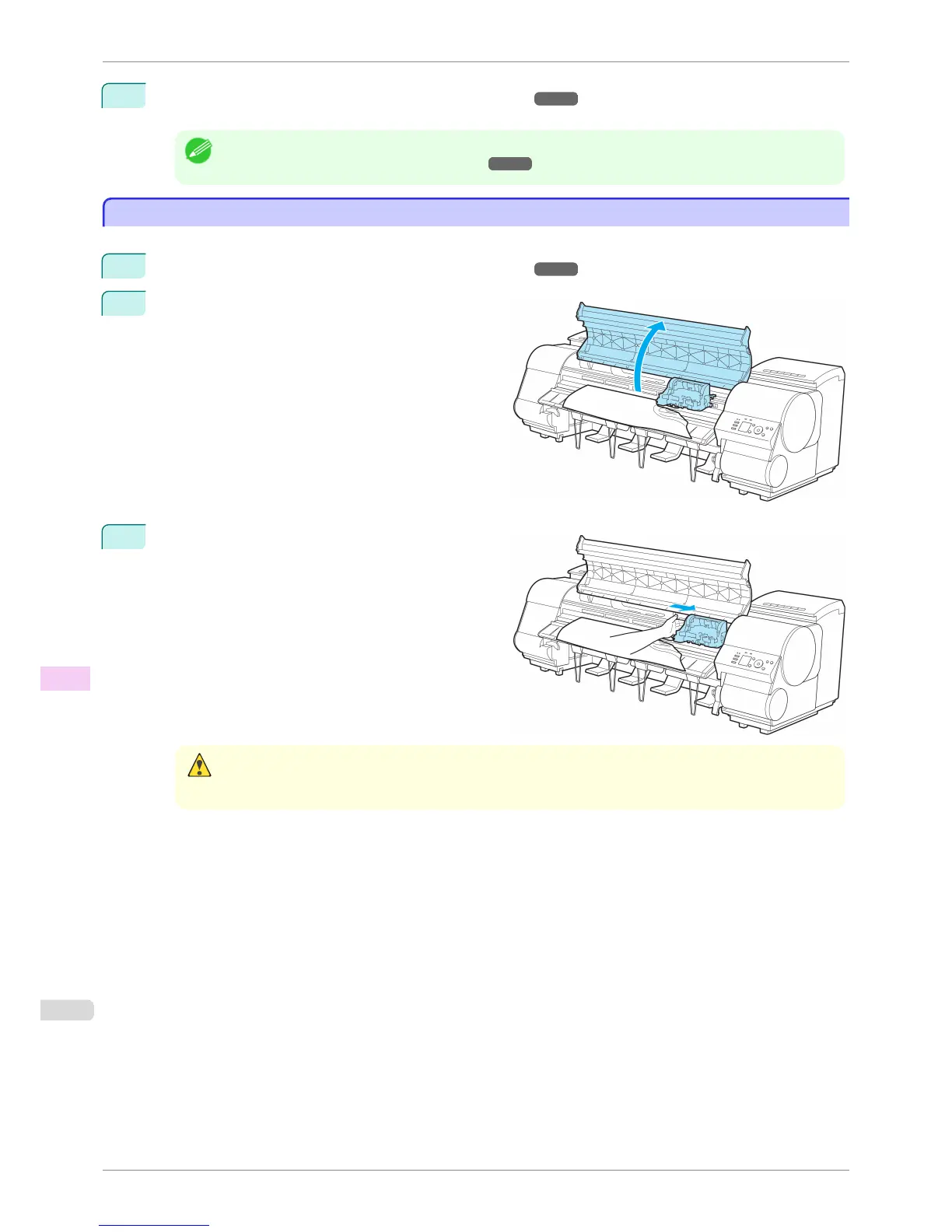
Open the Top Cover.
3
If the Carriage is out, move the Carriage out of the
way, away from the paper.
Caution
• If you push the Carriage to the left edge, the blade of the Cutter Unit will be lowered in preparation to cut the
paper. Be careful not to pinch your fingers between the Carriage and Platen if you have pushed the Carriage to
the left edge or if a paper jam occurs during cutting.
Clearing a Jammed Sheet
iPF8400S
User's Guide
Troubleshooting Problems Regarding Paper
856














 To Next Page