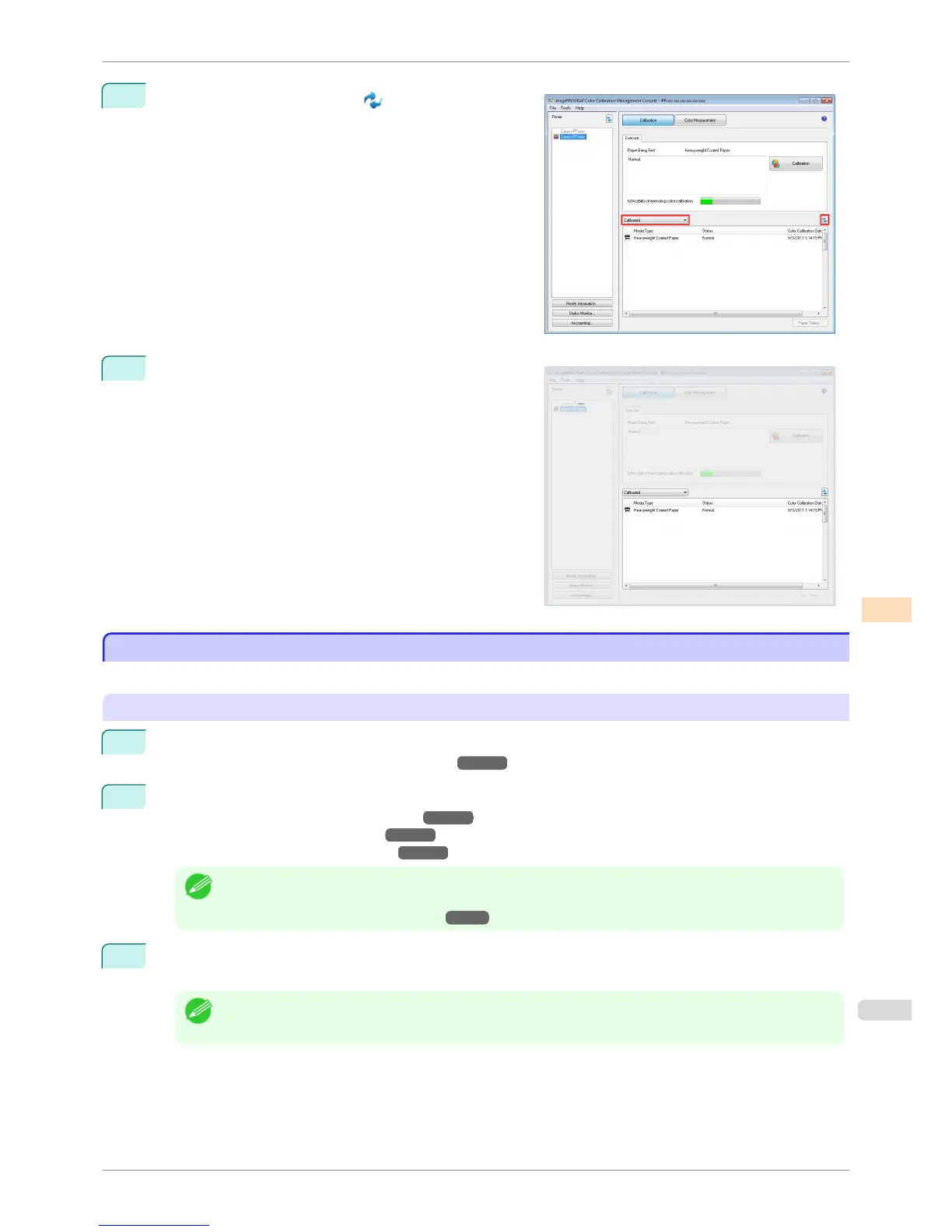
4
Select Calibrated and click the
button.
5
Check the color calibration logs in the lower part of the
Calibration sheet.
Executing Color Calibration
Executing Color Calibration
The procedure for executing color calibration is as follows.
Getting the Printer Ready
1
You can confirm whether the paper to be loaded can be used in color calibration.
(See "Displaying the Paper Reference Guide.") ➔ P.462
2
Load the paper.
(See "Attaching the Roll Holder to Rolls.") ➔ P.469
(See "Loading Rolls in the Printer.") ➔ P.471
(See "Loading Sheets in the Printer.") ➔ P.492
Note
• If Adj. Quality has not been executed even once on the paper you are using when you execute Auto Adjust
(High Precision), execute Adj. Quality in the control panel menu.
(See "Automatic Banding Adjustment.") ➔ P.719
3
If a spectrophotometer unit is mounted, select the White/Black Backing Plate color.
We recommend white.
Note
• For the color of the White/Black Backing Plate, continue using the selected color without changing each time
you execute color calibration.
iPF8400S
Executing Color Calibration
User's Guide
Color Management Color Calibration Management Console (Windows)
757














 To Next Page