7
Select the highest quality possible in Print Mode.
8
If required, adjust the colors using color matching.
Note
• For more information about the color matching, see "Adjust the Colors by Color Matching." ➔ P.256
9
Click the Print button.
Printing of the Adobe RGB 16bit image begins.
Prints monochrome photographs with high quality
Prints monochrome photographs with high quality
Prints images captured with a scanner or digital camera in monochrome with high quality. Provides stable mono-
chrome photo images without color casts and minimizes the influences of the difference of the light source.
1
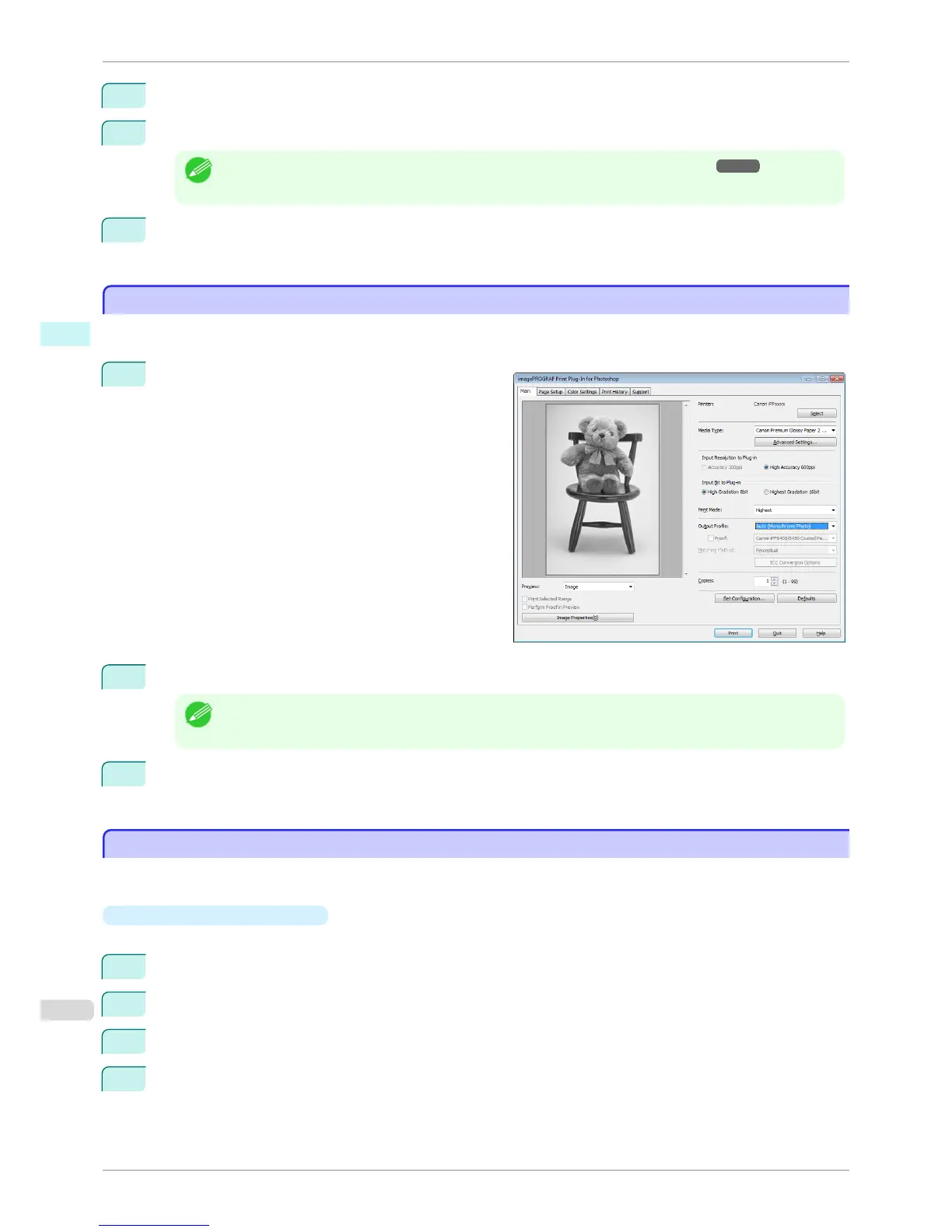
Display the Main sheet.
2
Select Auto (Monochrome Photo) in Output Profile.
Note
• Auto (Monochrome Photo) can be selected only after a compatible Media Type has been selected.
3
Click the Print button.
Performs conversion to the most suitable monochrome and printing begins.
Using Adobe CMM
Using Adobe CMM
Adobe CMM is a color conversion engine made by Adobe. Using Adobe CMM makes it possible to obtain uniform
color conversion results and to use the black point compensation function.
•
How to Obtain Adobe CMM
Adobe CMM can be obtained using the following procedure.
1
Open the Adobe website (http://www.adobe.com).
2
Enter "Adobe CMM" in the search input box on the screen.
3
Search for the "Adobe Color Management Module (CMM)" item and select the Windows version.
4
Download the file by following the on-screen directions.
Prints monochrome photographs with high quality
iPF8400S
User's Guide
Windows Software Print Plug-In for Photoshop / Digital Photo Professional
258














 To Next Page