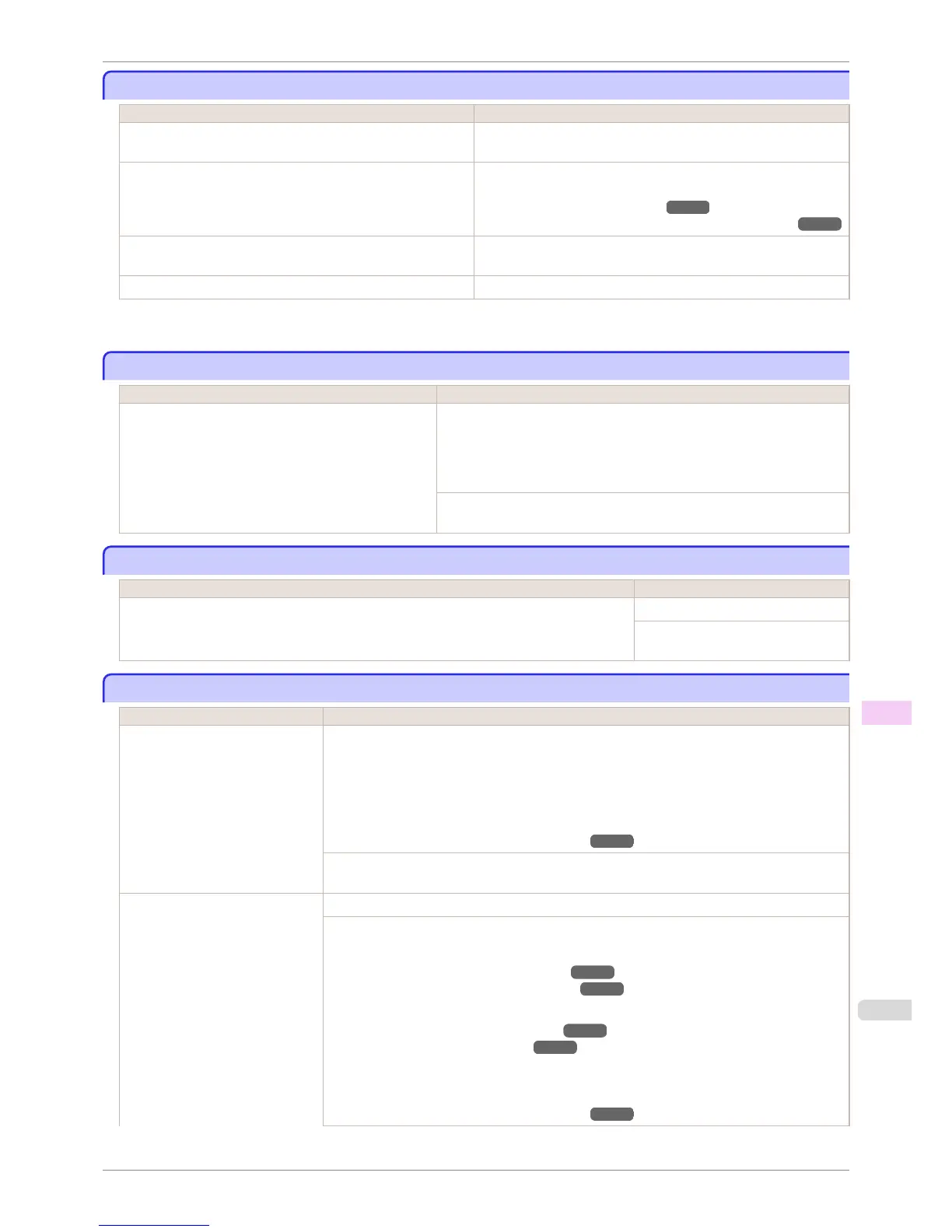
Rewinding error.
Rewinding error.
Cause Corrective Action
There is some foreign object near the Media Take-up Unit sensor
and the roll cannot be detected.
Remove the foreign object near the sensor.
The roll is out of range of detection by the Media Take-up Unit
sensor.
Reload the roll.
Press the OK button to clear the error.
(See "Loading Rolls in the Printer.") ➔ P.471
(See "Loading the Rewind Spool on the Media Take-up Unit.") ➔ P.508
A paper jam has occurred and the roll cannot be rewound. Remove the paper from the Media Take-up Unit.
Press the OK button to clear the error.
The Media Take-up Unit sensor is damaged. Contact your Canon dealer for assistance.
*1: Printing will stop momentarily if an error involving the Media Take-up Unit occurs. If you prefer printing not to stop, set Skip Take-
Up Err to On. However, note that this error may cause paper jams and affect the printing quality.
Media take-up unit ready.
Media take-up unit ready.
Cause Corrective Action
The Take-up Reel setting in the printer Set./Adj. Menu
was changed from Enable to Disable, but a print job was
received before the roll was removed.
Press ▲ or ▼ to select Stop Printing, and then press the OK button to stop
printing.
The mode switches from take-up mode to regular mode after you change the
Take-up Reel setting in the Set./Adj. Menu from Enable to Disable and lift
the Release Lever to remove a roll, or after you execute Paper Cutting.
Press ▲ or ▼ to select Print, and then press the OK button to resume print-
ing.
Turn on the media take-up unit.
Turn on the media take-up unit.
Cause Corrective Action
The Take-up Reel setting in the control panel menu was changed to Enable while the power to
the Take-up Reel was off and the Roll Media lamp on the control panel was lit.
Turn the Media Take-up Unit on.
The Take-up Reel setting in the con-
trol panel menu changes to Disable.
Borderless printng not possible.
Borderless printng not possible.
Cause Corrective Action
The print job received specifies a
type or width of paper that is not
compatible with borderless printing.
Follow these steps to change the settings of the print job to enable borderless printing.
1.
Press ▲ or ▼ to select Stop Printing, and then press the OK button.
2.
Make sure the correct printer driver for the printer is selected and try printing again.
For information on types of paper compatible with borderless printing, refer to the Paper Refer-
ence Guide.
(See "Displaying the Paper Reference Guide.") ➔ P.462 }
Press ▲ or ▼ to select Print With Border, and then press the OK button to continue printing. The
document will be printed with a border.
The loaded paper is a size not com-
patible with borderless printing.
Press ▲ or ▼ to select Stop Printing, and then press the OK button.
Replace the paper with paper compatible for borderless printing as follows.
1.
Press ▲ or ▼ to select Change Paper, and then press the OK button.
(See "Removing the Roll from the Printer.") ➔ P.477
(See "Removing the Roll Holder from Rolls.") ➔ P.479
2.
Replace the paper with paper compatible for borderless printing.
(See "Attaching the Roll Holder to Rolls.") ➔ P.469
(See "Loading Rolls in the Printer.") ➔ P.471
The printer now starts printing the print job.
For information on types of paper compatible with borderless printing, refer to the Paper Refer-
ence Guide.
(See "Displaying the Paper Reference Guide.") ➔ P.462 }
iPF8400S
Rewinding error.
User's Guide
Error Message Messages regarding paper
891














 To Next Page