•
Adjust the Colors while Checking the Preview (for Monochrome) ➔ P.254
•
Adjust the Colors by Color Matching ➔ P.256
•
Print High-Quality Adobe RGB 16bit Images ➔ P.257
•
Prints monochrome photographs with high quality ➔ P.258
•
Using Adobe CMM ➔ P.258
Adjust the Colors while Checking the Preview (for Color)
Adjust the Colors while Checking the Preview (for Color)
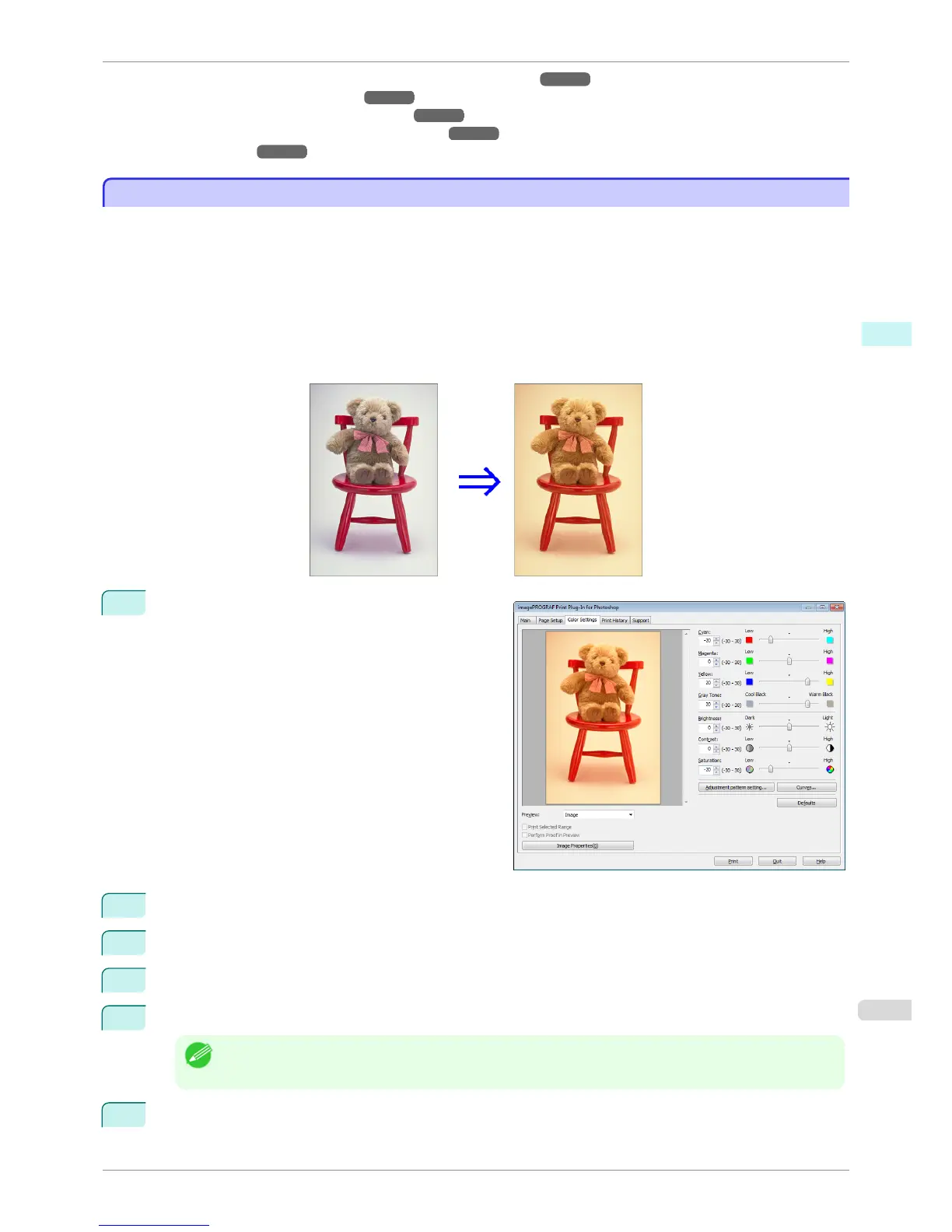
You can adjust the colors while checking the adjustments in the preview.
The following explanation is on the procedures for adjusting example image below.
•
Low for Cyan
•
High for Yellow
•
Low for Saturation
•
Warm Black for Gray Tone
•
Enhance brightness for the curves
The above image adjustments are reflected in the before and after images below.
1
Display the Color Settings sheet.
2
Drag the slide bar in the direction of Low in Cyan.
3
Drag the slide bar in the direction of High in Yellow.
4
Drag the slide bar in the direction of Low in Saturation.
5
Drag the slide bar in the direction of Warm Black in Gray Tone.
Note
• You can change the numbers by inputting in numerical characters.
• You can change the numbers by clicking either ▲ button or ▼ button.
6
Click the Curves button then click near the center of the curve.
iPF8400S
Adjust the Colors while Checking the Preview (for Color)
User's Guide
Windows Software Print Plug-In for Photoshop / Digital Photo Professional
253














 To Next Page