3
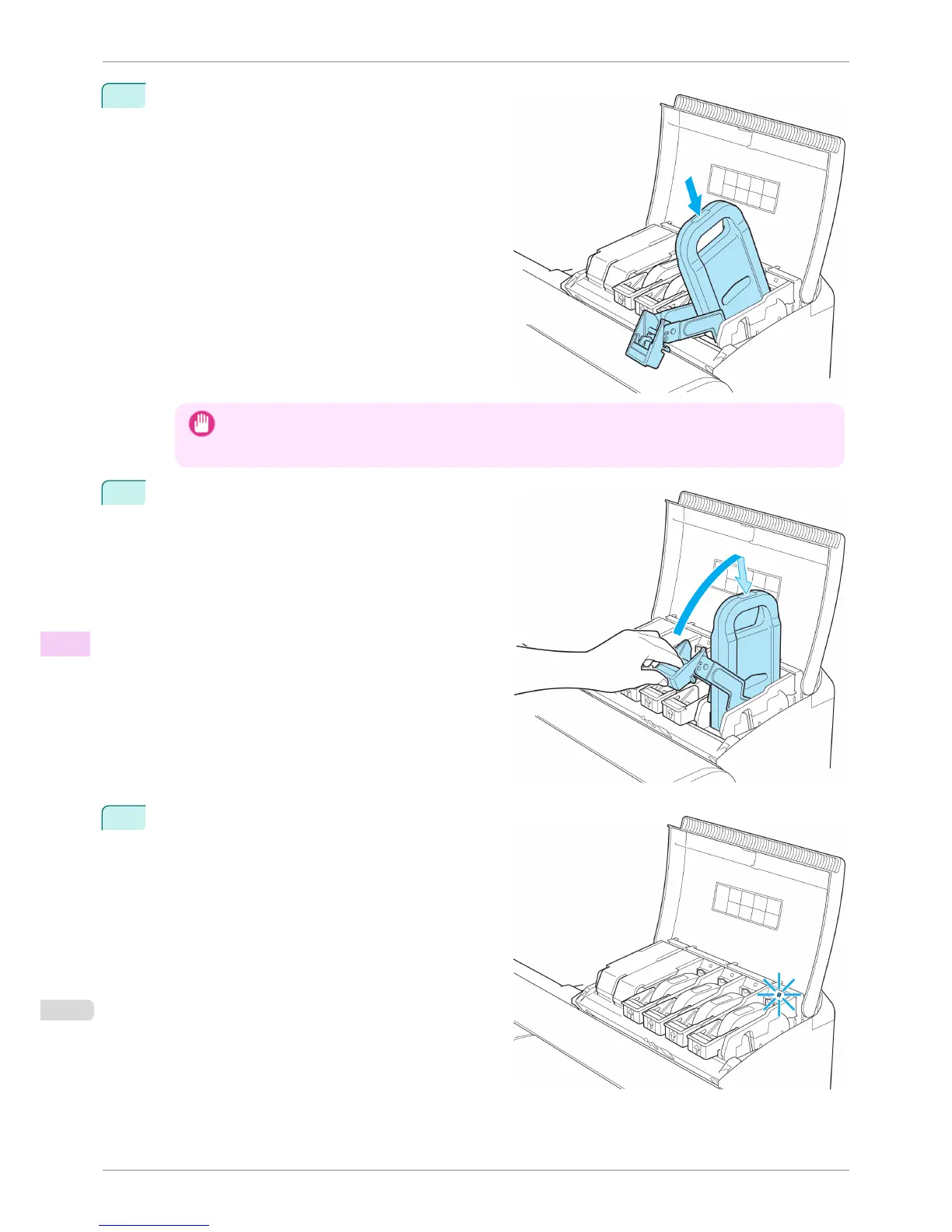
Press the OK button and insert the Ink Tank into the
holder facing as shown, with the ink holes down.
Important
• Ink tanks cannot be loaded in the holder if the color or orientation is incorrect.
If the Ink Tank does not fit in the holder, do not force it into the holder. Make sure the color of the Ink Tank
Lock Lever matches the color of the Ink Tank, and check the orientation of the Ink Tank before reloading it.
4
Lift the Ink Tank Lock Lever until it stops, and then
push it down until it clicks into place.
5
Make sure the Ink Lamp is lit in red.
Replacing Ink Tanks
iPF8400S
User's Guide
Maintenance and Consumables Ink Tanks
814














 To Next Page