Cutting Method Printer Setting Driver Setting
Manual
(when using
media that
cannot be
cut with the
Cutter Unit )
Media
Menu > Pa-
per Details
> (Various
Types of
Paper) >
Cutting
Mode
Auto Cut
(See "Cut-
ting Roll Pa-
per After
Print-
ing.")
➔ P.144
Select this for paper that cannot be cut with the Cutter
Unit and for paper of which the leading edge curls
strongly and rubs the printhead.
Use scissors to cut each document from the roll after
printing. For continuous printing (if you will cut each
page later), select Auto Cut > Yes or select Print Cut
Guideline.
Manual No, Yes, Print
Cut Guideline
Paper cut-
ting (to have
the roll cut
at your
specified
position)
Choose this option if you want to cut pages by press-
ing Cutter Unit buttons for manual cutting after printing
when Auto Cut > No is selected or Print Cut Guide-
line is selected in the printer driver.
Otherwise choose this option if you want to cut the roll
edge after loading a roll.
Cut button
pressed
Yes No, Print Cut
Guideline
Note
• Automatic and Eject are valid only when you have selected Auto Cut > Yes in the printer driver.
• With Eject, printing does not resume after a series of jobs have been printed continuously until the roll is cut.
• Eject is the preset selection in Cutting Mode for some types of paper. For this paper, we recommend keeping the preset
cutting mode.
•
If documents printed using Automatic, Eject, or manual cutting are short, rolls are advanced a specific amount before
cutting to prevent problems with cutting and paper ejection. This may create a wider bottom margin, in some cases.
Cut rolls manually in the following cases:
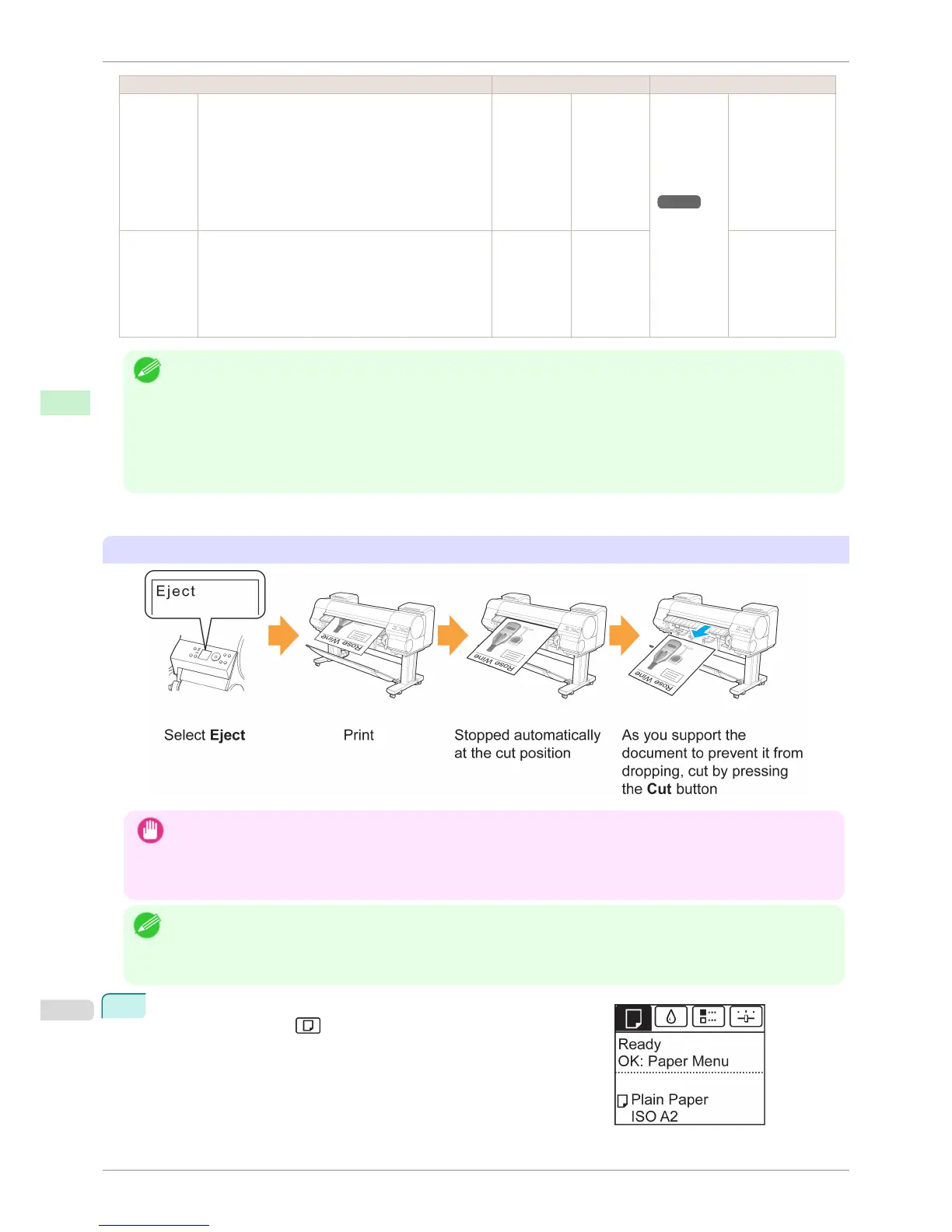
Eject (when the paper surface is being scratched / to wait for ink to dry)
Important
• When cutting wide printed documents after ejection, have two people support the documents. If the paper drops, printed
documents may be damaged.
• Do not lift the paper when holding printed documents before cutting. If the paper rises, it may affect the printing quality or
cause rough cut edges.
Note
• Once the following step has been performed, the procedure can be started from step 7 the next time.
• Printing the second and subsequent times
• Printing after replacing with the same type of paper
1
On the Tab Selection screen of the Control Panel, press ◀ or ▶ to
select the Paper tab ( ).
Specifying the Cutting Method for Rolls
iPF8400S
User's Guide
Handling and Use of Paper Handling rolls
484














 To Next Page