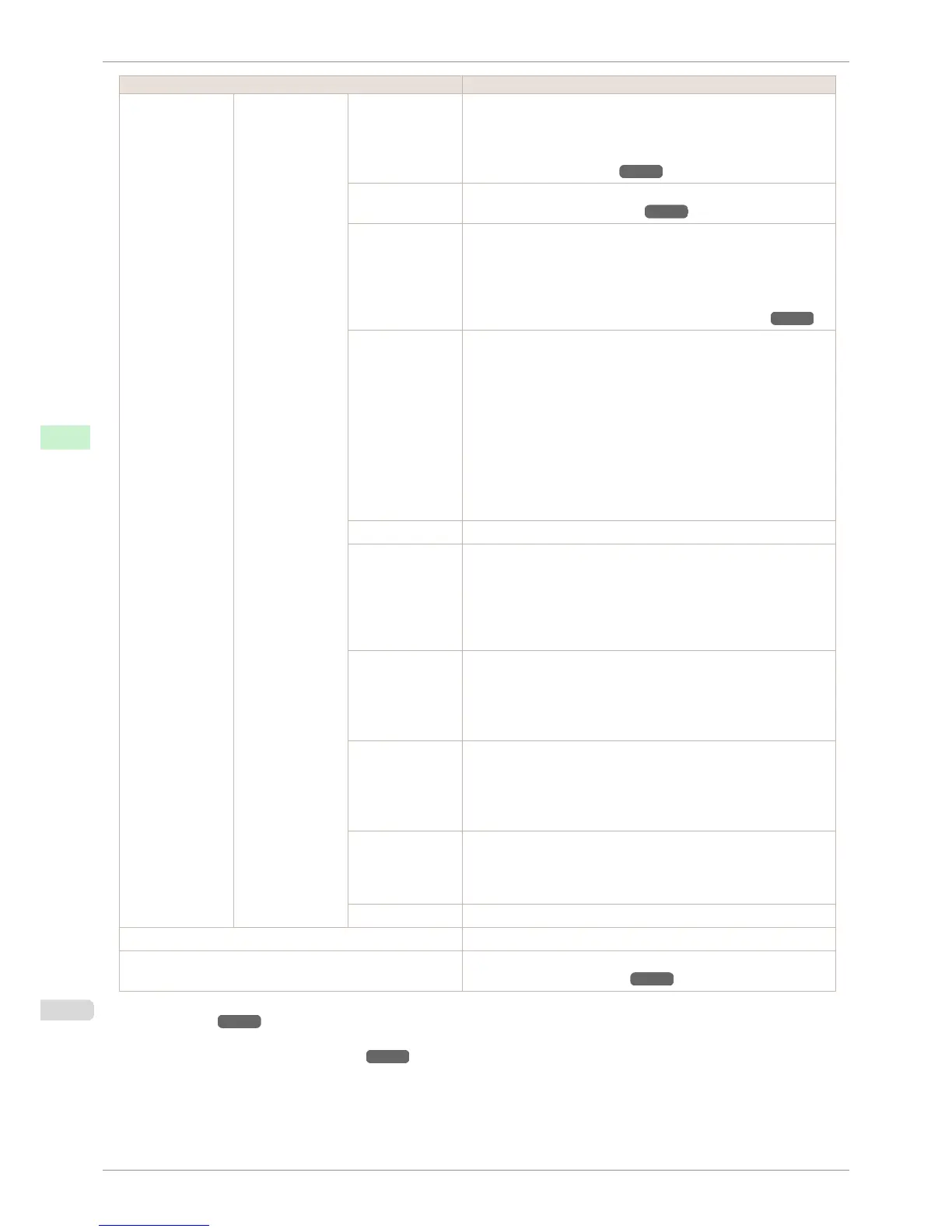
Setting Item Description, Instructions
Paper Details (The type of paper
is displayed here.)
(*1)
CutDustReduct. If you choose On, a line will be printed at the cut position when paper
cutting is selected. This option reduces the amount of debris given off
after cutting. It also helps prevent adhesive from sticking to the cutter
and keeps the cutter sharp if you use adhesive paper. (See "Reduc-
ing Dust from Cutting Rolls.") ➔ P.491
VacuumStrngth Specify the level of suction that holds paper against the Platen. (See
"Adjusting the Vacuum Strength.") ➔ P.724
Roll Tension Adjust the slack of the roll paper loaded in the printer.
If there is slack in thin roll paper and the paper is becoming scratch-
ed, or wrinkles or creases are occurring, set this to High to make it
harder for slack to occur, and reduce the amount of scratches, etc.
If you change the Roll Tension setting, We recommend that you per-
form Adj. Quality. (See "Automatic Banding Adjustment.") ➔ P.719
Scan Wait Time Specify the time to wait for the ink to dry between each scan (after
the printhead finishes moving in one direction), in consideration of
how quickly the ink dries. Also specify the applicable area for the ink
drying time. Select Entire area to apply the ink drying time after each
scan until the document is fully printed. Select Leading edge to apply
the ink drying time after each scan only in the area 110–160 mm from
the leading edge. (The applicable length varies depending on the
Print Quality setting.) Note that printing will take longer if you specify
the Scan Wait Time setting. In particular, when Leading edge is se-
lected, colors may be uneven in the boundary between the areas with
and without a drying time.
Roll DryingTime Specify the time to wait for the ink to dry for each sheet.
NearEnd
RollMrgn
Specify the minimum margin at the leading edge of roll paper to en-
sure better printing quality at the leading edge.
Note that if you choose 5mm, it may lower the printing quality at the
leading edge and affect feeding accuracy. The printed surface may
be scratched, and ink may adhere to the leading edge. It may also
cause the Platen to become soiled.
NearEnd Sht
Mrgn
Specify a margin at the leading edge of sheets to ensure better print-
ing quality at the leading edge.
Note that if you choose 5mm, it may lower the printing quality at the
leading edge and affect feeding accuracy. The printed surface may
be scratched, and ink may adhere to the leading edge.
BordlessOversize Select the amount of oversize extension of the original during border-
less printing.
Normally, we recommend that you set this to Standard.
If it is set to Little, although it will reduce soiling on the back surface,
white patches may remain on the printed surface.
Width Detection Specify this option to print inside boundaries or in other cases when
specifying a particular starting position for printing.
Paper width and skew are not detected if you select Off. If paper is
loaded askew, paper jams or Platen soiling may occur.
Return Defaults Choose OK to restore Paper Details to the default values.
Paper Details Print the paper settings as specified in Paper Details.
Keep Paper Type Select On when printing on a particular type of paper regularly. (See
"Changing the Type of Paper.") ➔ P.475
*1: For information on the types of paper the printer supports, refer to the Paper Reference Guide. (See "Displaying the Paper Refer-
ence Guide.") ➔ P.462 Types of paper in the printer driver and related software (as well as on the Control Panel ) are updated
when you install the printer driver from the User Software CD-ROM or if you update paper information with the Media Configuration
Tool. (See "Updating paper information.") ➔ P.465
Menu Settings
iPF8400S
User's Guide
Control Panel Printer Menu
592














 To Next Page