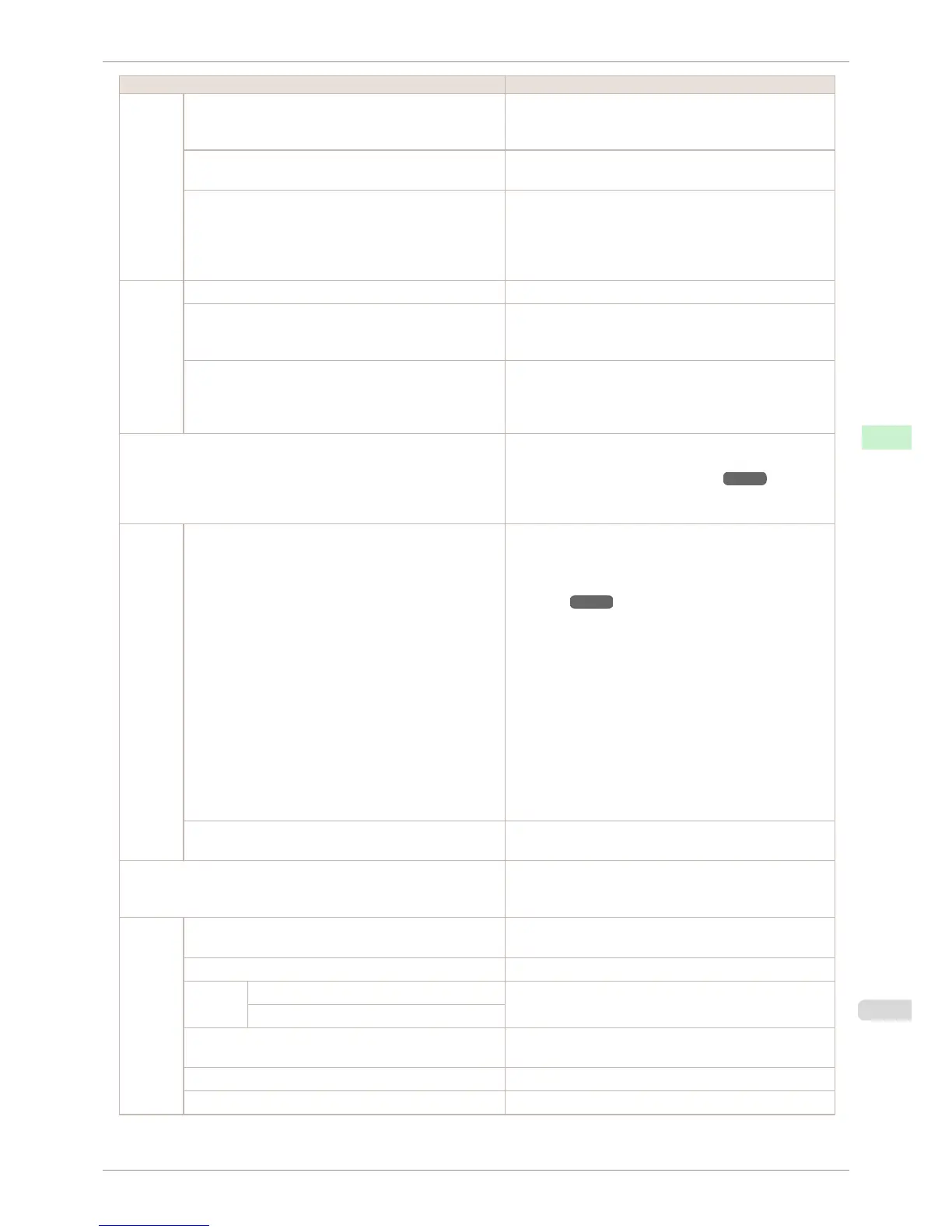
Setting Item Description, Instructions
System
Setup
Print After Recv A setting for jobs received from software other than the print-
er driver. When using the printer driver, configure settings on
the printer. Select On to print the job after it has been saved.
Common Box Set. Select Print (Auto Del) to print without saving jobs in the box
shared among multiple users.
Show Job Log Selecting Off prevents display of the log in Job Menu > Job
Log. Additionally, the log is not printed if you choose Job
Menu > Print Job Log. Note that because job logs are not
collected, the Status Monitor accounting functions will not
work correctly.
Take-up
Reel
Use Take-up Reel Selecting Enable allows use of the Media Take-up Unit.
Auto Feed Available only if Use Take-up Reel is already set to Enable.
Rolls are automatically advanced to the position for attach-
ment to the Rewind Spool.
Skip Take-Up Err Available only if Use Take-up Reel is already set to Enable.
Choose On to continue with printing even if an error occurs
with the Media Take-up Unit. Choose Off to pause printing if
a take-up error occurs.
Prep.MovePrinter When transferring the printer to another location, choose the
level of transfer and follow the instructions on the screen.
(See "Preparing to Transfer the Printer.") ➔ P.844
Not displayed during a warning message that the remaining
Maintenance Cartridge capacity is low.
Admin.
Menu
Change Password The password that can be entered is a number from 0 to
9999999.
The restriction states and main items are shown below. For
more specific information on restricted items, see "Menu
Structure." ➔ P.586
•
Viewing and configuration by administrators only
Change Password
Init.Admin.Pswd
Etc.
•
Viewing and configuration by administrators, and only
viewing by other users
Date & Time
Time Zone
Use RemoteUI
Etc.
Init.Admin.Pswd Choose OK to restore the Admin. Menu password to the de-
fault values.
Adj. Fine Feed (*2) (*3) Displayed when you have selected Feed Priority > Adj. Pri-
ority > Automatic or Print Quality. Fine-tune the feed
amount manually.
Printer
Info (*2)
Paper Info Indicates the current paper size, type, and related printer set-
tings.
Ink Info Indicates ink levels and maintenance cartridge capacity.
Head In-
fo
Printhead L Indicates information about the printhead.
Printhead R
System Info Indicates the firmware version, serial number, and interface
information.
Error Log Indicates the most recent error messages (up to five).
Other Counter Indicates the total printing volume of the printer.
iPF8400S
Menu Settings
User's Guide
Control Panel Printer Menu
599














 To Next Page