2
Select the printer in the A Printer list.
3
In the F Paper Size list, click the size of the original. In this case, click ISO A4.
4
If you configured the settings using the Page Attributes dialog box, click F OK to close the dialog box, and
then select Print from the application software menu.
5
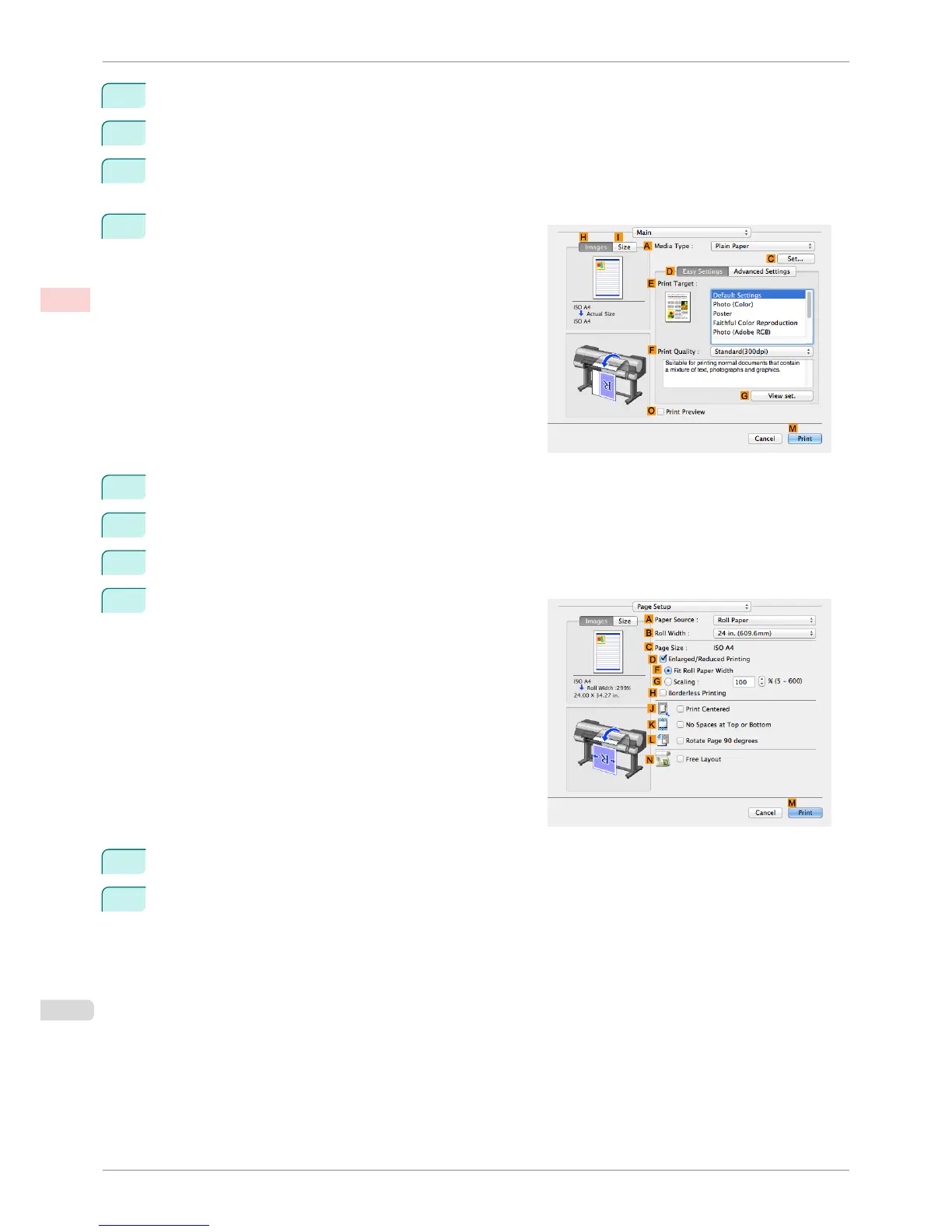
Access the Main pane.
6
In the A Media Type list, select the type of paper that is loaded. In this case, click Plain Paper.
7
Make your selection in the E Print Target list.
8
Make your selection in the F Print Quality list.
9
Access the Page Setup pane.
10
Select and click a roll paper in the A Paper Source list.
11
Select the paper width of the roll loaded in the printer for B Roll Width. In this case, 16 in. (406.4mm) is
selected.
Resizing Originals to Fit the Roll Width (Mac OS)
iPF8400S
User's Guide
Enhanced Printing Options Printing enlargements or reductions
68














 To Next Page