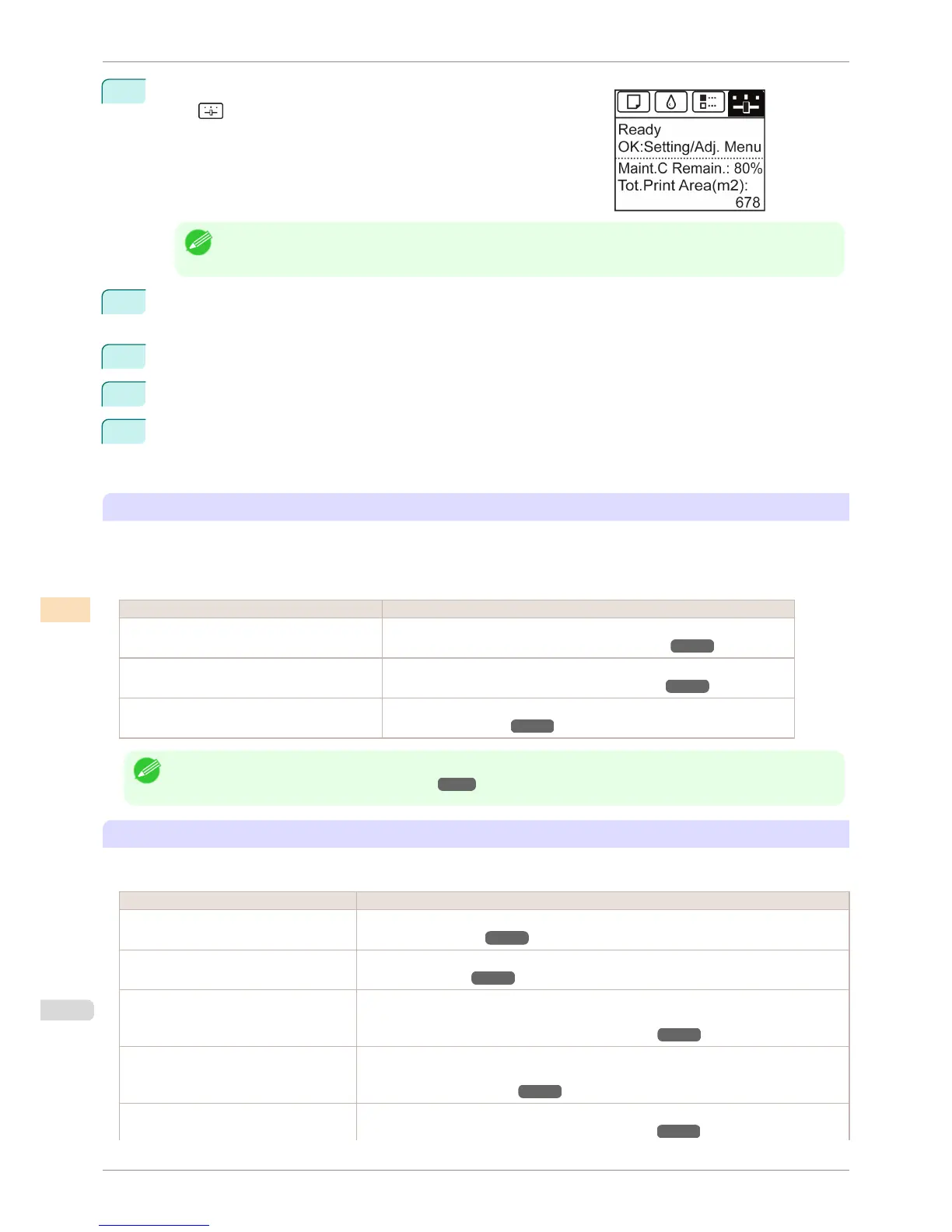
1
On the Tab Selection screen of the Control Panel, press ◀ or ▶ to
select
(Settings/Adj. tab).
Note
• If the Tab Selection screen is not displayed, press the Menu button.
2
Press the OK button.
Set./Adj. Menu is displayed.
3
Press ▲ or ▼ to select Adjust Printer, and then press the OK button.
4
Press ▲ or ▼ to select Calibration, and then press the OK button.
5
Press ▲ or ▼ to select Auto Adjust, and then press the OK button.
After the environment measurements and paper are confirmed, and color calibration is executed, the cali-
bration adjustment value is set automatically.
Applying Calibration Adjustment Values During Printing
The application of the calibration adjustment values when printing can be set in the printer driver or on the menu of
the Control Panel.
However, when the setting value of the printer driver and the setting value of the Control Panel differ, the setting of
the printer driver is prioritized.
How to Apply How to Operate
Configure on the printer driver menu. (Windows) Configure Calibration Value.
(See "Paper Detailed Settings Dialog Box (Windows).") ➔ P.161
Configure on the printer driver menu. (Mac OS) Configure Calibration Value.
(See "Paper Detailed Settings Dialog Box (Mac OS).") ➔ P.326
Configure on the menu of the Control Panel. From Set./Adj. Menu, select Adjust Printer > Calibration > Use Adj. Value.
(See "Menu Settings.") ➔ P.591
Note
• After color calibration, you can use the printer driver to make further color adjustments as necessary.
(See "Adjusting the Color in the Printer Driver.") ➔ P.51
Checking Color Calibration Execution Logs
You can confirm information of color calibration such as the execution date and executed paper type by the follow-
ing method.
How to Check How to Operate
Confirm it on the Control Panel of the print-
er.
From Set./Adj. Menu, select Adjust Printer > Calibration > Calibration Log.
(See "Menu Settings.") ➔ P.591
Print information about the printer. From Set./Adj. Menu, select Test Print > Status Print.
(See "Status Print.") ➔ P.600
Confirm with imagePROGRAF Status
Monitor. (Windows)
On the Information sheet of imagePROGRAF Status Monitor, click the View Calibration
Log button.
(See "The Features of imagePROGRAF Status Monitor.") ➔ P.654
Confirm this in the Printer Information di-
alog box of the printer driver. (Mac OS)
In the Printer Information dialog box, click the Information tab, and click the View Calibra-
tion Log button.
(See "Main Pane (Mac OS).") ➔ P.323
Check in the Color Calibration Manage-
ment Console.
Check in the Calibration sheet.
(See "Checking the Color Calibration Status (Windows).") ➔ P.756
Color Calibration Using the Printer Sensor
iPF8400S
User's Guide
Color Management Color Calibration
736














 To Next Page