10
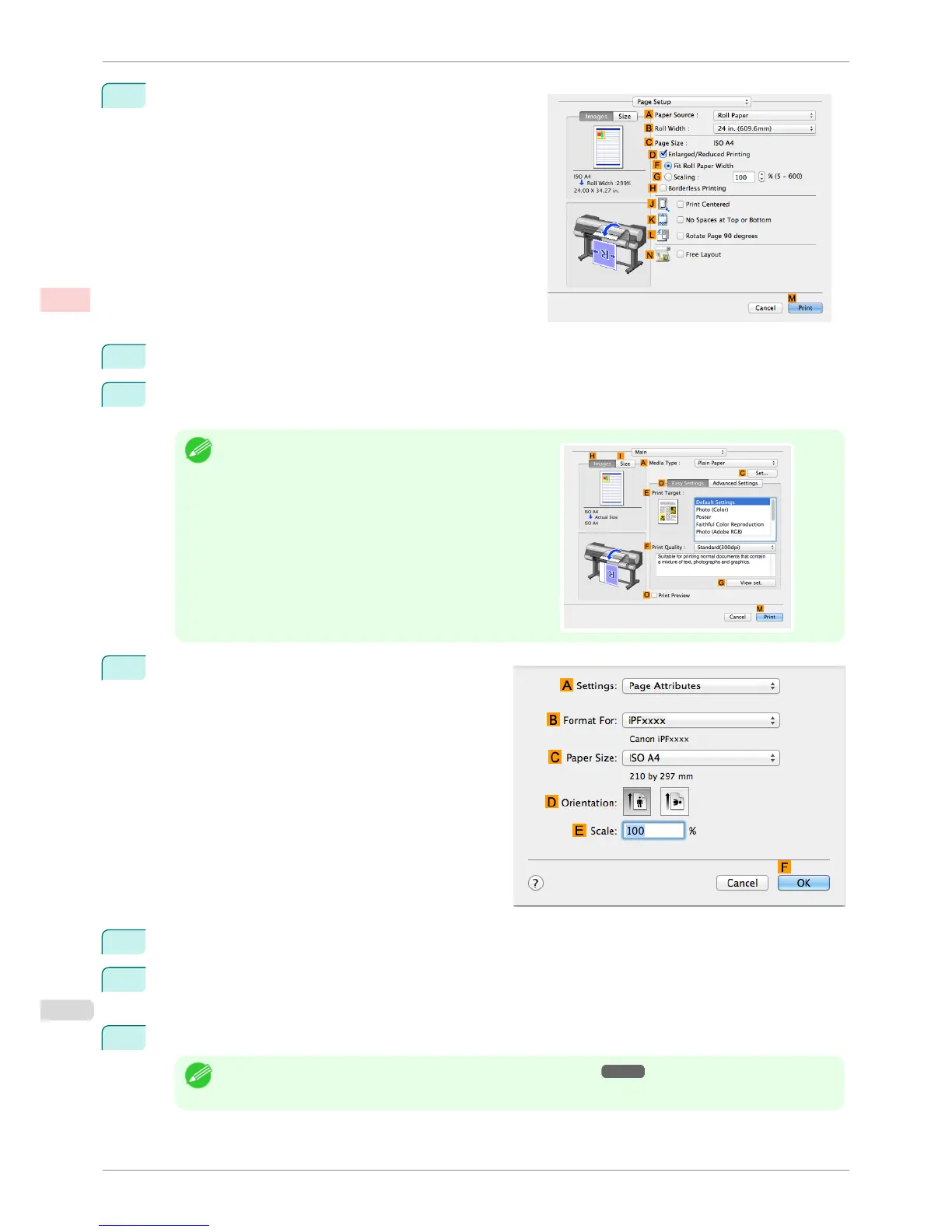
Access the Page Setup pane.
11
Select and click a roll paper in the A Paper Source list.
12
Select the paper width of the roll loaded in the printer for B Roll Width. In this case, 10 in. (254.0mm) is
selected.
Note
•
If the width of the loaded roll is not displayed in B Roll
Width, click L Printer Information on the Main pane and
update the printer information.
13
Make sure the C Page Size setting matches the orig-
inal size as selected in C Paper Size in the Page At-
tributes dialog box—in this case, ISO A4.
14
Select the D Enlarged/Reduced Printing check box.
15
Select the H Borderless Printing check box.
This ensures that F Fit Roll Paper Width is automatically selected in D Enlarged/Reduced Printing.
16
Confirm the print settings, and then click M Print to start printing.
Note
• For tips on confirming print settings, see "Confirming Print Settings ." ➔ P.321
Borderless Printing by Resizing Originals to Fit the Roll Width (Mac OS)
iPF8400S
User's Guide
Enhanced Printing Options Borderless Printing
92














 To Next Page