CONSOLE AI | Managing Channels (CP2) | 188
Symbol Meaning
A gray box represents a mixer block, which can be used to
simplify routing.
See the “Use Mixer Blocks” section later in this topic for details.
Choose a Partition and Preset
5. (Optional) If you are using Advanced Room mode, choose a partition from the Partition drop-down list.
Note:
If you’re using partitions, changes you make in FlowView apply only to the selected partition.
6. (Optional) Choose a preset from the Preset drop-down list.
Renaming Channels and Channel Groups
7. You can rename any channel or channel group by clicking its name and then waiting for the name to
become editable.
8. Type a new name and press the Enter key to save the name.
Move Channel Icons
9. You can move a channel, channel group, or gating group icon anywhere you want within the FlowView
space by simply dragging it.
10.Drag the channel icon to where you want it to appear within FlowView.
When the icon lines up with another channel icon, horizontally or vertically, a line briefly flashes at the
center of the aligned icon to show you that they aligned.
Add a Channel Route
11.To route audio from one channel to another, grab the output connector from one channel and drag it to
the input connector of another channel. The mouse pointer changes to a target to show that you are
making a connection.
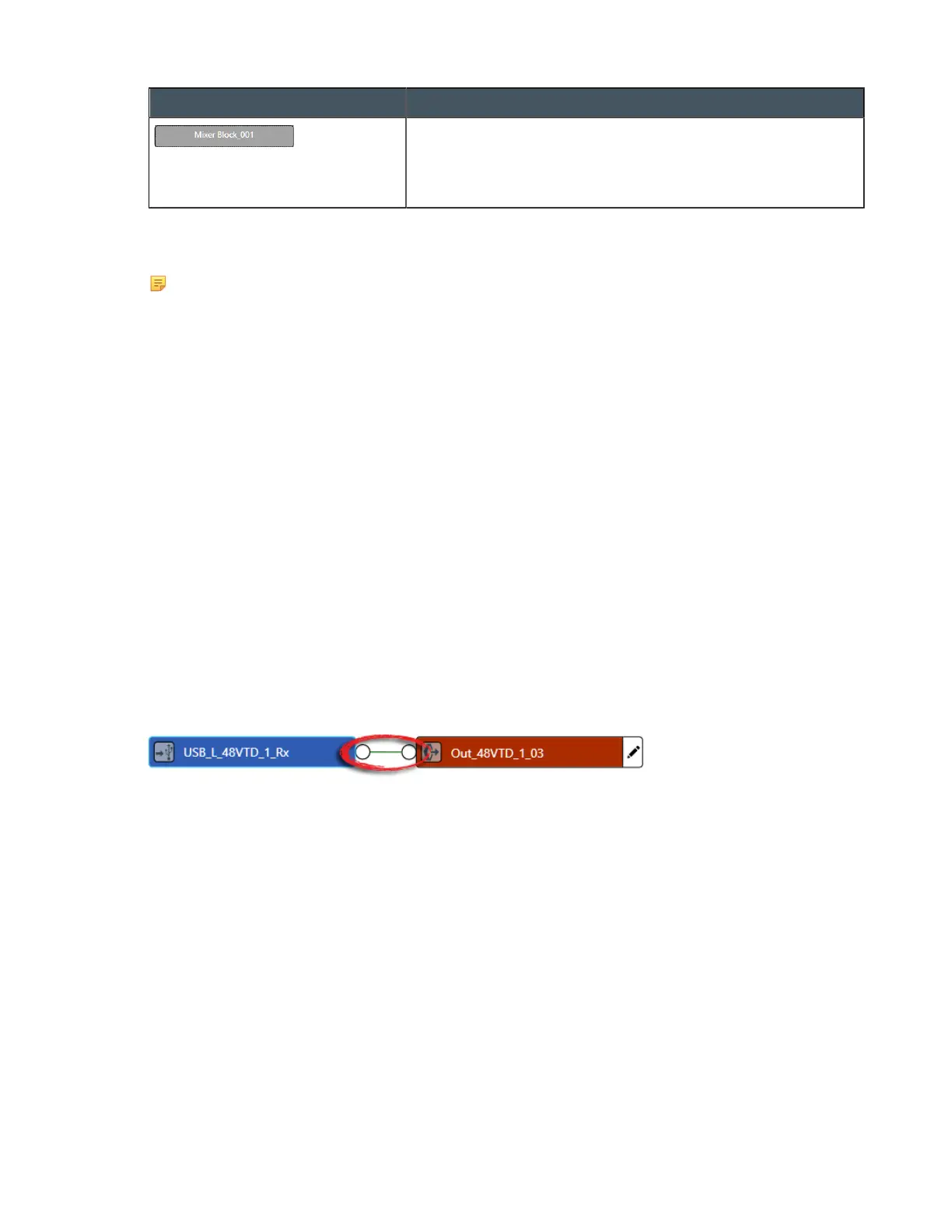
If you have successfully made the route connection, a solid line appears between the two channel
icons:
The color of the line depends on the crosspoint type. See Change Crosspoint Properties below for more
details.
12.To route audio from multiple channels to another channel, select more than one channel (drag around
several channel icons to select more than one) and then drag the entire group onto the connector of
another channel. The mouse pointer charges to a target to show that you are making a connection.
Channel routes are created for each selected channel.
13.To route audio from a channel group to a channel, or from a channel group to another channel group,
grab the channel group (you must select it anywhere except by the image at the left of the icon) and
drag it on top of another channel group icon or onto a channel icon. The mouse pointer changes to a
target to show that you are making a connection.
Channel routes are created for each member of the group or groups.
Use a Mini-Matrix
14.To see a Matrix view for selected channels, select multiple channels (by dragging completely around
a group of channels, using Shift-click to select a range of channels, or Ctrl-click to select multiple
channels individually), then right-click any of the selected channels and choose Show Mini-Matrix from
the context menu.
CONSOLE AI User Manual









 To Next Page