Step 5: Saving Test Results
1-22 72A-1898 Rev. A 11/01
Monday, November 26, 2001 1:09 pm
To run a test:
1. Select a test type from the picklist on the upper right corner of the
window.
2. Click Run XXX Test, where XXX designates the type of test.
3. Click Continue.
N
OTE
The test is run after step 3 for Slow Close and externally triggered tests.
In these cases, the Safety Bypass flag is used instead of the switch. For a
Slow Close test, manually close the circuit breaker within the selected
time (thirty seconds or one minute). For externally activated tests,
activate the trigger.
4. Press the button on the Safety Switch cable until the alarm ceases.
After test data is collected, the test results appear in graphic form. Refer to
”Running Tests” on page 4-75 for specific instructions on how to run the
test.
Step 5: Saving Test Results
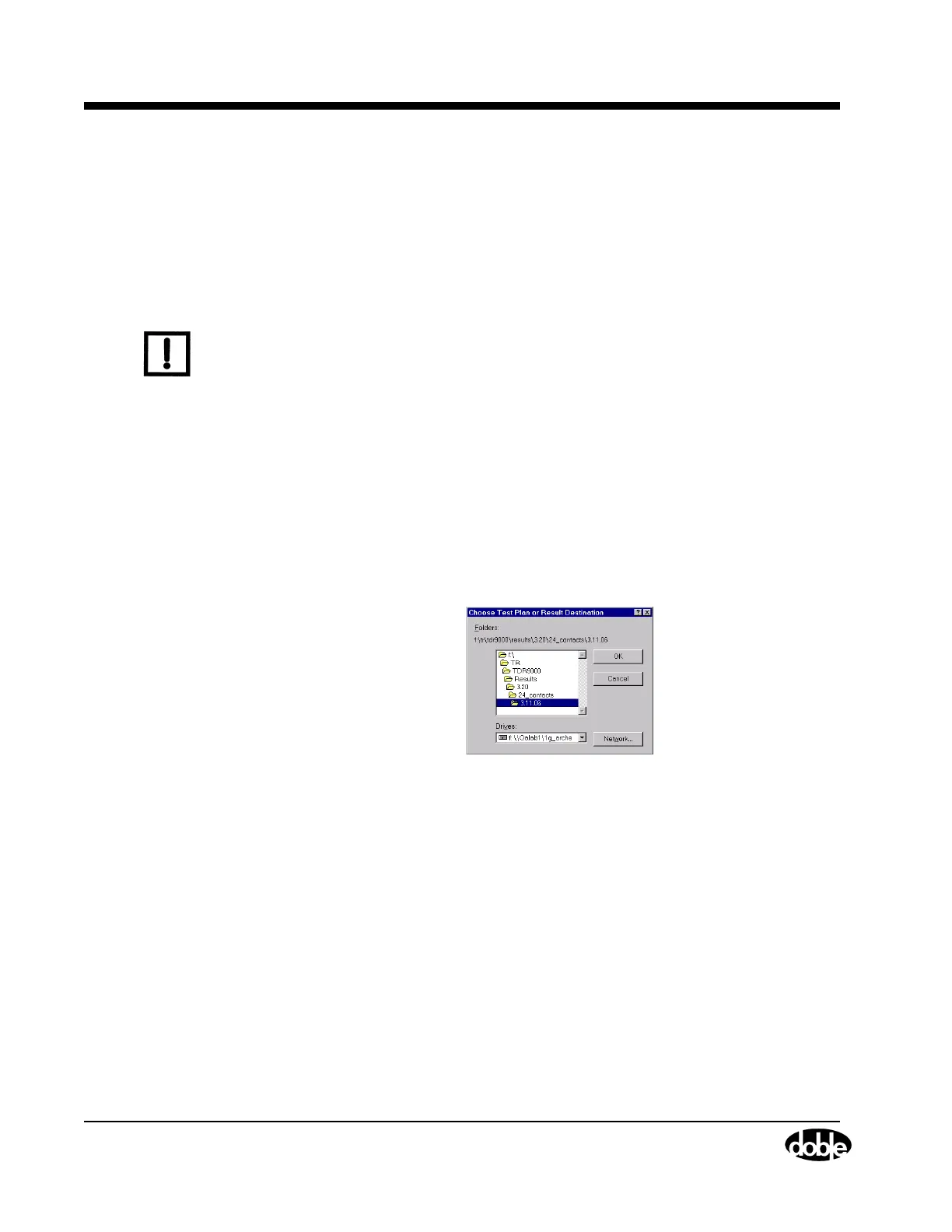
Figure 1.18 shows the initial window for saving Test Results.
Figure 1.18 Saving Test Results
To save Test Results while in either the tabulated or graphical test results
of TRXField:
1. Click Save on the File menu.
If a test has been run and the Tabulation or Graphics tab is selected,
the data is saved as a Test Result File.
The Save TDR9000 Test Result window appears.
2. Navigate to the desired folder and click Save.
For instructions on closing without saving, refer to ”Closing Without
Saving” on page 4-97.


 To Next Page