99
13-1-2. Recording Video and Key
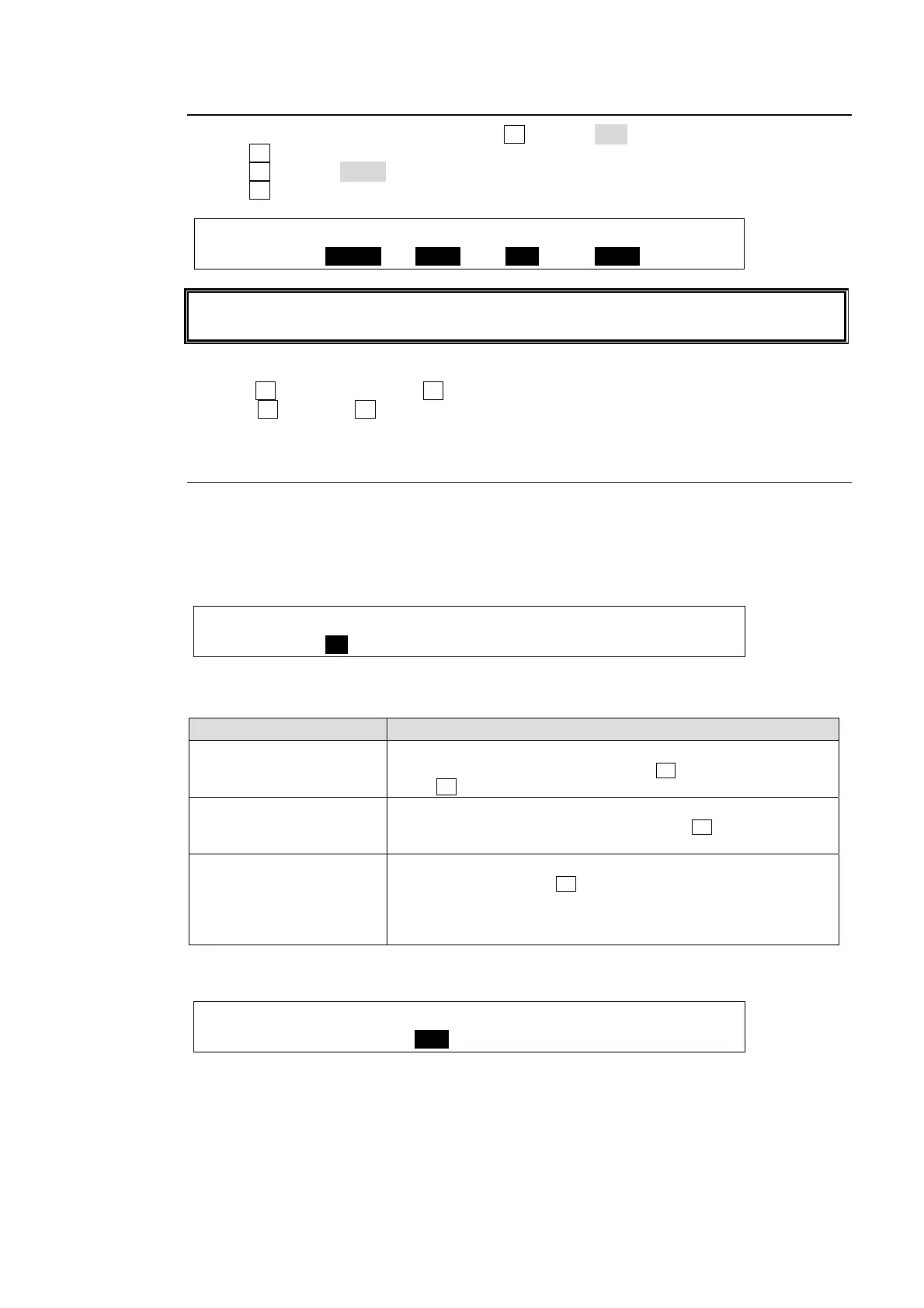
(1) Open PAGE2 in the [STILL] menu. Turn F3 to select KEY.
(2) Turn F4 to select a key signal to record.
(3) Turn F1 to select CL/DL.
(4) Turn F2 to select a video signal to record.
STILL :SOURCE1 ASSIGN :SOURCE2 ASSIGN : 2/6
SIGNAL : =CL/DL: =AUX1 : =KEY : =AUX2 :
If you need to record an input signal such as IN01, assign the signal to an AUX bus before
recording.
(5) Open PAGE 4 in the [STILL] menu.
(6)Press F3 while holding down F2 to begin recording.
(7) Press F1[STOP] or F3[PAUSE] to stop recording.
13-1-3. Recording Modes
Loop Recording
Loop recording automatically loops back to the memory start point when it reaches the 60th
frame and continues recording overwriting frames, until STOP is pressed. If LOOP is set to
ON, both playback and recording are changed to Loop mode.
LOOP can be set to ON on PAGE 6 of the [STILL] menu as shown below.
STILL : LOOP :RECMODE:KEYOUT : DELAY : 6/6
CLIP/DLY: =ON : =STD : =STIL1: =OFF : F=60
Recording Mode
Three modes are available for recording.
Mode Description
STD (STANDARD)
Standard mode.
In this mode, to start recording, press F3 [PLAY] while holding
down F2 [REC] on PAGE 4.
DRCT (DIRECT)
Direct mode.
In this mode, to begin recording, just press F2 [REC] on PAGE
4.
STP MT (STOP MOTION)
Stop Motion mode
In this mode, each time F2 {REC] is pressed, a frame is saved to
memory.
To record another video, clear the memory data before
recording. (See section 13-4 " Clearing Clip Memory".)
The recording mode can be set under RECMODE on PAGE 6 of the [STILL] menu.
STILL : LOOP :RECMODE:KEYOUT : DELAY : 6/6
CLIP/DLY: =ON : =STD : =STIL1: =OFF : F=60



 To Next Page