82
(11) Press the MENU control button in the Joystick block. Move the joystick up, down left and
right to move the crosshair cursor onto the desired color. Pressing the FINE button will
help you fine tune the adjustment. To precisely adjust the position, press F1 or F2, enter
the values directly into POSITION X and Y using the numeric keypad and then press
ENTER. Selecting a darker color makes adjustment easier.
(12) Twist the joystick counter-clockwise to generate the Chroma key. This can also be done
by turning F3 to set the SELECT item to OFF in the [KEY1 - AUTO CK] menu.
KEY1 : POSITION :SELECT :PGM OUT: 1/5
AUTO CK :X=100 Y=600 : =ON : =OFF :
10-6-2. Chroma Key adjustments
If the desired result is not achieved using the automatic chroma key generation procedure,
fine adjustments can be made as follows:
Adjusting Edges
Used to adjust the edge of the Keyed area when it appears unnatural.
Press the page down button to go to PAGE2 of the chroma key menu. Adjust the left edge in
the L (LEFT) item and the right edge in the R (RIGHT) item.
KEY1 : CK EDGE :CK MODE:CK MASK: 2/5
CK ADJT :L=0 R=0 : =NORML: =NORML:
Gain and Clip
These are used to adjust the key signal and its composition over the background image.
Press the page down button to go to PAGE3 of the chroma key menu. Turn F1 and F2 to
adjust the gain and clip.
KEY1 : GAIN : CLIP : HUE :COL CAN: 3/5
CK ADJT : =1.0 : =0.0 : =0.0 : =ON :
For chroma key, INVERT, GAIN, CLIP, and TRANSP in the KEY - INS/SRC] menu cannot
be set.
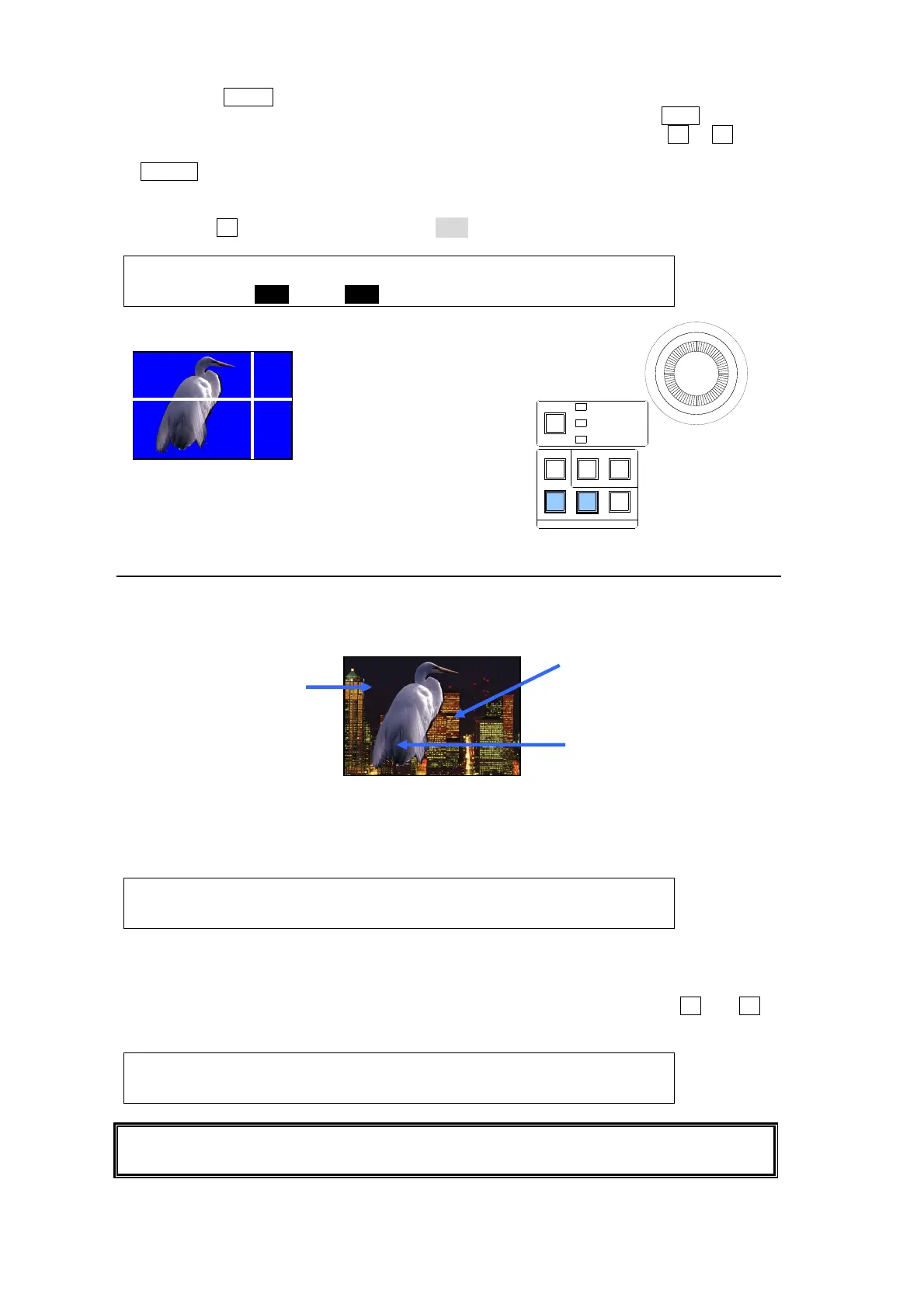
Use CK EDGE to smooth
chroma key edges.
Use COLOR CANCEL
and SUPPRESSION to
eliminate or reduce
color noise on the bird.
Adjust HUE, ANGLE and
NGLE OFFSET to make
the background clear.
BKGD
KEY1
KEY2
MENUMENU FINE DEF
ROTPOSWIPE POS
JOYSTICK
KEYER/P IN P
(2D DVE)
WIPE
CHANNEL
Move the crosshair with the
oystick along the X-Y axes and
twist the joystick CCW to create
a Chroma key..
Preview image



 To Next Page