33
5-6. Frame Synchronizer
A video frame synchronizer is provided for every input (this includes optional inputs). It is used to
synchronize asynchronous signals. Users can select whether to apply frame synchronization to
input signals or not (for each of them) as shown in the procedure below.
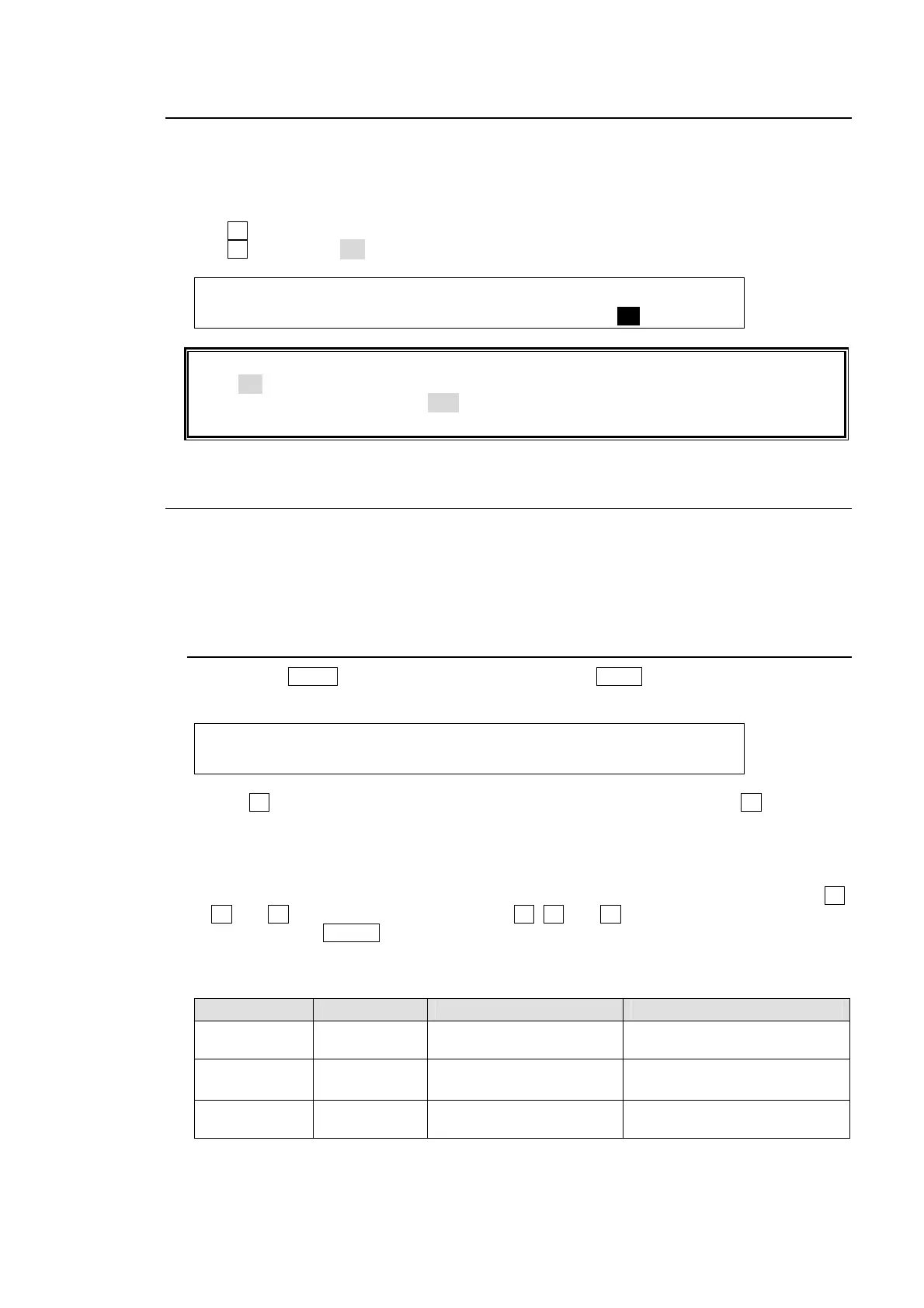
(1) Display the [SETUP - INPUT - SIGNAL] menu.
(2) Turn F1 to select an input signal for use.
(3) Turn F4 to set FS to ON and activate the frame synchronizer.
INPUT :SELECT : FORMAT :RESIZE : FS : 1/3
SIGNAL : =IN02 : =AUTO : =16:9 : =ON :
Ancillary data in input video cannot be passed through if FS (input frame synchronizer) is
set to ON or RESIZE is enabled. To pass ancillary data, input the video synchronized with
the genlock signal and set FS to OFF. Be sure to that ancillary data in SD inputs cannot be
used when the switcher operates in HD mode.
5-7. Bus Matte
One matte signal can be assigned to the M/E, P/P and KEY/AUX bus buttons. The matte signals
can be assigned to any bus button (Default assignment: Buttons 19 and 20). Refer to section
5-2. "How to Assign Sources to Bus buttons" for the matte assignment. The color for the bus
mattes can be specified in the [MATT COLOR] menu.
5-7-1. Setting Up the Matte Color
(1) Press the MENU control button and then press the MATT button to display the MATT
menu.
MATT1 : BUS MATT1 COLOR :RECALL : 1/4
COLOR :S=50.0 L=80.2 H=125.5: >GREEN:
(2) Turn F4 to select a color from the following 8 standard colors. Then press F4 to apply the
setting.
WHITE, YELLOW, CYAN, GREEN, MAGENTA, RED, BLUE and BLACK
If you want to adjust the selected color or set the color by entering its HSL values, turn F1,
F2 and F3 to enter these values or press F1, F2 and F3, enter a value from the Keypad
and then press ENTER (from the keypad). Users can also set these three parameters via
the JOYSTICK block. (See section 4-2-4. "Changing Settings or Values Using the
Joystick.")
Parameter Setting Range Description Joystick operation
S(saturation) 0.0 to 100.0 Adjusts color saturation.
Moves Joystick horizontally
(X -axis)
L (luminance) 0.0 to 100.0
Adjusts color luminance.
Moves Joystick vertically
(Y -axis)
H (Hue) 0.0 to 359.5 Adjusts color hue.
Twists Joystick cw or ccw.
(Z -axis)



 To Next Page